3.6.6 Item write-off
Article goal
Show how a club administrator can write off an item from the store balance via the admin panel: from selecting an existing item to confirming the write-off.
Who this article is for
- Club administrator
- Users with access rights to the “Store” section in the admin panel
What you will learn
- How to write off an existing item from the store
- How to filter items by category for convenience
- What to do if an item is not displayed or categories are not created
Prerequisites
Before you start, make sure that:
- You have an administrator account with access to item creation and receipt functionality
- Access to the admin panel is available
Step-by-step guide
Step 1. Go to the “Item write-off” section
- Log in to the admin panel.
- Go to “Store” → “Item write-off”.
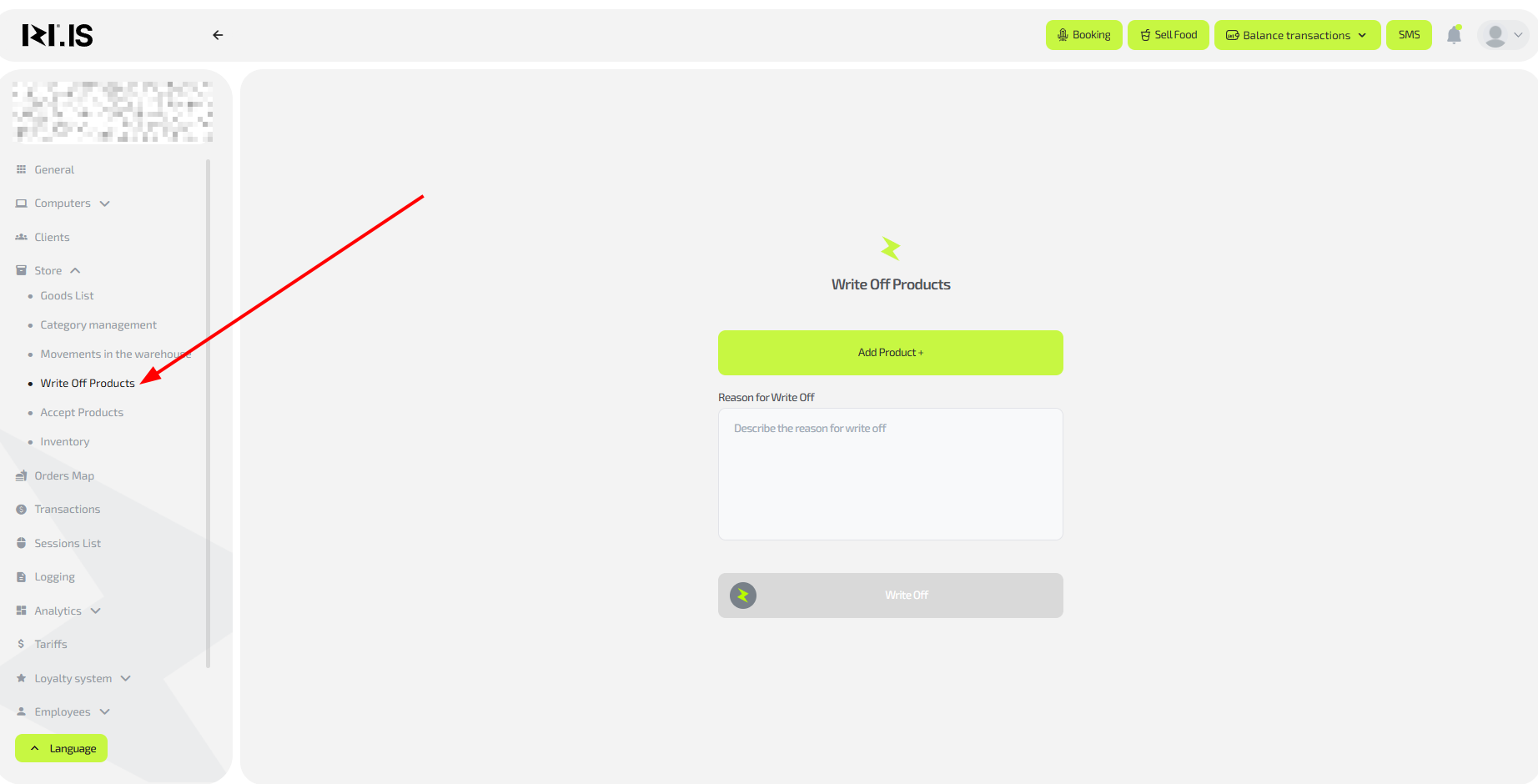
Step 2. Write off an item
- Click the “Add product+” button.
- In the window that opens, select items from the list and specify the quantity to be written off.
- For convenience, filter items by category (categories must be created in “Items list” beforehand).
- Click “Select items” to confirm the selection.
- Click “Write off”.
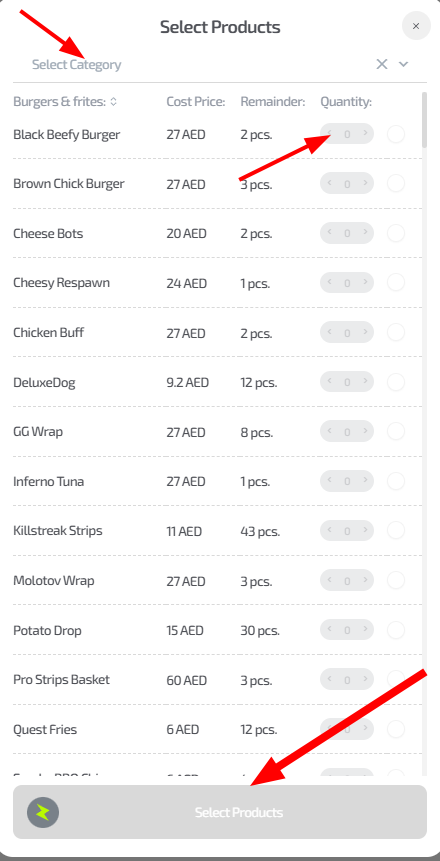
Tip: Enter the exact quantity to avoid accounting errors. Write-off is used when items are transferred or spoiled.
Common situations
| Problem | What to do |
|---|---|
| Item is not found in the list | Check filters by category or create the item in “Items list”. |
| Categories are not displayed | Create them in the “Items list” subsection and refresh the “Item write-off” section. |
| Write-off is not saved | Make sure the quantity is specified correctly; refresh the page and try again. |
| Access error | Check the account permissions and contact the system administrator. |