3.5 Clients
Article goal
Show the administrator or club owner how to quickly find clients in the system, manage their balances, and analyze visit statistics for effective service.
Who this article is for
- Club administrator
- Manager
- Cashier
What you will learn
- How to quickly find a client card by phone number
- How to correctly top up or adjust the balance in case of technical issues
- How to analyze client statistics for a personalized approach
- What the difference is between gaming and bonus balance
- How to avoid mistakes when working with financial operations
Prerequisites
- You have administrator or club owner rights
- The client is registered in the system
Step-by-step guide
Step 1. Find the client in the system
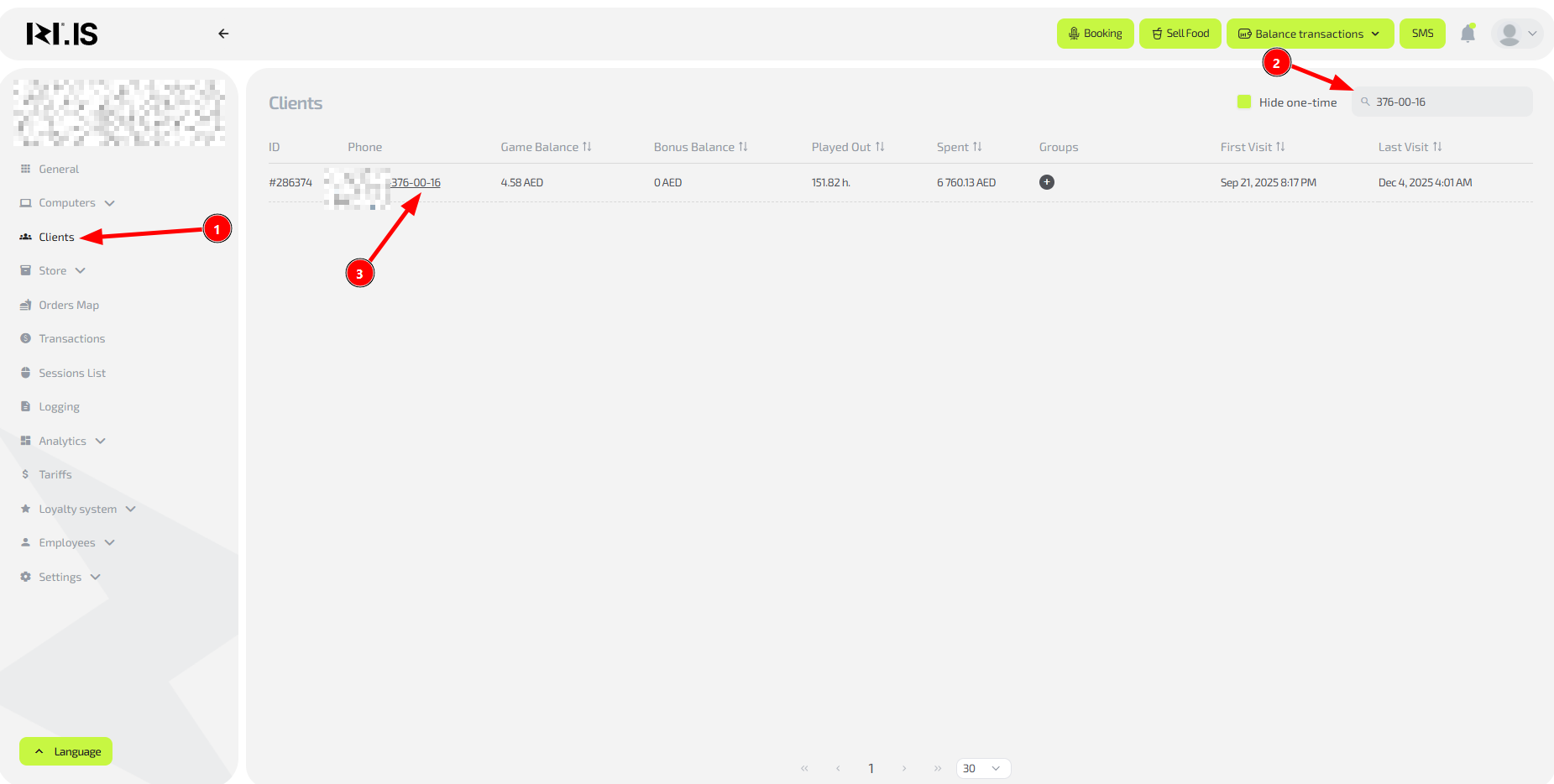
Why this is needed: To quickly access the client card for balance top-up, checking statistics, or resolving disputes. For example, when a client says “I topped up, but the money didn’t arrive”, you can instantly check their balance.
- Open the “Clients” section
- In the search field, enter the last 4–6 digits of the phone number
- Select the required client from the results list
Tip: Search works even with a partial match of the phone number digits. You don’t need to enter the full number.
Step 2. Edit the balance if necessary
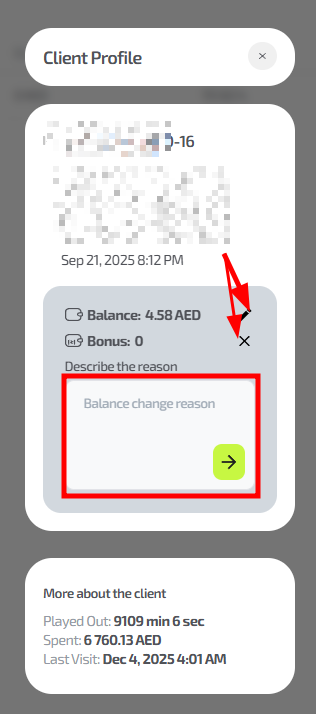
Why this is needed: To correct technical errors or credit bonuses. For example, if the payment system failed, you can manually credit the amount that the client has already paid.
- In the client card, find the “Game balance” and “Bonus balance” blocks
- Click “Change” next to the required balance
- Enter the amount and be sure to specify the reason:
- “Refund” — if you need to give money back to the client
- “Technical error” — if the payment did not pass automatically
- “Bonus credit” — to reward the client
- Confirm the operation
Important: All operations are logged in the system for audit. Never change a balance without specifying a reason.
Step 3. Analyze the client’s statistics
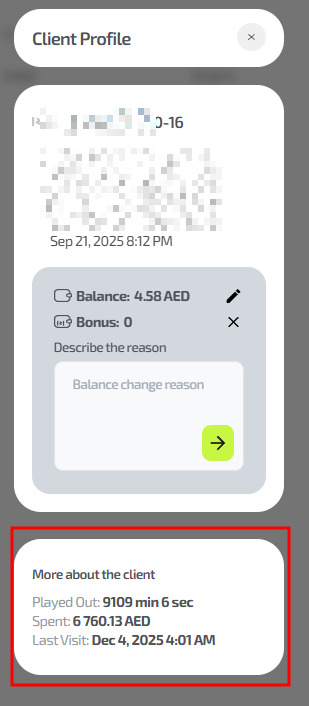
Why this is needed: To understand client value and offer personalized conditions. For example, if a client regularly visits the club in the evenings, you can offer them an evening tariff.
In the client card you will see:
- Played — total time spent in the club
- Spent — total amount of real money spent
- Last visit — when they last came
Example: If the client last visited 2 months ago, you can send them a promo code to bring them back. If they spend a lot — offer VIP status.
Typical situations
| Problem / Question | Solution |
|---|---|
| The client is not found by phone number | Make sure you enter the last 4–6 digits. Check if the client is correctly registered |
| The client paid, but the money did not reach the balance | Check that the payment was received in the cash register. If payment is confirmed, manually credit the amount to the game balance |
| You need to refund money to the client | Deduct the amount from the game balance with the reason “Refund” and give the money from the cash register |
| The client asks to convert bonuses to money | Explain that bonuses can only be used to pay for game time |
| The full history of operations is not visible | Detailed transaction history is available in the “Transactions” section with a filter by client |
Important features of the bonus balance
Up to 100% game time payment: Bonuses can be used to fully pay for a PC session.
Not for the bar: Bonuses cannot be used to pay for food, drinks, or other services.