How to configure tariffs for different days of the week in IZI
Article goal
Show how a club administrator can configure different prices for tariffs depending on the days of the week (for example, weekdays and weekends) in the IZI CRM system.
Who this article is for
- Club administrator
- Users with access rights to the “Tariffs” section in the admin panel
What you will learn
- How to select and configure days of the week for a tariff
- How to add periods for different groups of days
- Limitations for day selection and configuration of multiple tariffs
- What to do if settings are not applied or are duplicated
Prerequisites
Before you start, make sure that:
- You have administrator rights with access to the “Tariffs” section
- Tariffs are already created or you are ready to create them in the system
- Access to the admin panel is available
Step-by-step guide
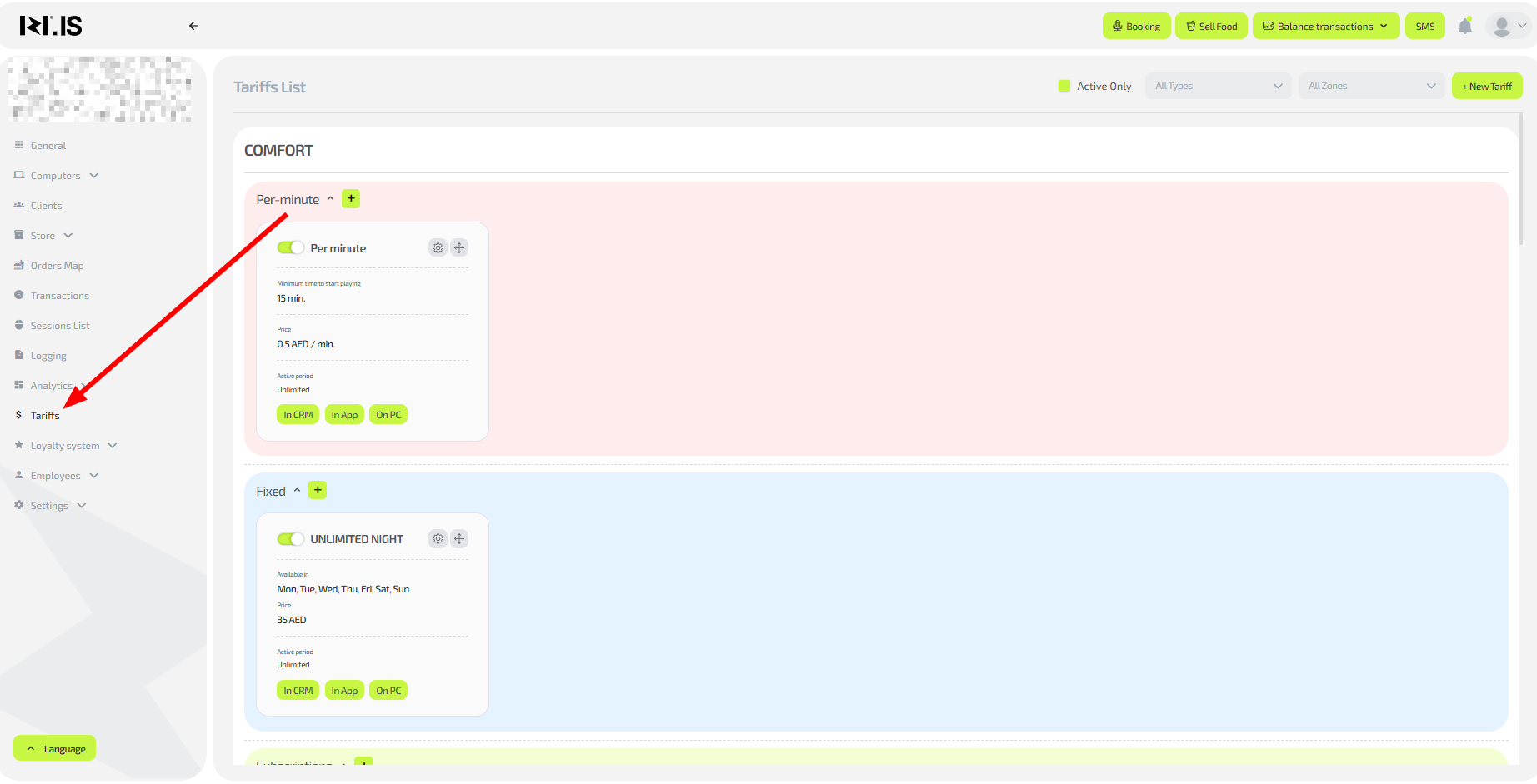
Step 1. Go to the “Tariffs” section
- Log in to the IZI CRM admin panel.
- Go to the “Tariffs” section.
Step 2. Select or create a tariff
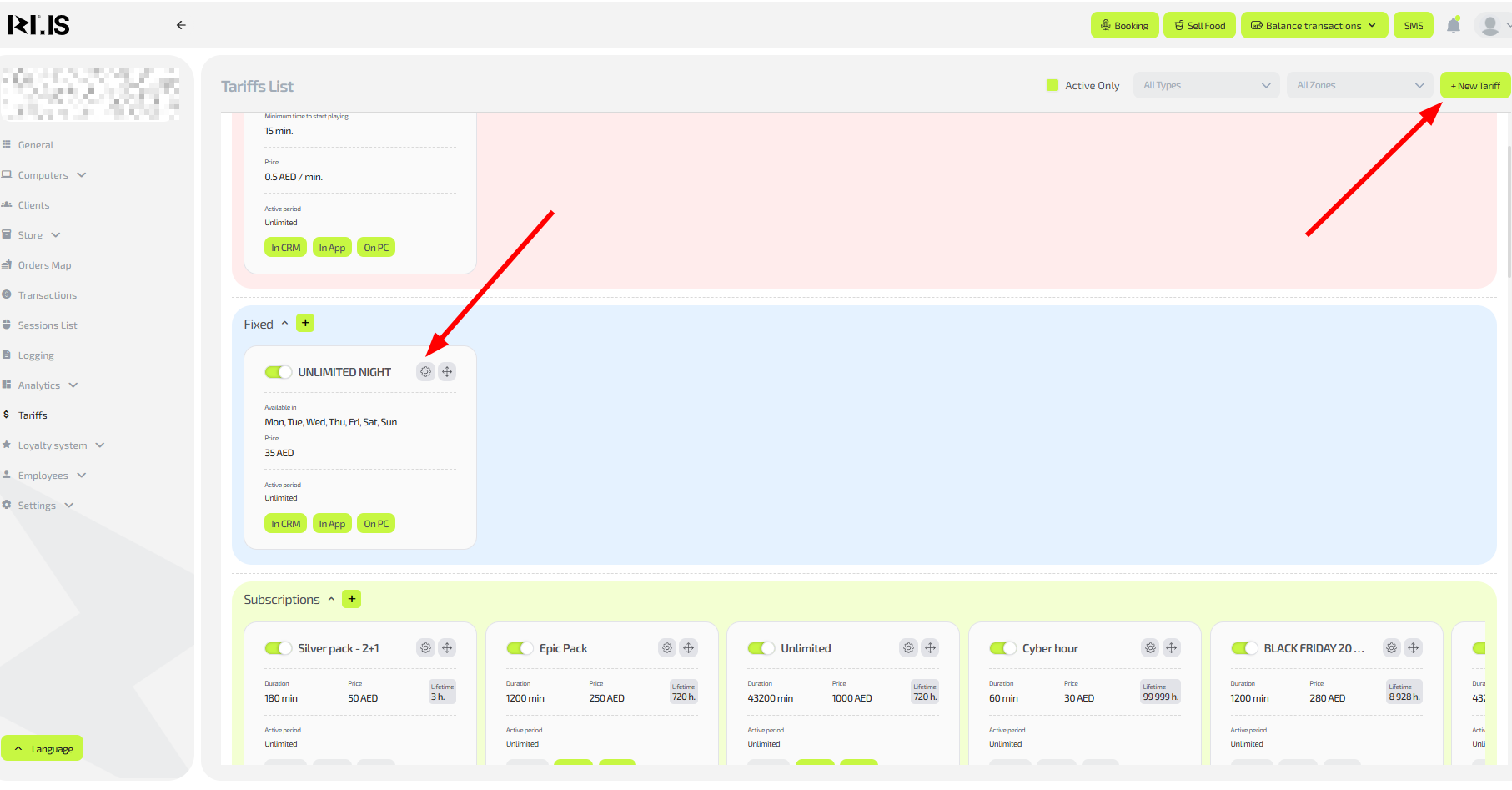
- Select an existing tariff or click “Create new tariff”.
- Click the edit button (gear icon).
Step 3. Configure the period for the first group of days
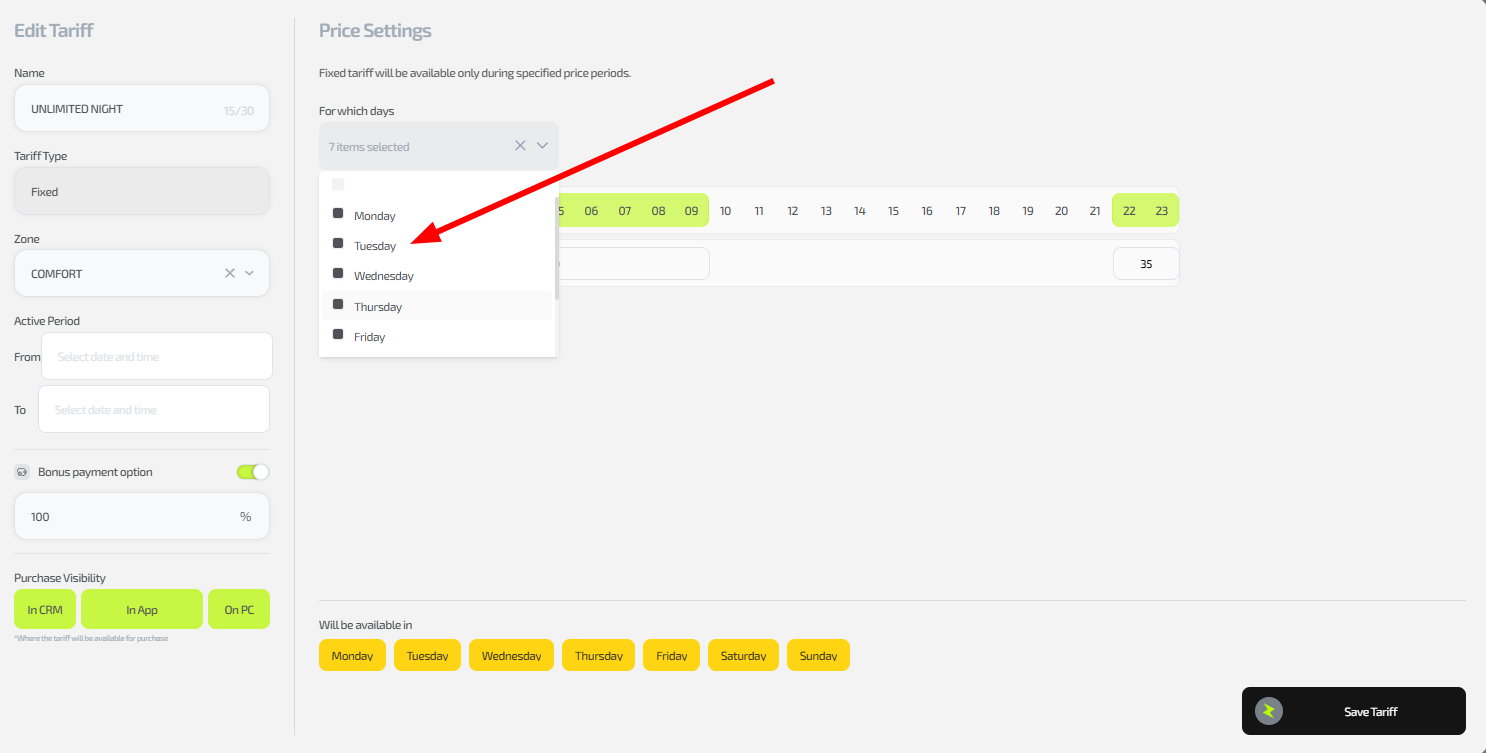
- In the right part of the window, in the dropdown menu, select the required days of the week (for example, weekdays: Monday–Friday).
- Add or edit the price for these days.
Step 4. Add periods for the remaining days
- Click “Add period for tariff”.
- In the new subsection, repeat Step 3: select other days (for example, Saturday–Sunday) and set the price.
- Repeat adding periods as many times as needed (one period per group of days).

Important: Each day of the week can be selected only in one period — duplicates are not allowed. If you configure several tariffs, repeat this process for each one separately.
Step 5. Save the changes
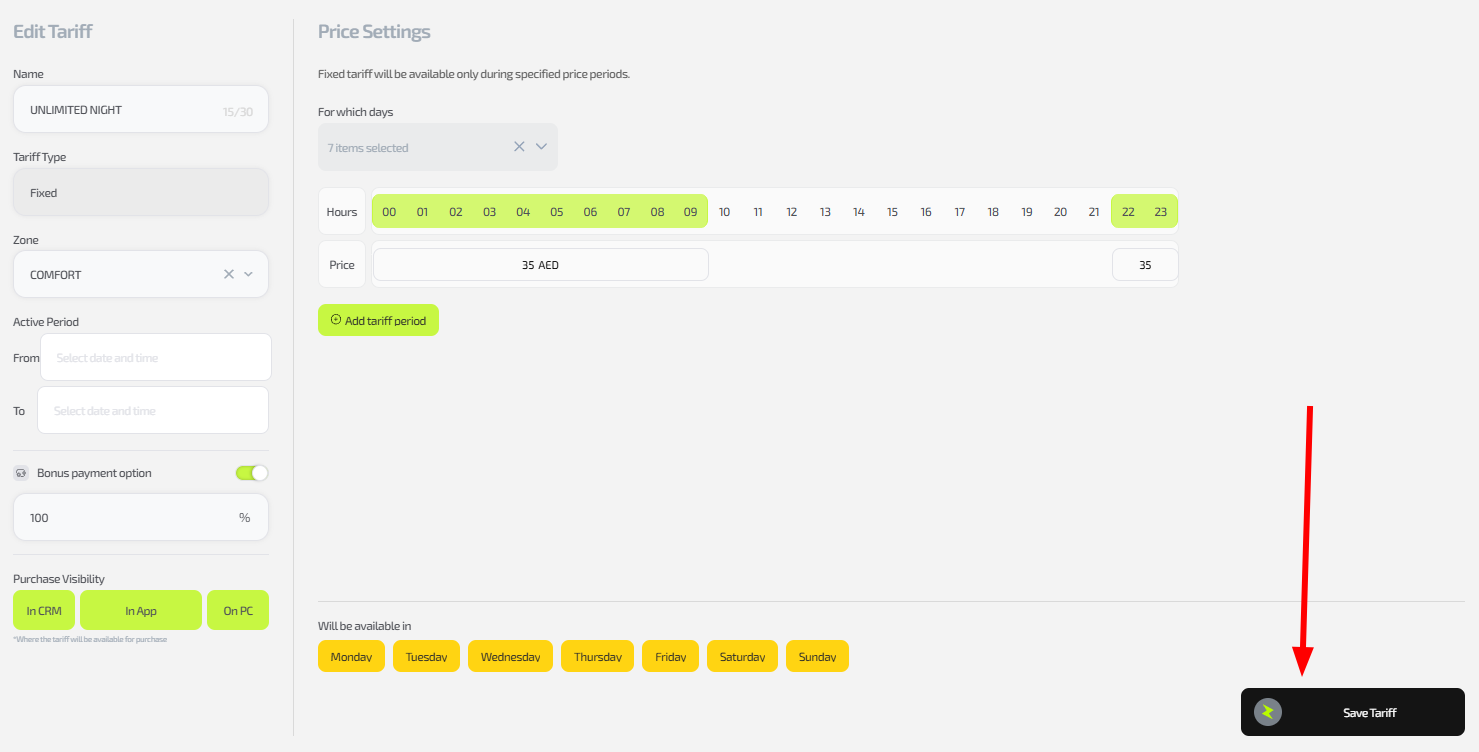
- After setting all periods click “Save tariff”.
- Check that it works: create a test session on different days.
Common situations
| Problem | What to do |
|---|---|
| A day of the week cannot be selected | Make sure it is not selected in another period; delete the duplicate and try again. |
| The period is not added | Check that all fields (including price) are filled in; refresh the page. |
| Settings are not applied to sessions | Test on a new session; make sure the tariff is active. |
| You need to configure many tariffs | Repeat the process for each; there is no automation yet. |