3.11.1 Per-minute tariff (Creation)
Article goal
Show a club staff member how to create a per-minute tariff in the IZI system and configure it for automatic extension of gaming sessions.
Who this article is for
- Club owners
- Partners with Owner-level access
⚠️ Important: Creating and editing tariffs is available only under the club owner account. This functionality is not available under an administrator account.
What you will learn
- What the per-minute tariff is used for
- Where the per-minute tariff is created
- Which fields must be filled in
- Which limitations the per-minute tariff has
Prerequisites
Before you start, make sure that:
- You are logged into CRM with the club Owner role
- PC zones are already created in the system
- The “Tariffs” section is available in the menu
What the per-minute tariff is used for
The per-minute tariff is used for:
- Flexible payment for gaming time
- Automatic session extension when the main package has ended and was not extended manually
- Correct work of bookings and transitions between packages
⚠️ For each PC zone only one active per-minute tariff can exist, and this is the one the system uses for auto extension.
Step-by-step creation guide
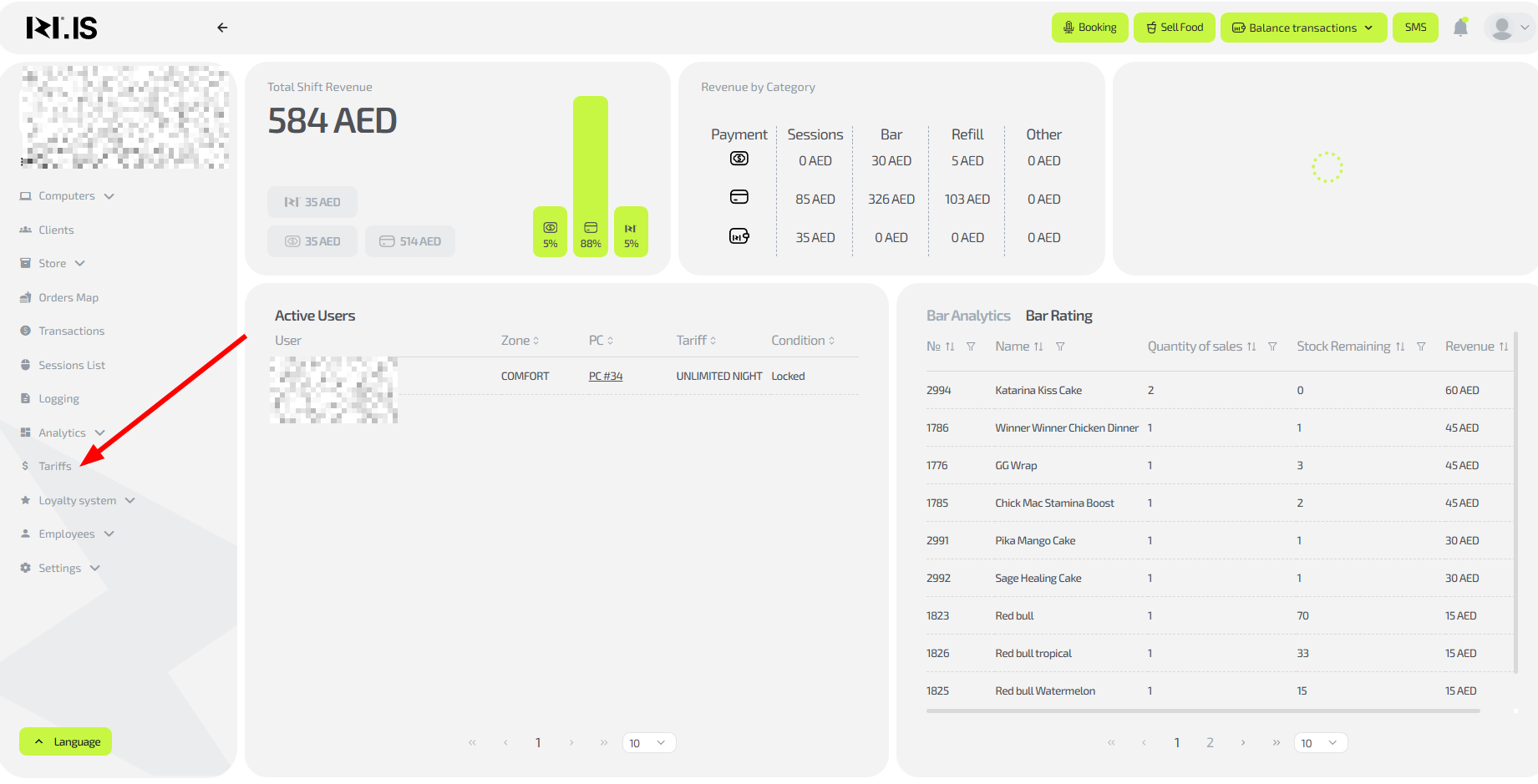
Step 1. Go to the “Tariffs” section
On the CRM main page, in the left menu click:
Tariffs
Step 2. Create a new tariff
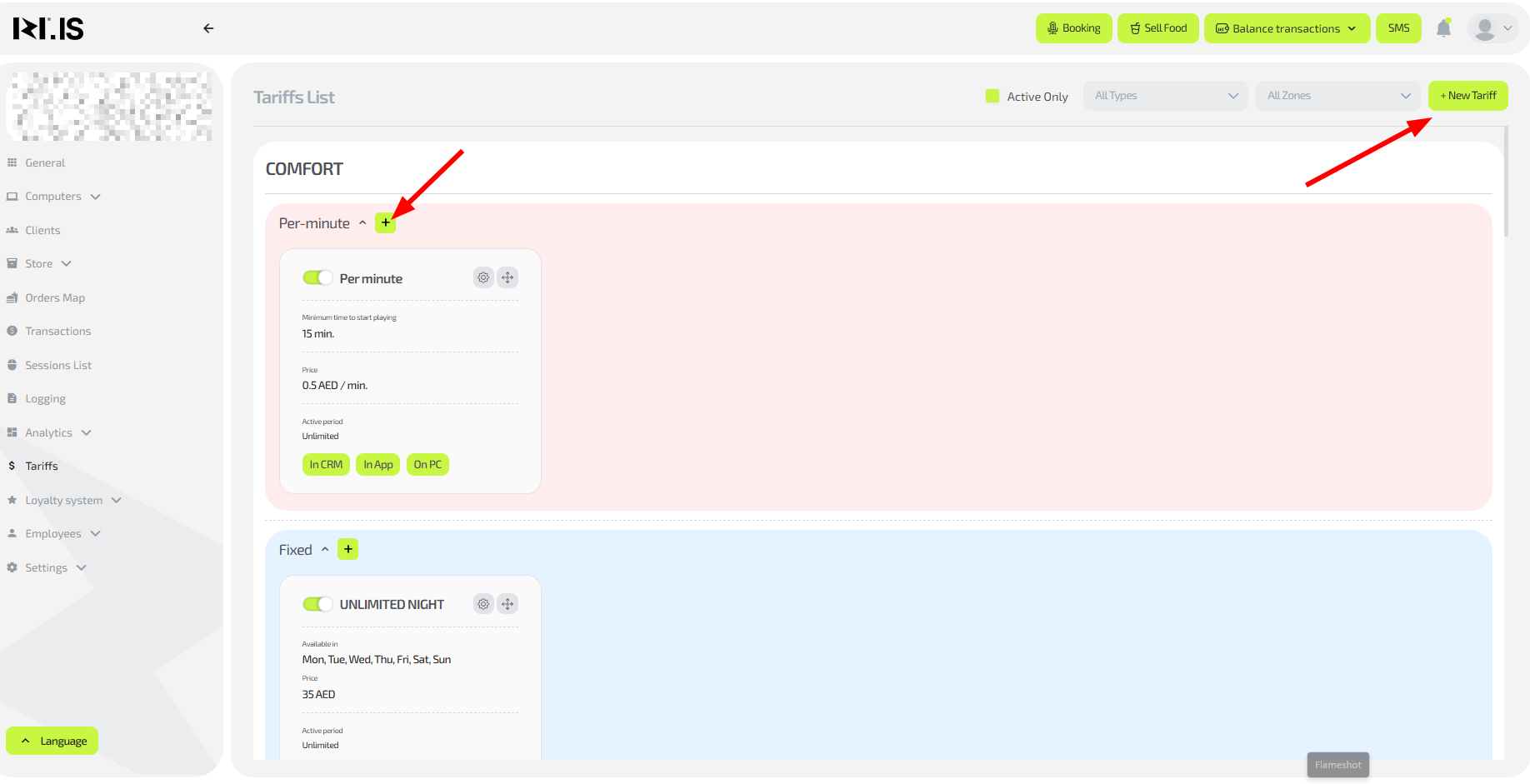
Choose one of the options:
- Click “+ New tariff” in the upper-right corner
- Or click “+” in the “Per-minute” subsection of the required tariff group
Step 3. Fill in the left side of the form
Specify:
- Tariff name
- Tariff type — “Per-minute”
(If you clicked “+” in the “Per-minute” subsection, the type will be filled automatically) - PC zone
(Also filled automatically depending on the group selected) - Tariff visibility — where it will be available:
- CRM
- Mobile app
- PC
⚠️ Reminder: only one per-minute tariff can exist per zone, and it is used for auto extension.
Step 4. Fill in the right side of the form
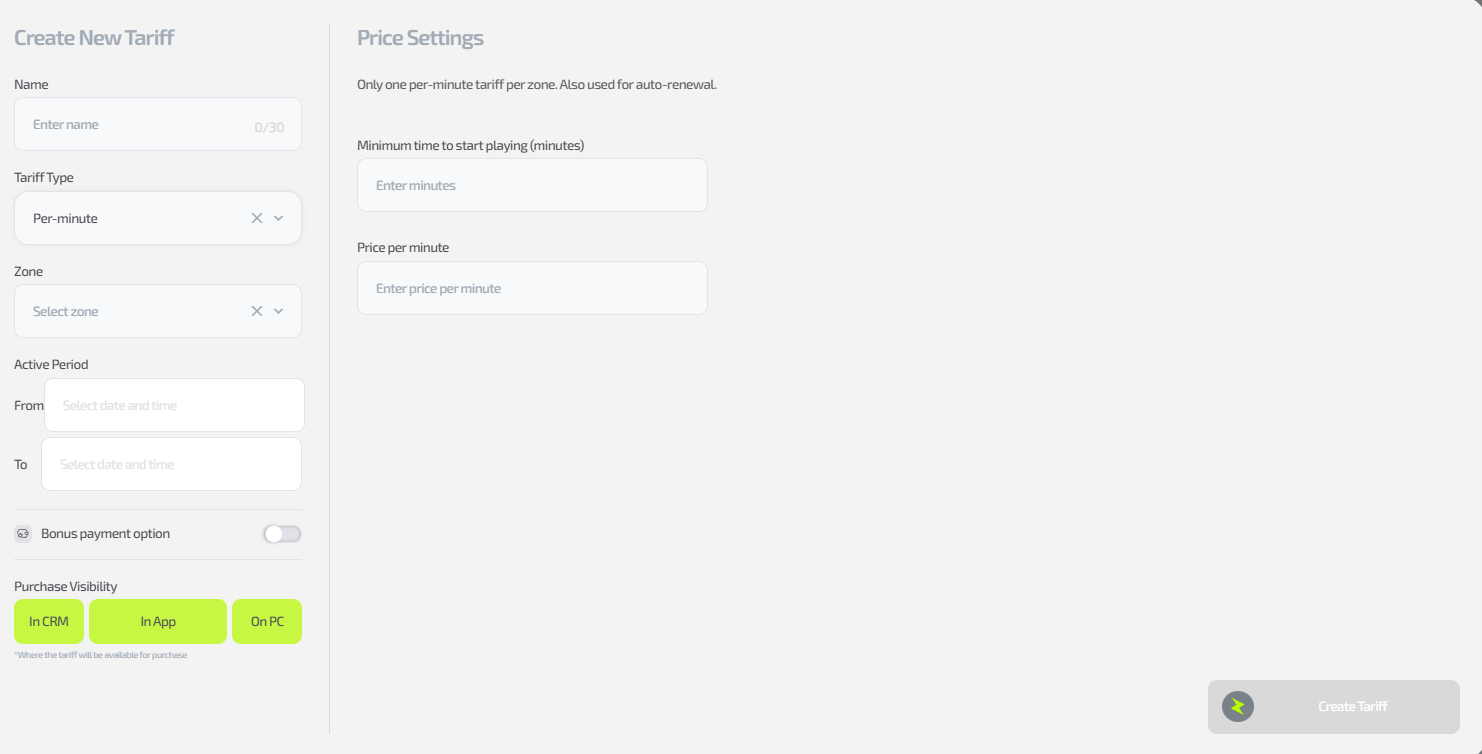
Specify:
- Price per hour
(the per-minute price is calculated automatically) - Minimum start time in minutes
— the minimum time for which a session can be started with this tariff
Allowed values:
- Minimum — 5 minutes
- Maximum — 99999 minutes
Step 5. Save the tariff
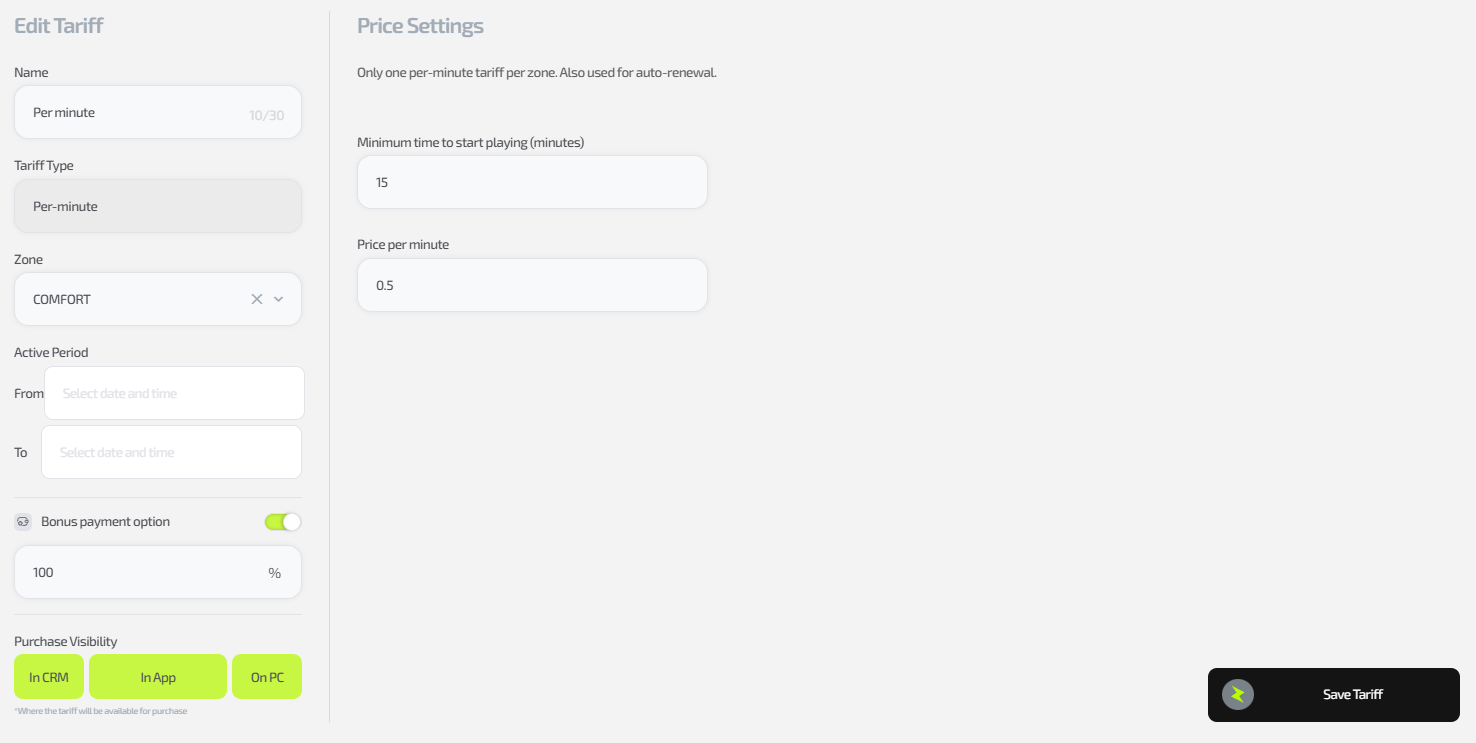
Click:
“Add tariff”
Done! The per-minute tariff is created and available for use.
Common situations
| Problem | What to do |
|---|---|
| You cannot create a tariff | Make sure you are logged in with the Owner role |
| You cannot create a second per-minute tariff in a zone | Only one active per-minute tariff is allowed per zone |
| The tariff does not appear when working with a session | Check its visibility (CRM / app / PC) |
| The session is not extended automatically | Check whether a per-minute tariff is assigned for the zone |
Important: to create or edit a tariff, you must be logged in under the club owner account. It is not possible to do this under an administrator account.
The per-minute tariff is used for more flexible payment and for automatic extension when some other package expires and was not extended in advance.
- On the main page, in the left menu click “Tariffs”.
2. Click the “+New tariff” button in the upper-right corner or “+” in the “Per-minute” subsection of the required group.
3. In the left part of the opened window specify:
- the name of the new tariff;
- type “Per-minute” (if in p.2 you clicked “+” in the “Per-minute” subsection, the type will be selected automatically).
Note: there can be only one per-minute tariff per zone and this is the one that will be used for auto extension.
- the PC zone (will also be selected automatically depending on p.2);
- tariff visibility (where the tariff will be available for purchase — CRM, app, PC).
4. In the right part of the window specify:
- price per hour (the per-minute price will be calculated from it);
- minimum play time in minutes (the minimum number of minutes for which this tariff can be enabled). Note: the minimum value is 5 minutes, the maximum is 99999 minutes.
5. Click “Add tariff”.
Done, the tariff is added and available for use.