3.11.3 Subscriptions. Creating a tariff
Article goal
Show how the club owner can create or edit a subscription tariff that provides a fixed amount of PC time during the subscription validity period.
Who this article is for
- Club owner
- Users with an owner account (an administrator has no rights to create/edit tariffs).
Step-by-step guide
Step 1. Go to the “Tariffs” section
On the main page, in the left-hand menu click “Tariffs”.
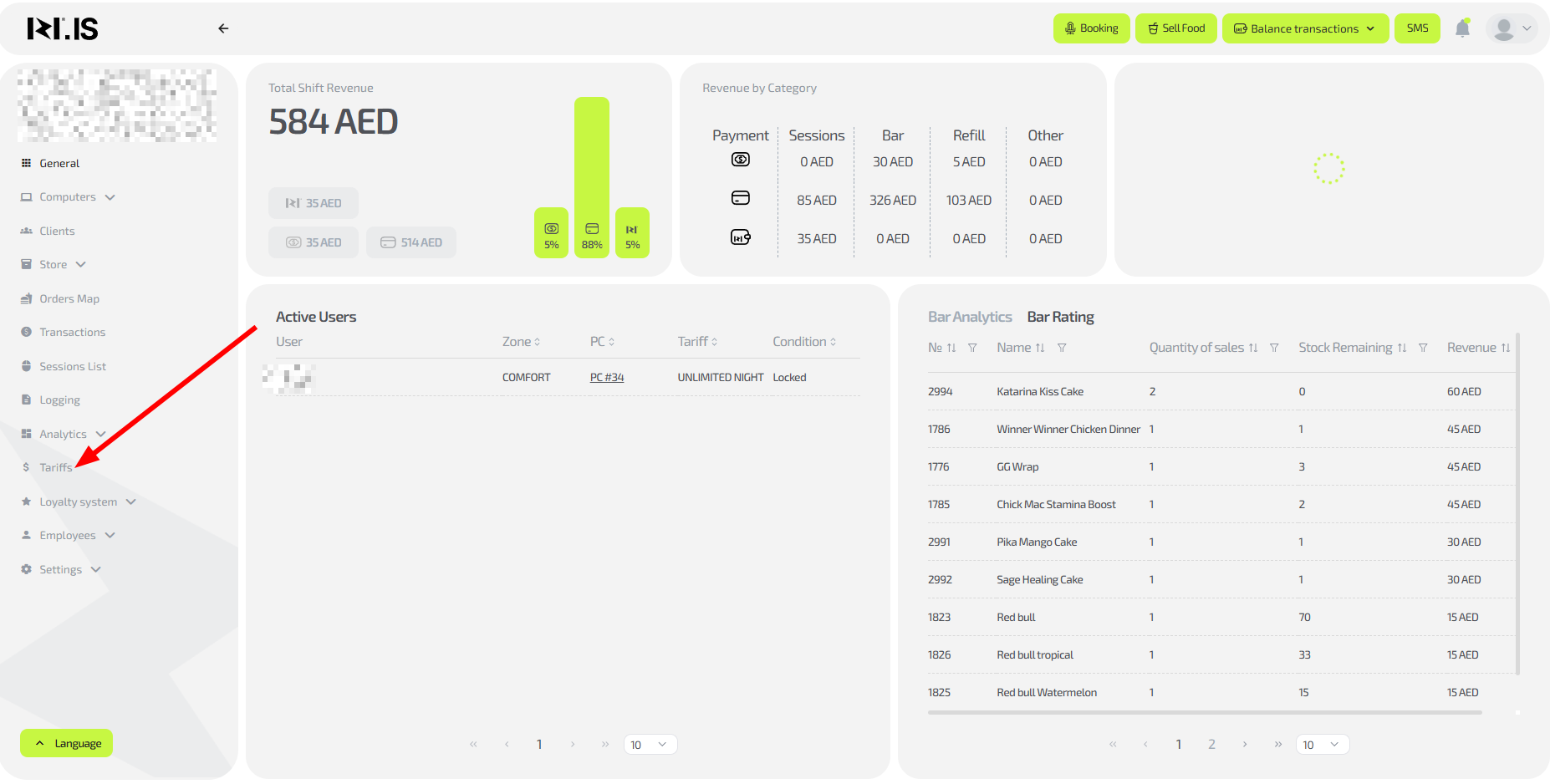
Step 2. Start creating a subscription tariff
Click the “+ New tariff” button in the top right corner or “+” in the “Subscriptions” subsection of the required group.

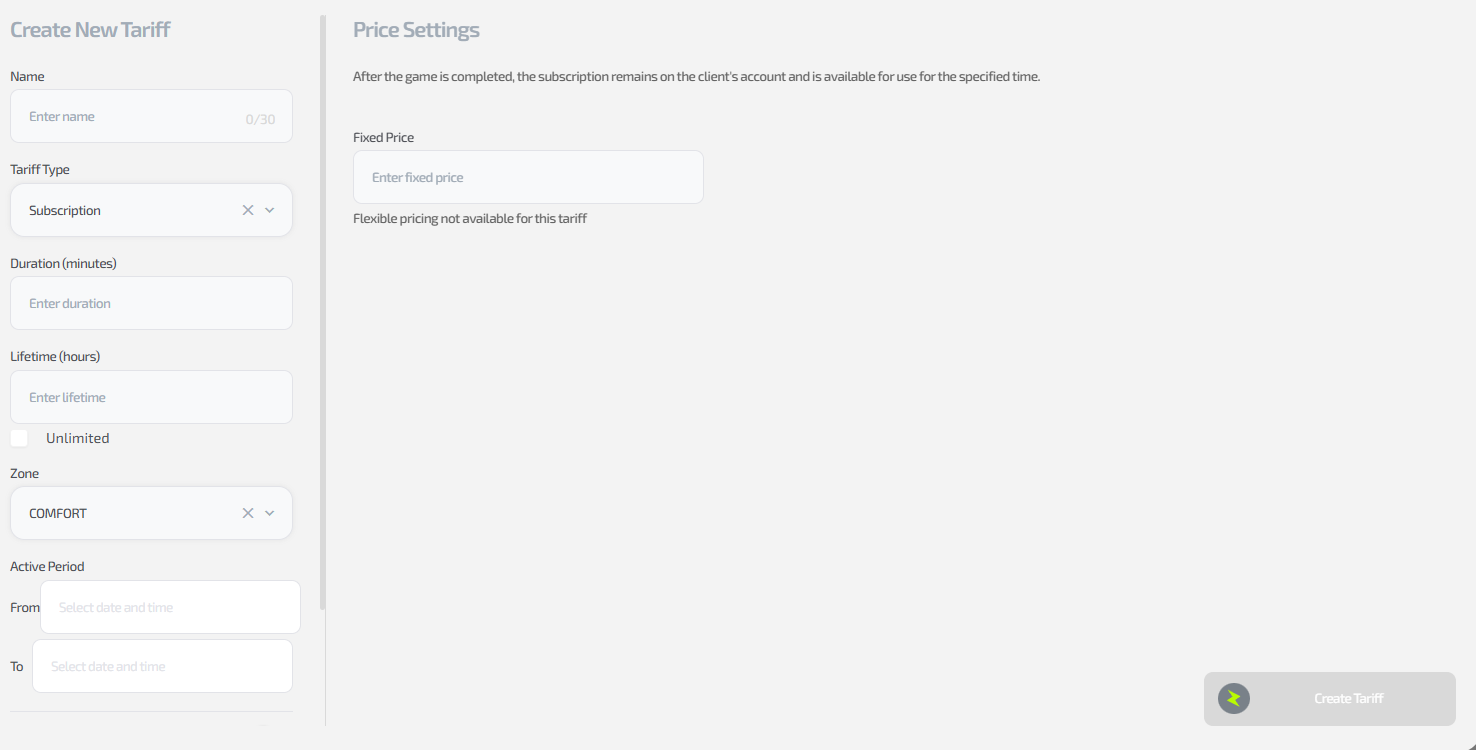
Step 3. Fill in the left side of the window
In the left part of the opened window specify:
- the name of the new tariff;
- type “Subscription” (if in step 2 you clicked “+” in the “Subscriptions” subsection, the type will be selected automatically);
- tariff duration in minutes (time directly at the PC);
- lifetime in hours (for how long the subscription can be used; you can tick “Unlimited”);
- PC zone (will also be selected automatically depending on step 2);
- validity period (specified if needed, optional field, used for promotional tariffs);
- ability to pay for the tariff with bonuses. Enable this option and set what percentage of bonuses can be used to pay for this tariff;
- tariff visibility (where the tariff will be available for purchase — CRM, app, PC).
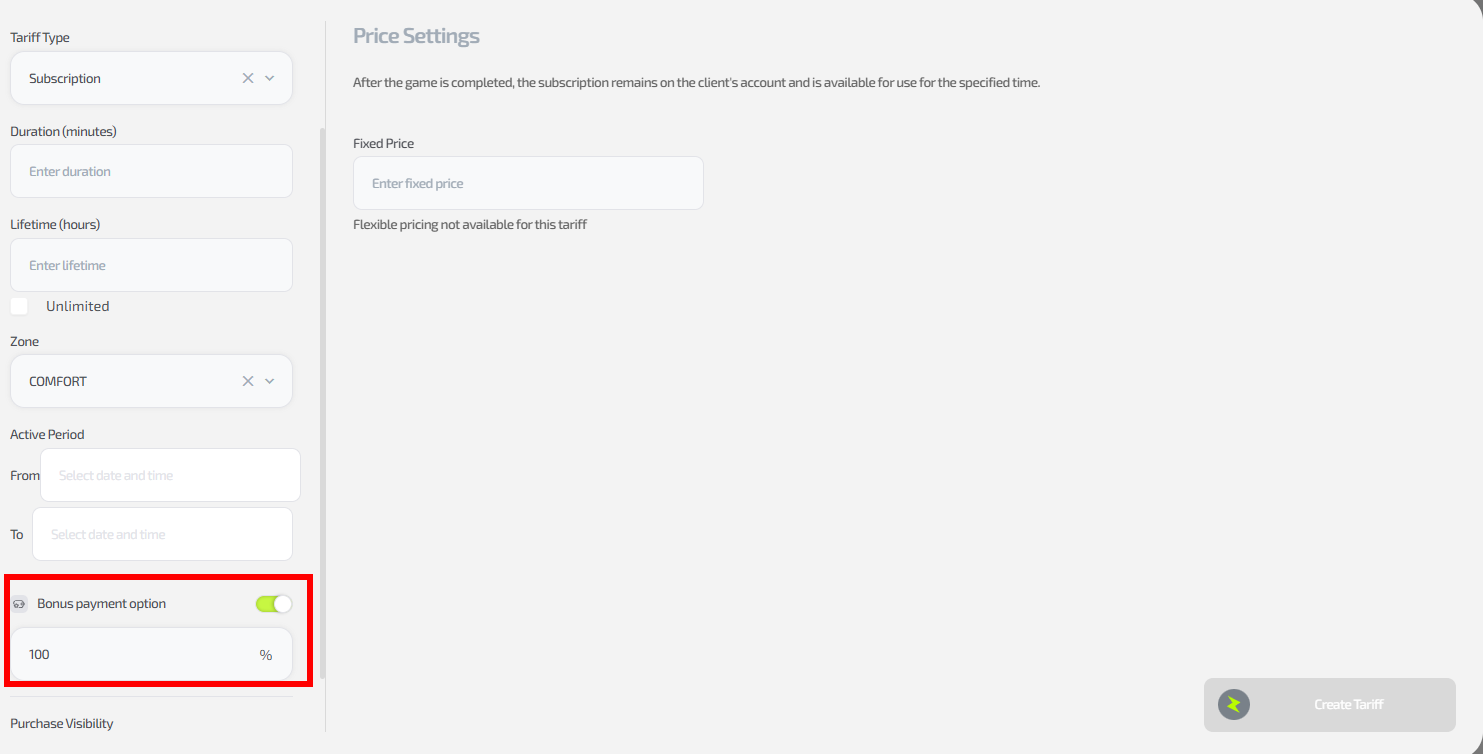
Step 4. Fill in the right side of the window
In the right part of the window specify the fixed price of the tariff.

Step 5. Save the tariff
Click the “Save tariff” button.
Done, the tariff is added and available for use.
Common situations
| Problem | What to do |
|---|---|
| No rights to create | Log in under the owner account; the administrator cannot edit. |
| Hours are calculated incorrectly | Set the end 1 hour lower; check the fragments for night tariffs. |
| The tariff is not displayed | Check visibility (CRM/app/PC); refresh the page. |
| Periods are not saved | Make sure the price is specified for all fragments; do not duplicate days. |