3.11.6 Tariff display
Article goal
Show how a club staff member can configure tariff visibility in the mobile app, CRM and on PCs in the IZI CRM system to improve client experience and support exclusive offers.
Who this article is for
- Senior club administrator
- Users with access rights to the “Tariffs” section in the admin panel
What you will learn
- Where tariffs are displayed in IZI (app, CRM, PC)
- How to configure visibility for specific places
- Usage examples (exclusive tariffs, promotions)
- What to do if a tariff is not displayed after configuration
Prerequisites
Before you start, make sure that:
- You have administrator rights with access to the “Tariffs” section
- Tariffs are already created or you are ready to create them
- Access to the admin panel is available
Step-by-step guide
Step 1. Go to the “Tariffs” section
- Log in to the IZI CRM admin panel.
- Go to the “Tariffs” section.
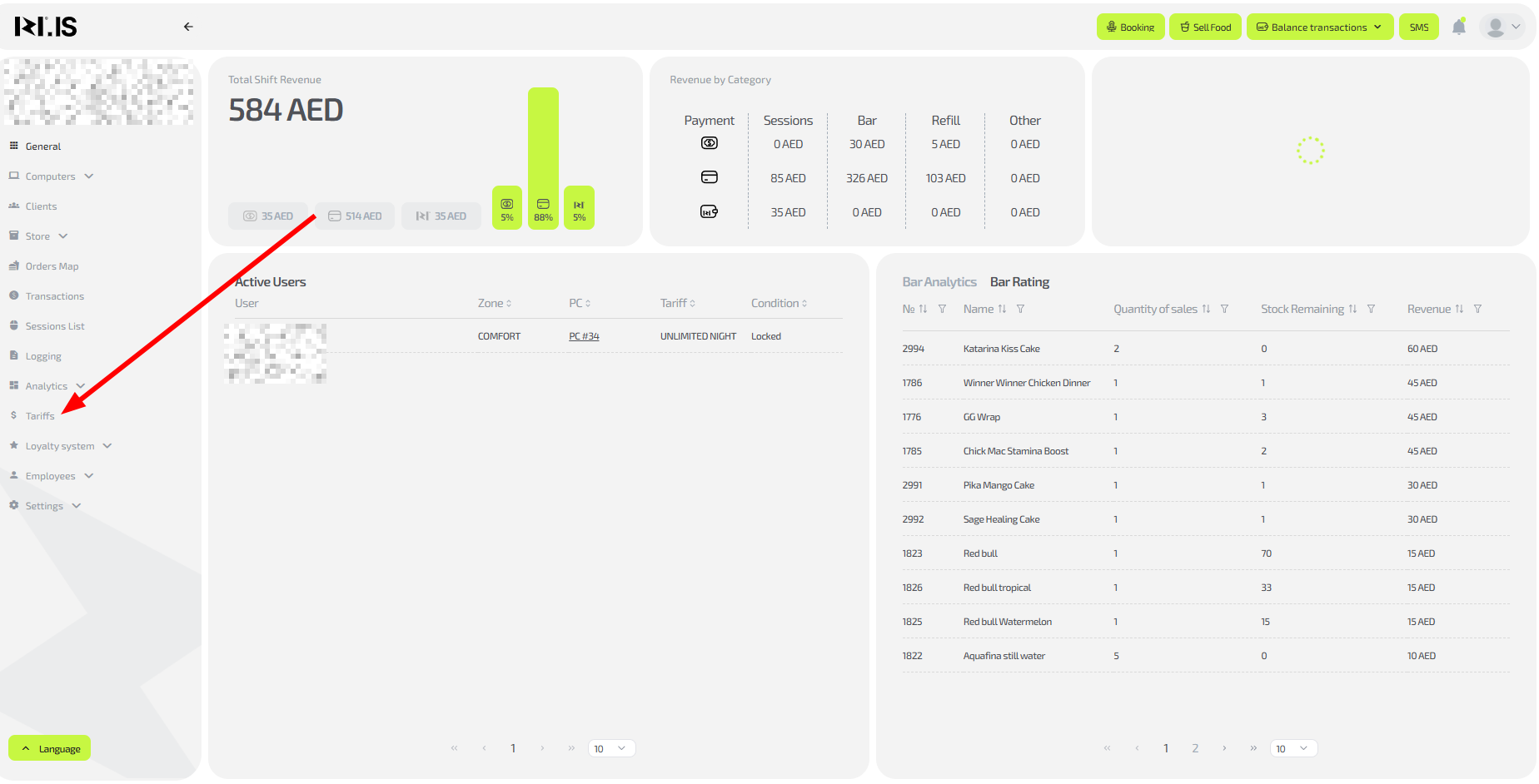
Step 2. Select or create a tariff
- Open the settings of an existing tariff or click “+New tariff” to create one.
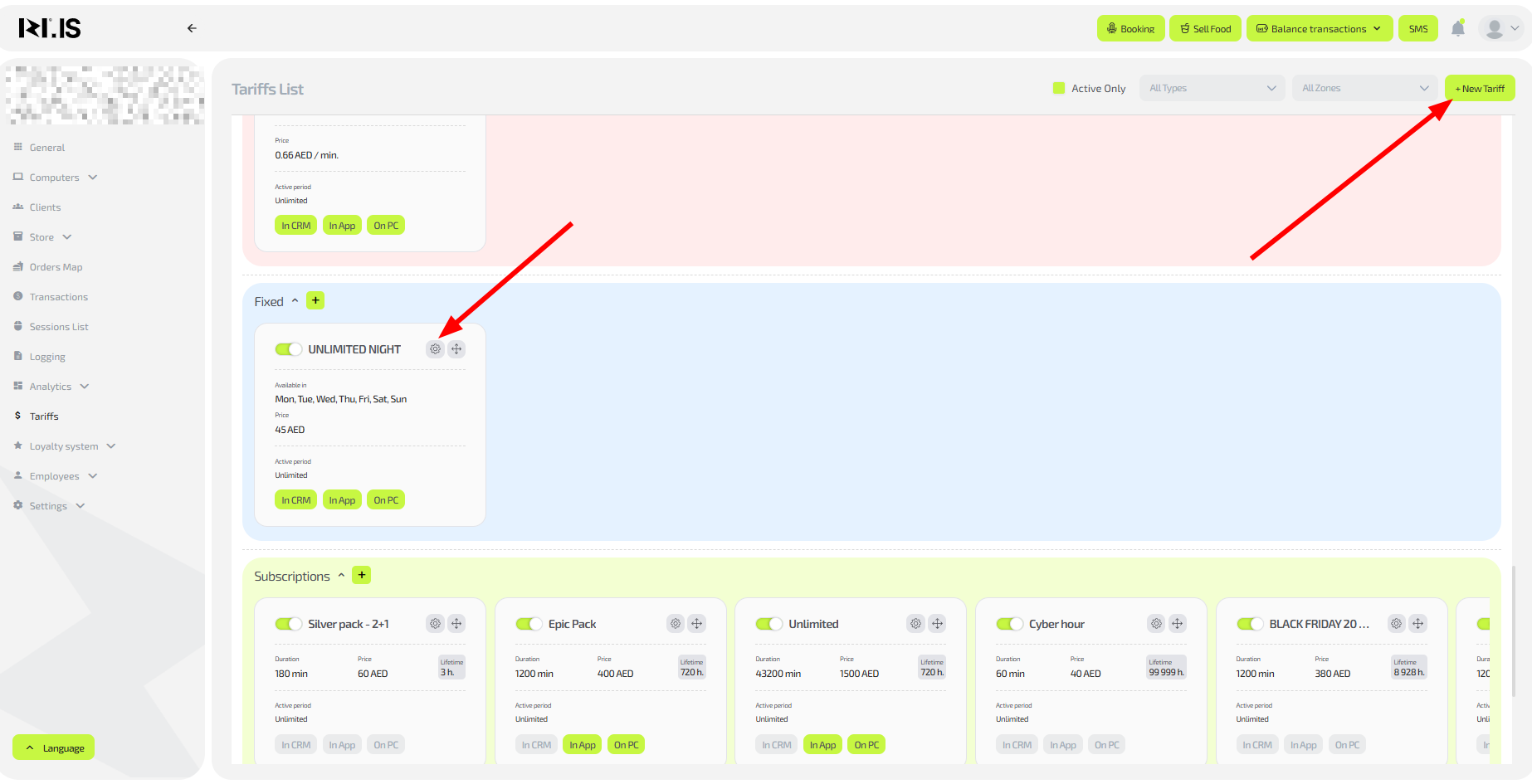
Step 3. Configure visibility
- In the left part of the window, at the bottom, find three buttons: “In CRM”, “In App”, “On PC”.
- Click the corresponding buttons for the places where the tariff should be visible (the buttons change colour when activated).
- “In CRM”: for assigning a seat manually by the administrator.
- “In App”: for mobile app users (promotions, exclusives).
- “On PC”: when unlocking a PC or extending a session.
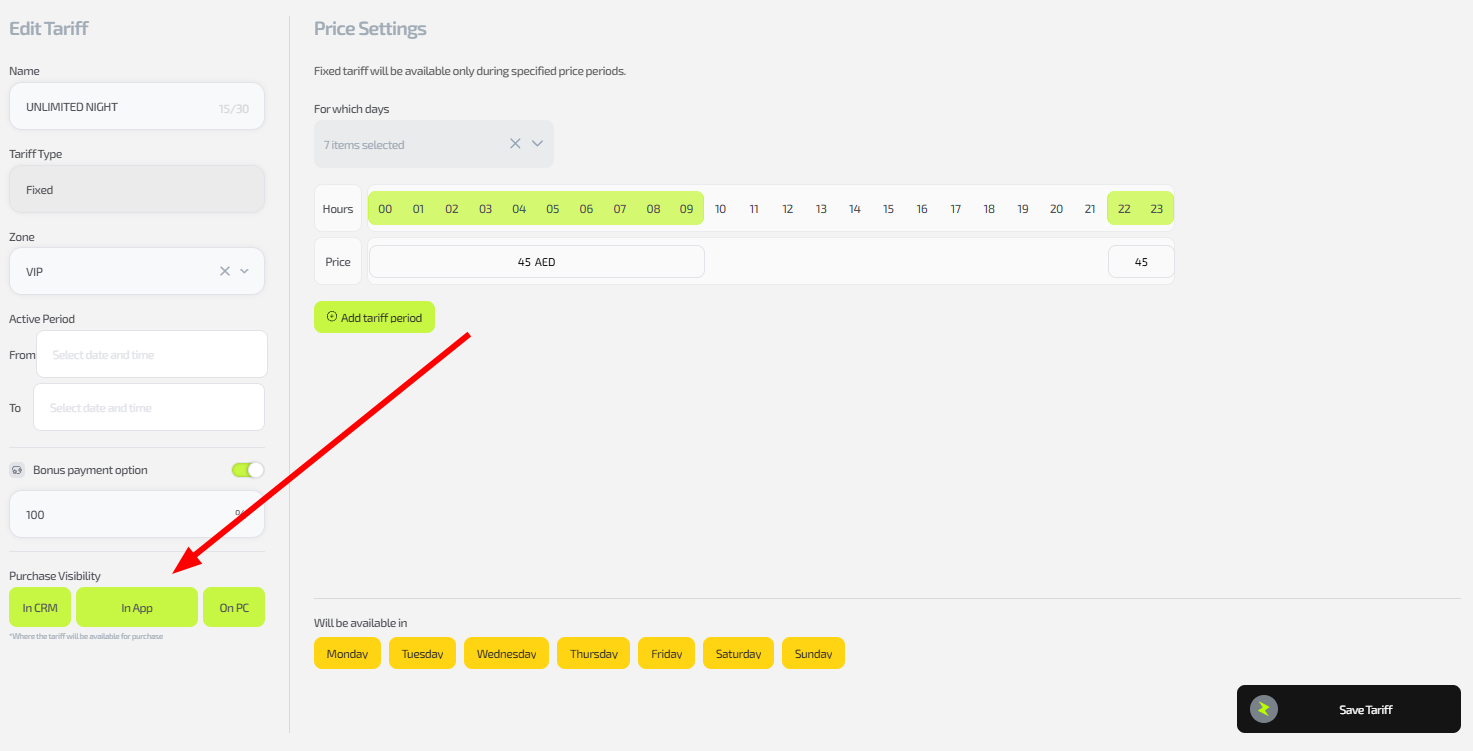
Tip: Enable only the required options to hide tariffs from certain channels (for example, hide promotions from PCs).
Step 4. Save the changes
- Click “Save tariff”.
- Check: start a test session or verify in the app/CRM.
Important: This configuration allows you to offer exclusives (for example, app-only promotions) or hide tariffs to simplify the choice.
Common situations
| Problem | What to do |
|---|---|
| The tariff is not displayed in the selected place | Check that the buttons are activated; refresh the page or restart the app/PC. |
| The buttons do not change colour | Make sure you have the necessary access rights; try another browser. |
| The setting is not applied to sessions | Test on a new session; make sure the tariff is active. |
| You need to hide it everywhere | Deactivate all buttons and save — the tariff will become invisible. |