2.5 Food sales
Purpose of the article
To show how to quickly and correctly create bar orders for different types of clients. Proper sales increase revenue, improve the client experience, and help manage stock levels.
Who is this article for
Administrators, cashiers.
What you will learn
- How to work with clients: regulars, new clients, and clients without a phone number
- How to add items to an order and use category search
Prerequisites
- You have access to the admin panel with sales permissions
- Products and bar categories are configured in the system
- Cash register equipment is ready for work (if required)
Step-by-step guide
Step 1
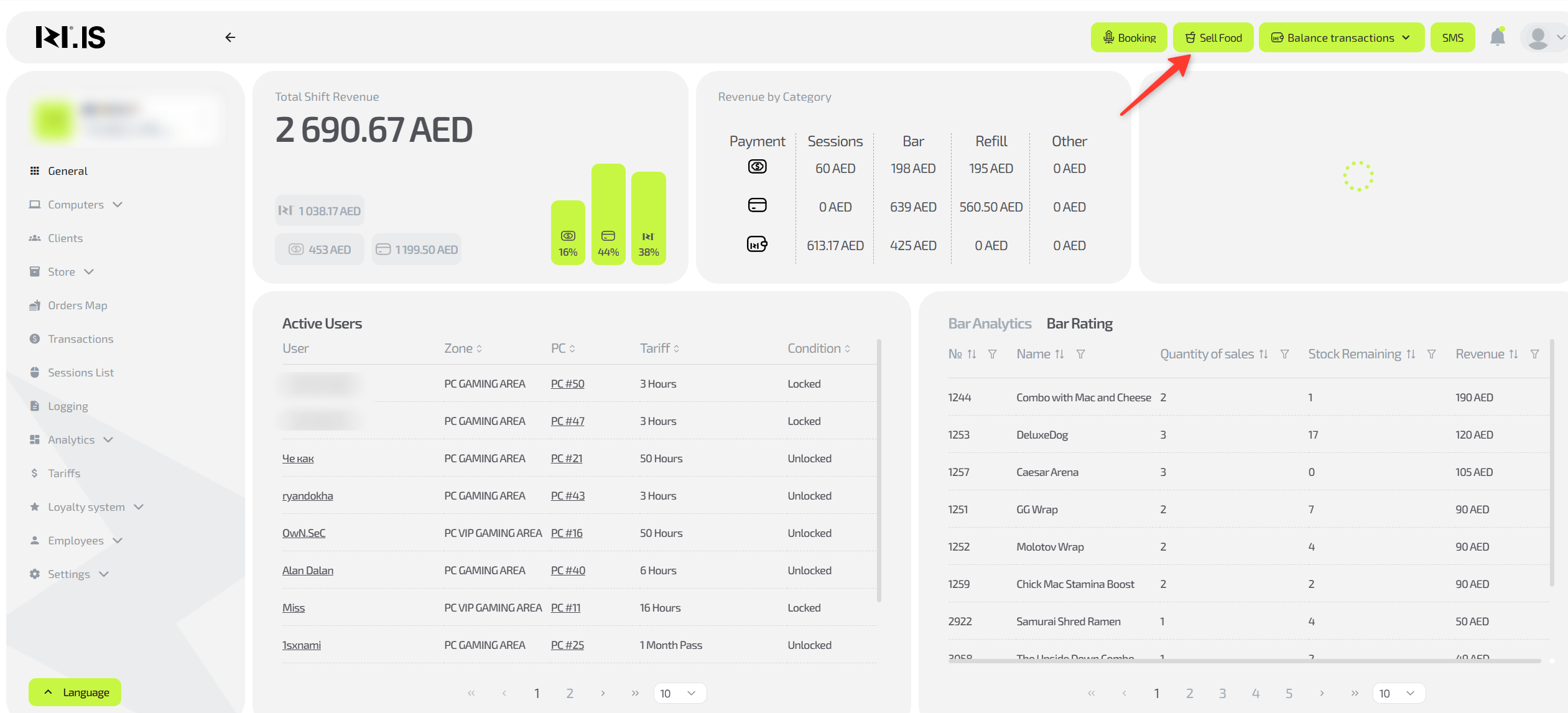
In the top right corner, click the “Sell food” button.
Step 2
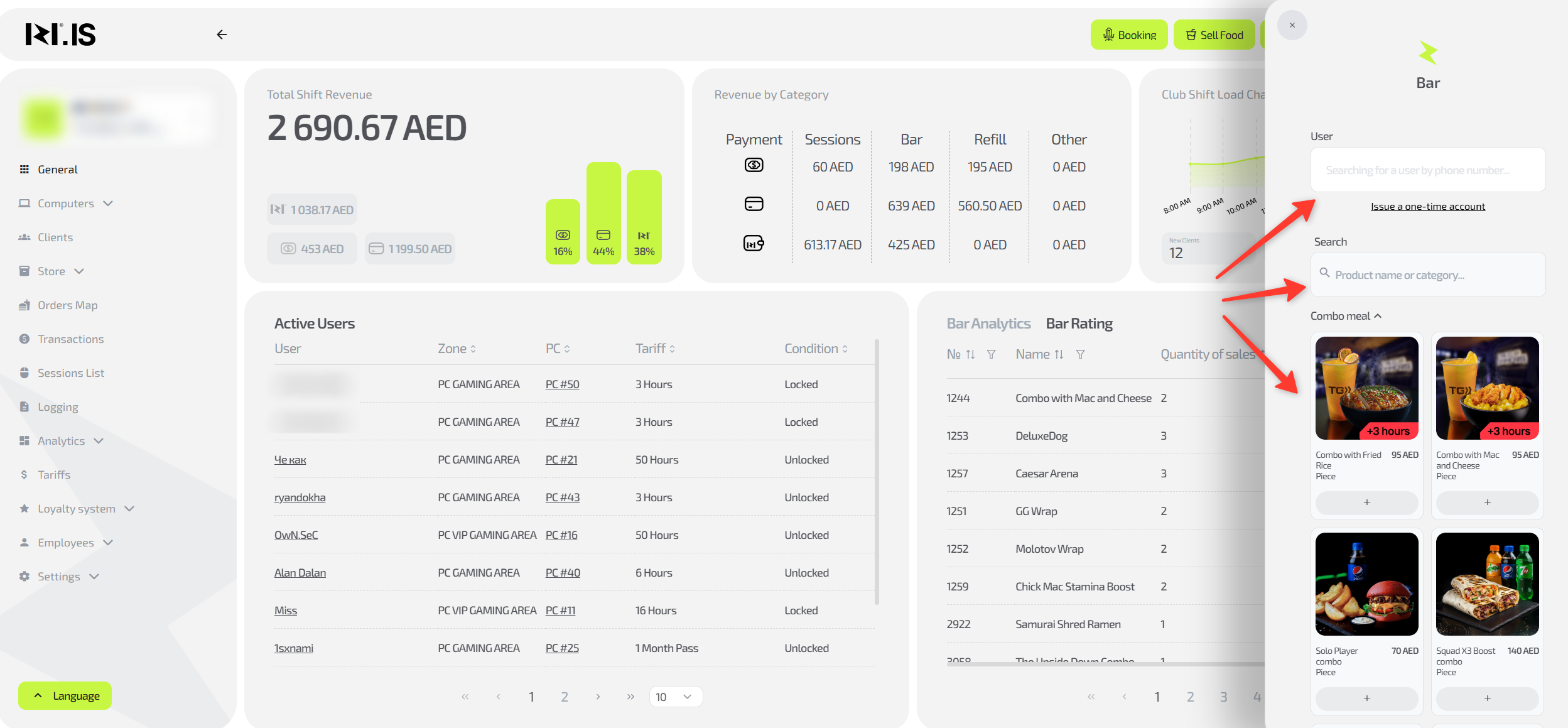
Select one or more items from the Bar.
You can find them using search or by expanding the desired category. To add an item, click the plus button under it.
Step 3
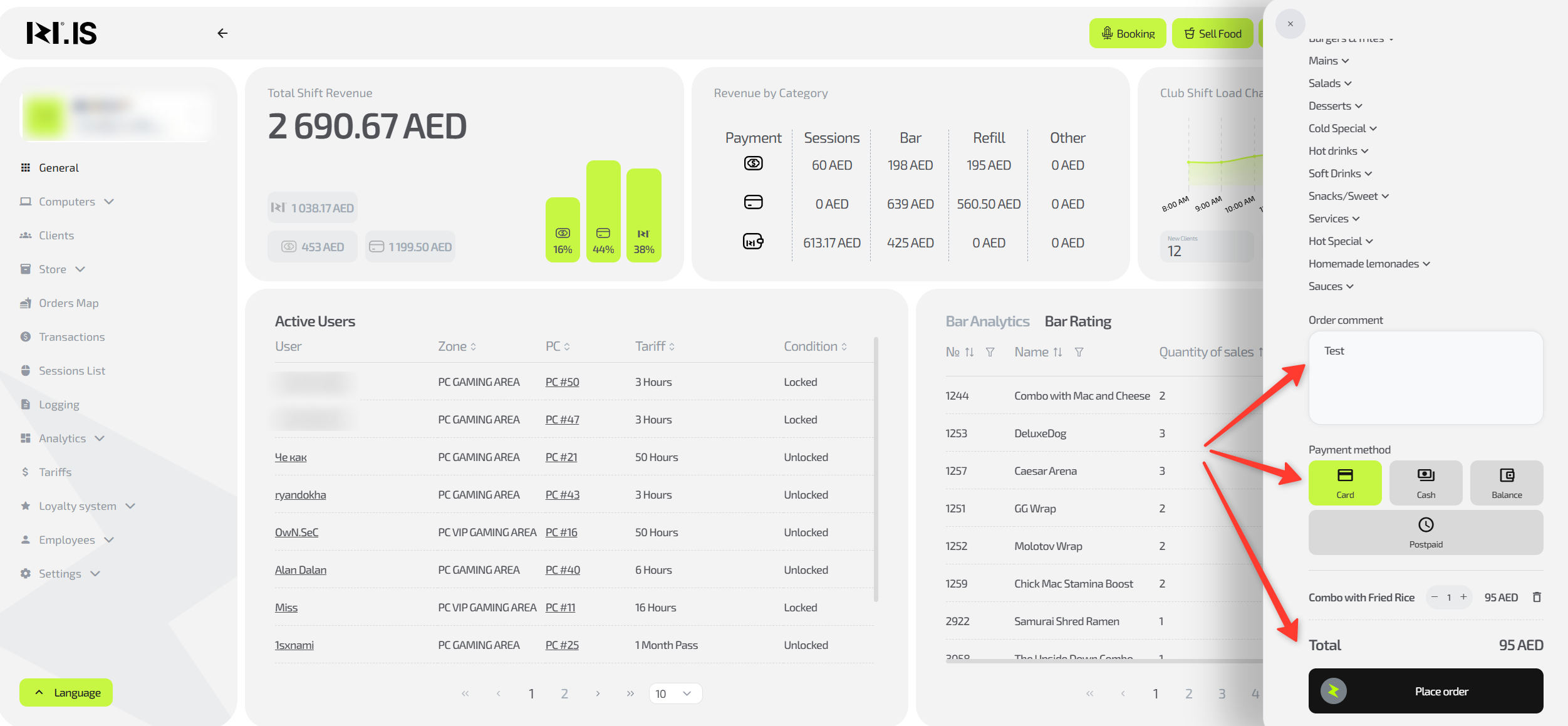
If necessary, write a comment for the order.
Then choose the payment method and click “Place order”. After that, you need to take the payment from the client. If “Postpayment” is selected, the client will pay before leaving the club.
Step 4
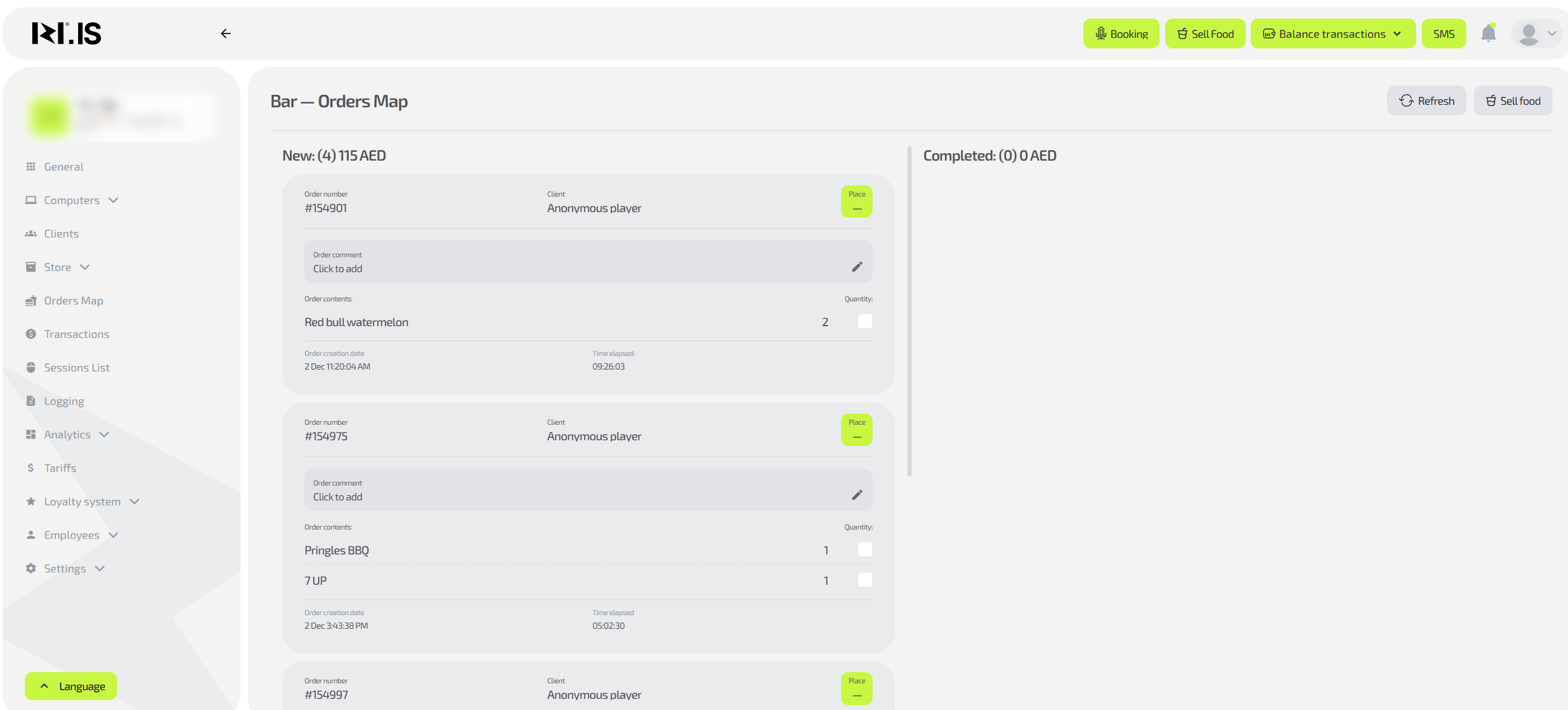
The created order will appear in the Order Map.
Common situations
| Problem | Solution |
|---|---|
| The client does not want to register | Use a one-time (guest) account — all sales will still be recorded in the system |
| No confirmation code is received | Check the number and try an alternative sending method. If that doesn’t help — contact support |
| The item is missing from the list | Check the archive and stock in the “Warehouse” section. The item may be hidden or out of stock |
| The client wants to merge orders | Create the new items under the same client — they will automatically appear together in the history |
| There is a mistake in the order | Process a refund in the “Returns” section and create a new receipt |