2.10.5 Bulk actions with PCs
Goal of the article
Learn how to apply commands to several computers at once to save time on routine operations. For example, when you need to reboot all PCs after an update or disable protection on all machines to install software.
Who this article is for
- Club administrators
- Technical specialists
- System administrators
What you will learn
- Why bulk actions are needed
- Which operations are available
- What you must not do — limitations of bulk actions
Step-by-step guide
Step 1
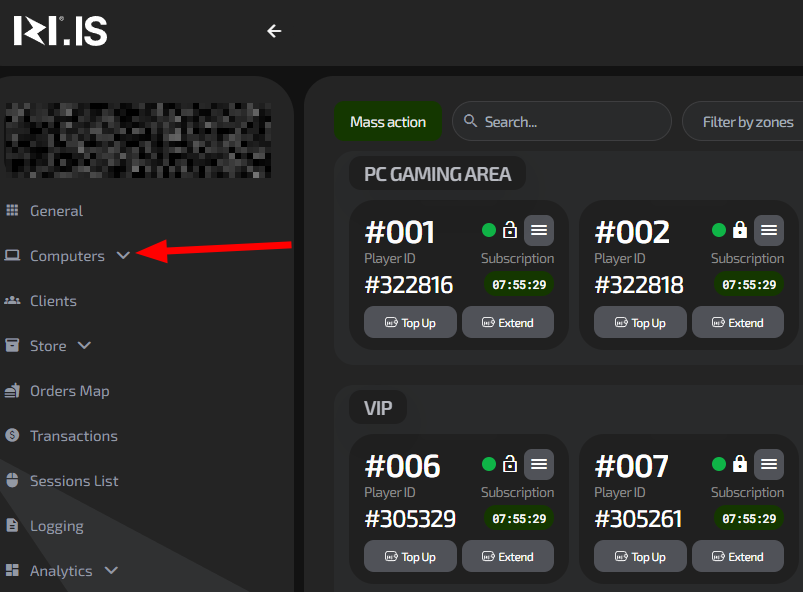
Open the “Computers” section and click the “Bulk actions” button.
Step 2
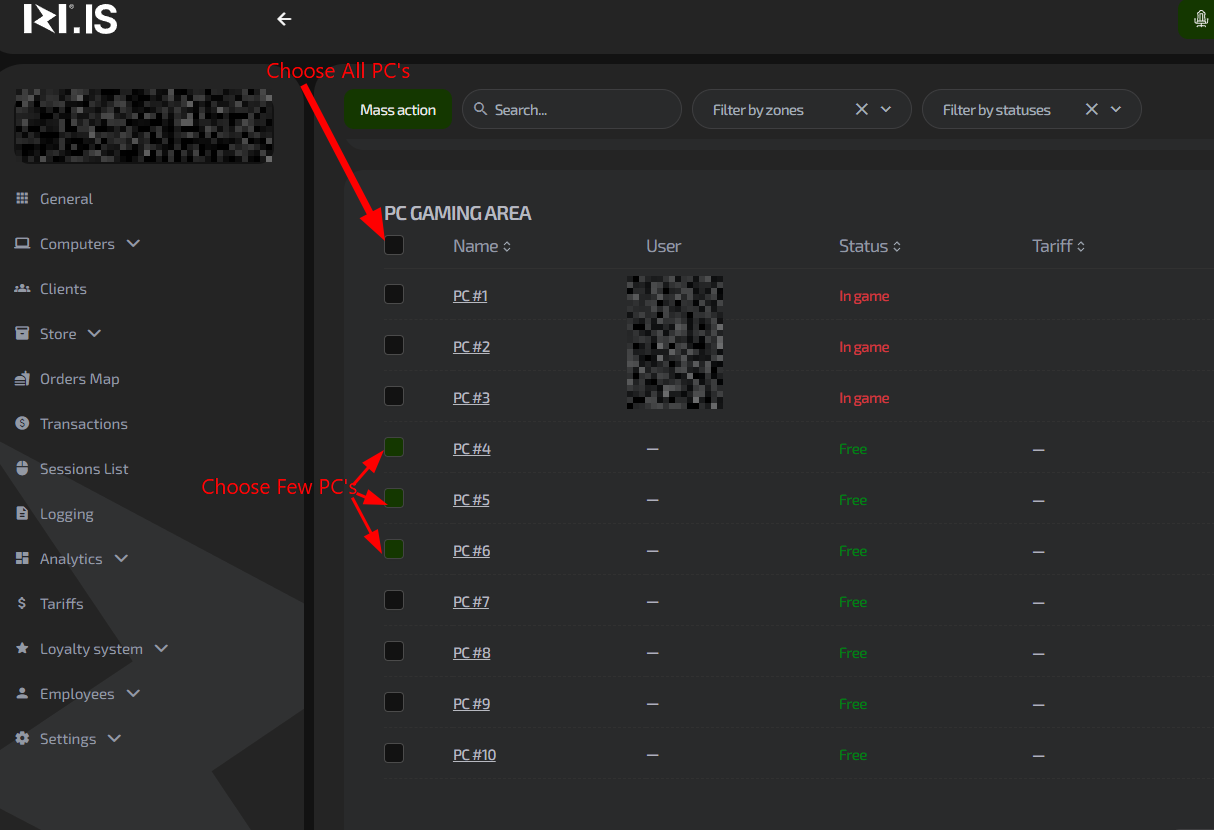
Select all PCs you want to manage.
Step 3
Perform the action.
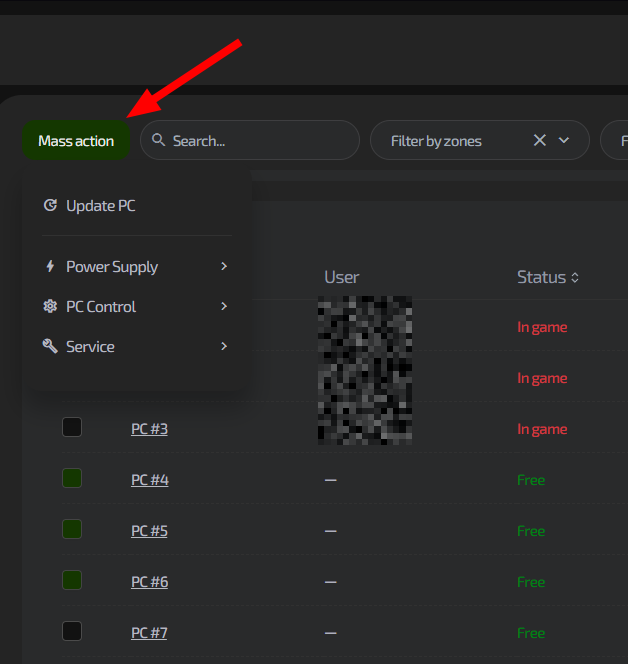
- Click “Bulk actions”.
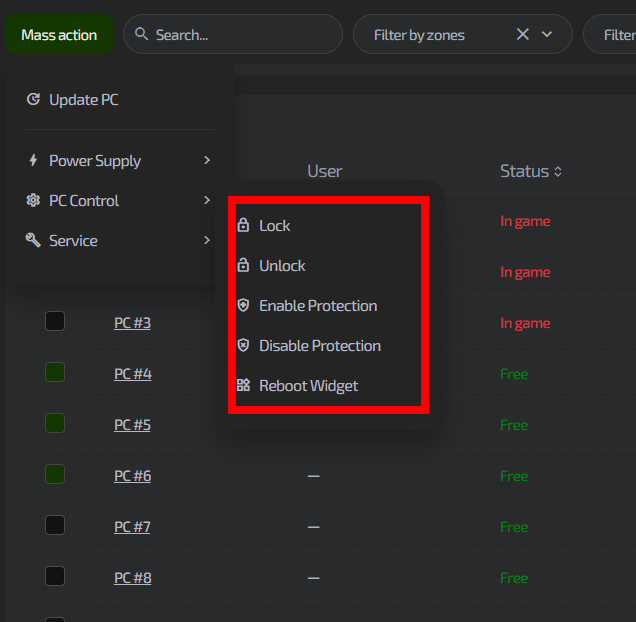
- In the menu that appears, select the desired operation:
- Reboot — to apply updates
- Disable protection — to install software (performed with a reboot)
- Restart widget — when there are display problems in the widget
- Confirm the operation.
Available bulk actions
| Action | When to use | What happens |
|---|---|---|
| Disable protection | Installing software, updating drivers | PCs are rebooted automatically, protection is disabled for the duration of the session |
| Reboot | Applying updates, clearing cache | All selected PCs are rebooted |
| Restart widget | The widget is frozen or not updating | The widget restarts without rebooting the whole PC |
Typical situations
| Problem | Solution |
|---|---|
| You need to install a new game on all computers | Select all PCs → “Disable protection” → install the game → protection will turn back on automatically after reboot |
| After a system update some computers are unstable | Select the problematic PCs → “Reboot” → this often solves performance issues |
| Clients say they do not see promotions in the widgets | Select all computers → “Restart widget” → widgets will update to the latest version |
| You need to change the status of several PCs to “Broken” | Unfortunately, bulk status change is temporarily unavailable. You need to change the status for each PC individually |
| After bulk disabling protection, PCs did not return to normal mode | Check the Internet connection. If connection is lost, PCs may not receive the command to restore protection |