2.2 Opening/closing the shift
2.2 Opening\closing the shift
Purpose of the article
Explain how a club administrator opens and closes a shift in the IZI CRM, which actions are performed automatically, and why this process is important for correct club operation.
Who this article is for
- Club administrators
- Shift supervisors
- Managers who control club operations
What you will learn
- How shift opening works
- Which data must be entered when opening a shift
- How to close a shift and what is shown in the report
- How CRM integration with the fiscal cash register (KKM) works
- Why opening and closing a shift is needed at all
Prerequisites
Before you start, make sure that:
- You log in to the CRM with an administrator account
- KKM integration is enabled (if used)
- You have access to the cash register if you need to print reports
Why shifts are needed in the CRM
Shift opening and closing is a key element of the club’s financial accounting.
The system records:
- how much money was received during the shift;
- which payment methods were used by clients (cash, card, IZI.Play);
- which administrators worked during the shift;
- all transactions, sales and balance operations;
- shift opening/closing on the cash register when KKM is integrated.
Without an open shift it is impossible to:
- assign places to clients;
- sell goods;
- perform any financial operations.
This ensures transparent accounting and protects the club from errors at the cash register.
Opening a shift
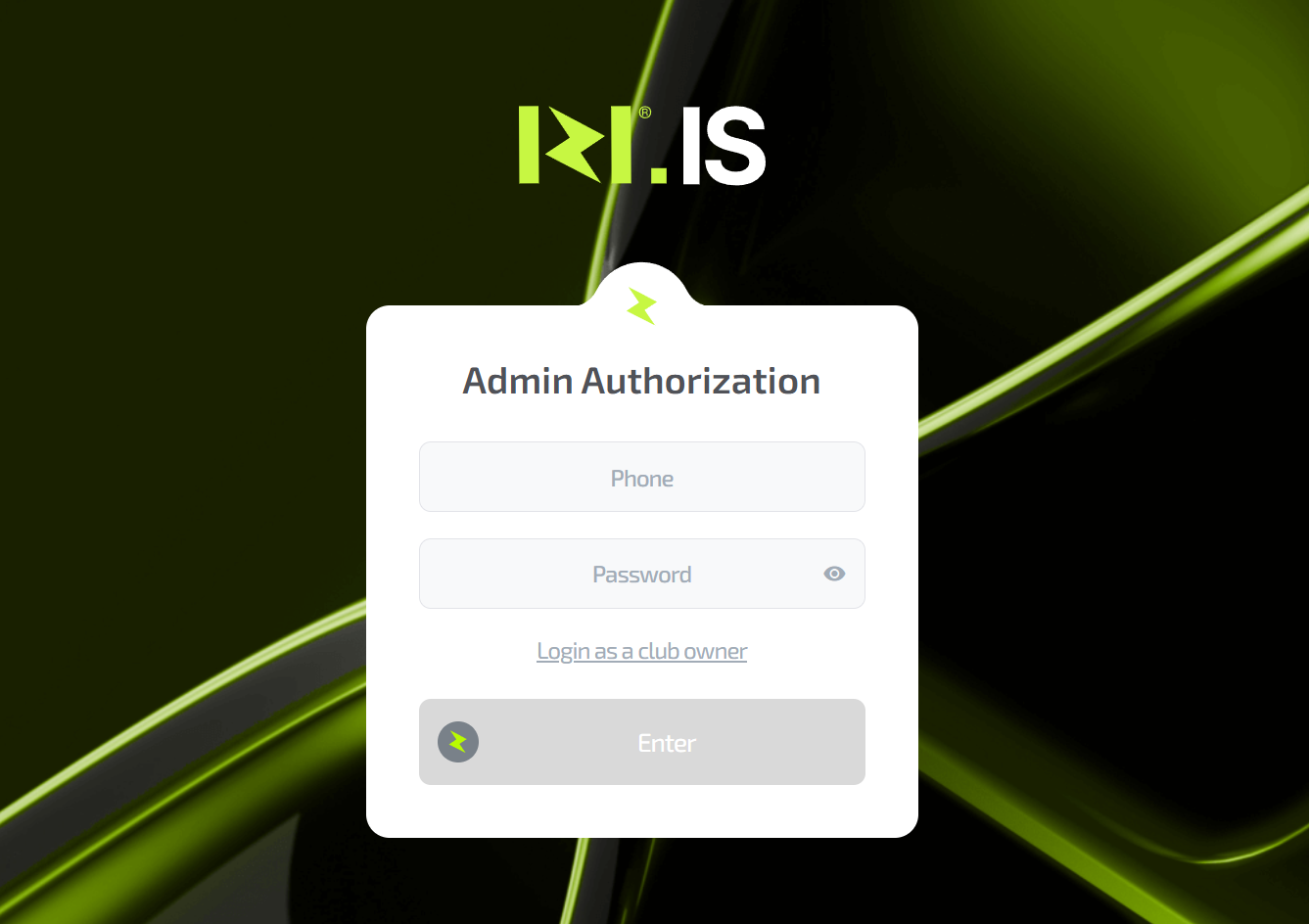
1. Logging in to the CRM
A shift is opened when you log in to the CRM under an administrator account.
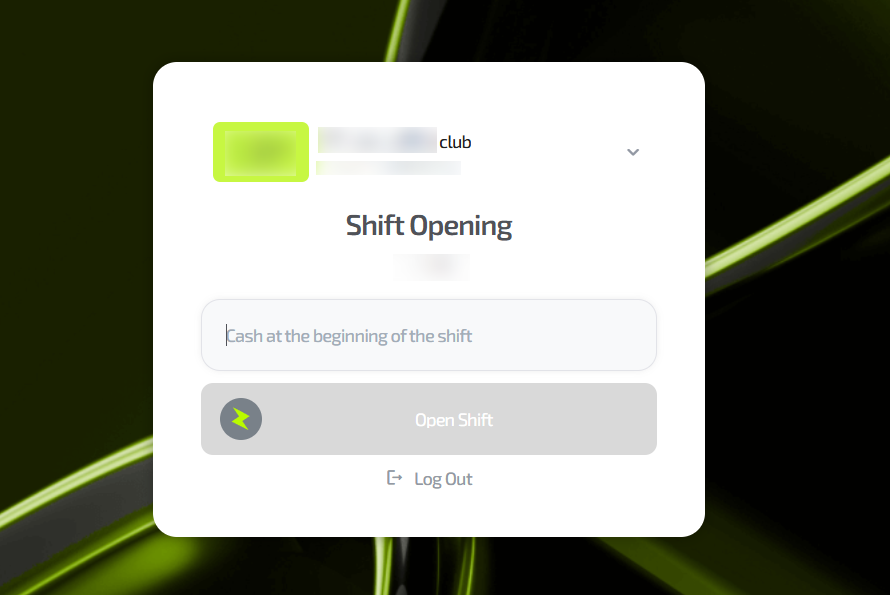
After entering your login and password:
- the CRM checks the shift state;
- if the shift is closed, a “Open shift” window appears.
2. Shift opening window
The window displays one required input field – the amount of cash in the register at the beginning of the shift.
If you do not fill it in, the “Open shift” button will be inactive.
Use the actual cash balance in the drawer
(for example, the money remaining after the previous shift was closed).
3. Logging out of the account
Before opening the shift there is a “Log out” button.
This is useful if the administrator logged in under the wrong account.
4. Confirming shift opening
- After clicking “Open shift”, the shift is started.
- If KKM integration is enabled, the cash register automatically prints a shift opening report and the shift is opened on the cash register and in the CRM at the same time.
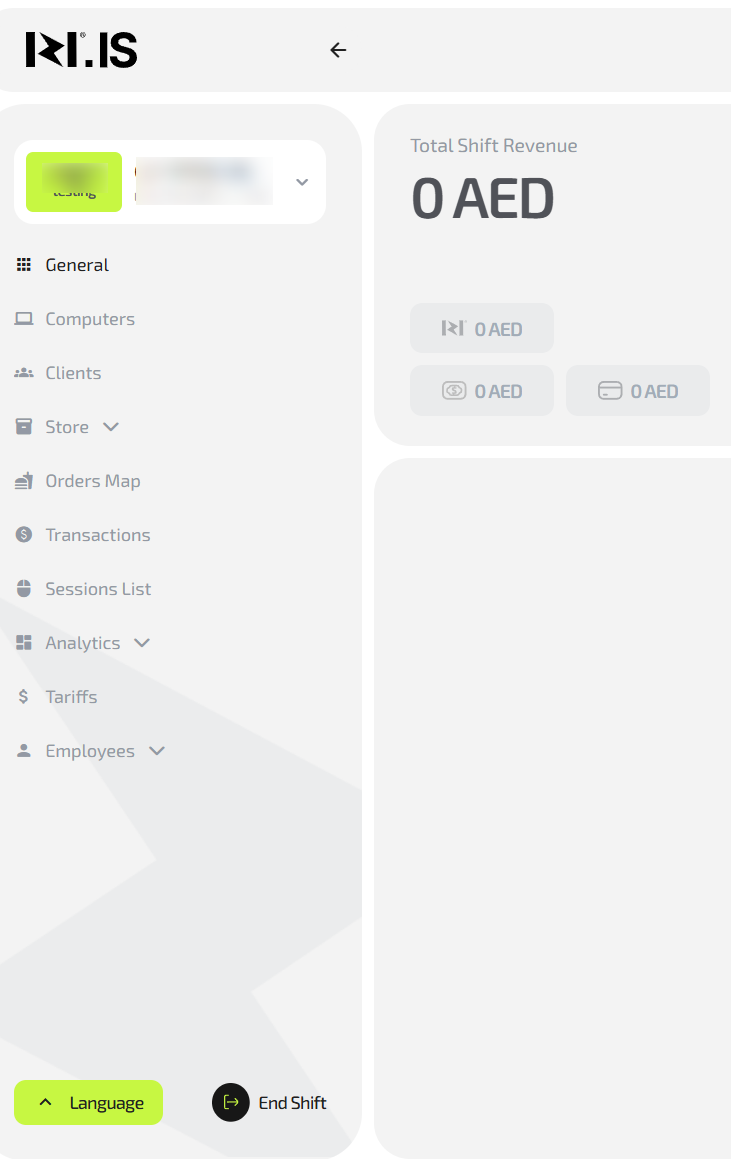
After opening, the system goes to the main CRM page – the dashboard.
Working in the CRM after opening a shift
After the shift is opened:
- you can perform any operations (seat clients, top up balances, bar sales, transactions, etc.);
- you can log out of your account;
- you can log in under any other employees.
The shift will not close automatically until someone manually presses the close button.
One administrator can open a shift and another one can close it — this is normal and allowed.
Closing a shift
1. Where the “Close shift” button is located
The button is located in the bottom left part of the CRM screen, next to the language switcher.
The button is displayed only for the Club Administrator account.
2. Shift closing window
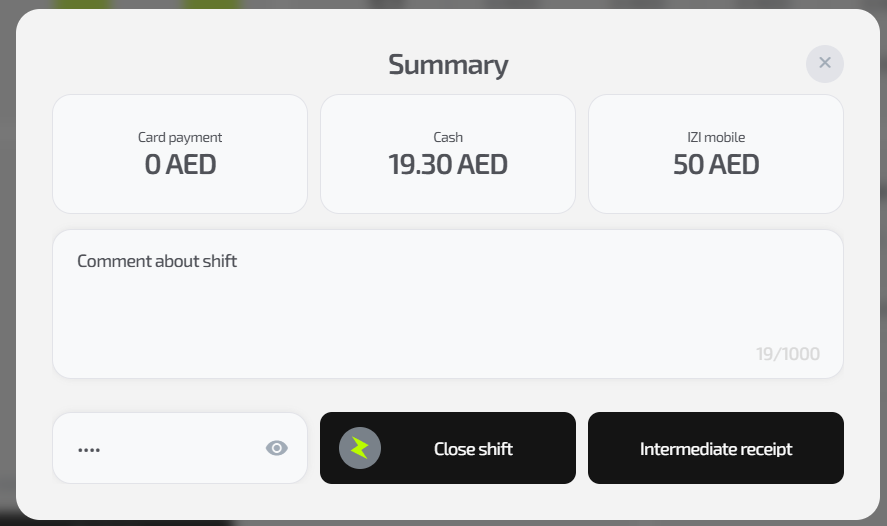
After clicking the button, a window with shift results opens.

The total shift revenue is displayed, split by payment method: cash, cashless payments and the IZI.Play mobile app.
3. Required comment
To close the shift, you must fill in the Comment field.
Comment examples:
- “Shift closed, cash checked”
- “No discrepancies”
- “X-reports printed”
If the comment is not entered, the “Close shift” button is inactive.
4. X-report
If a cash register is connected, the “Intermediate report (X-report)” button is available.
The report does not close the shift, it only prints the current cash state.
It is used by administrators for mid-shift control.
5. Confirming shift closure
To finish the shift, you must enter the administrator password for the account currently logged in to the CRM.
After closing the shift
- The shift in the CRM and on the cash register (when integrated) closes simultaneously.
- The system returns the administrator to the login window.
- All financial operations are blocked until the next shift opening.
Common situations
| Situation | What to do |
|---|---|
| The shift does not open | Make sure you are logged in with the “Administrator” role |
| The “Open shift” button is inactive | Enter the amount of cash in the register |
| The shift does not close | Make sure a comment is entered |
| KKM does not print a report | Check the integration connection or restart the cash register |
| A control report is needed without closing the shift | Click “X-report” |