2.10.4 Working with the PC card during an active session
Article goal
Show which data is displayed on the computer card during an active session and which actions the administrator can perform via the card interface.
Who this article is for
- Club administrators;
- Managers who work with client sessions.
What you will learn
- Which elements appear on the PC card during an active gaming session;
- Which quick actions are available to the administrator;
- How to manage the current session;
- How to interpret information about a future booked session.
Prerequisites
Before you start, make sure that:
- You are logged into the CRM under an administrator account;
- The PC has the Busy status (active session);
- The client is authorized or created as a one-time user.
What is displayed on the PC card during an active session
When a gaming session is running on the computer, the PC card displays significantly more information compared to the free state.
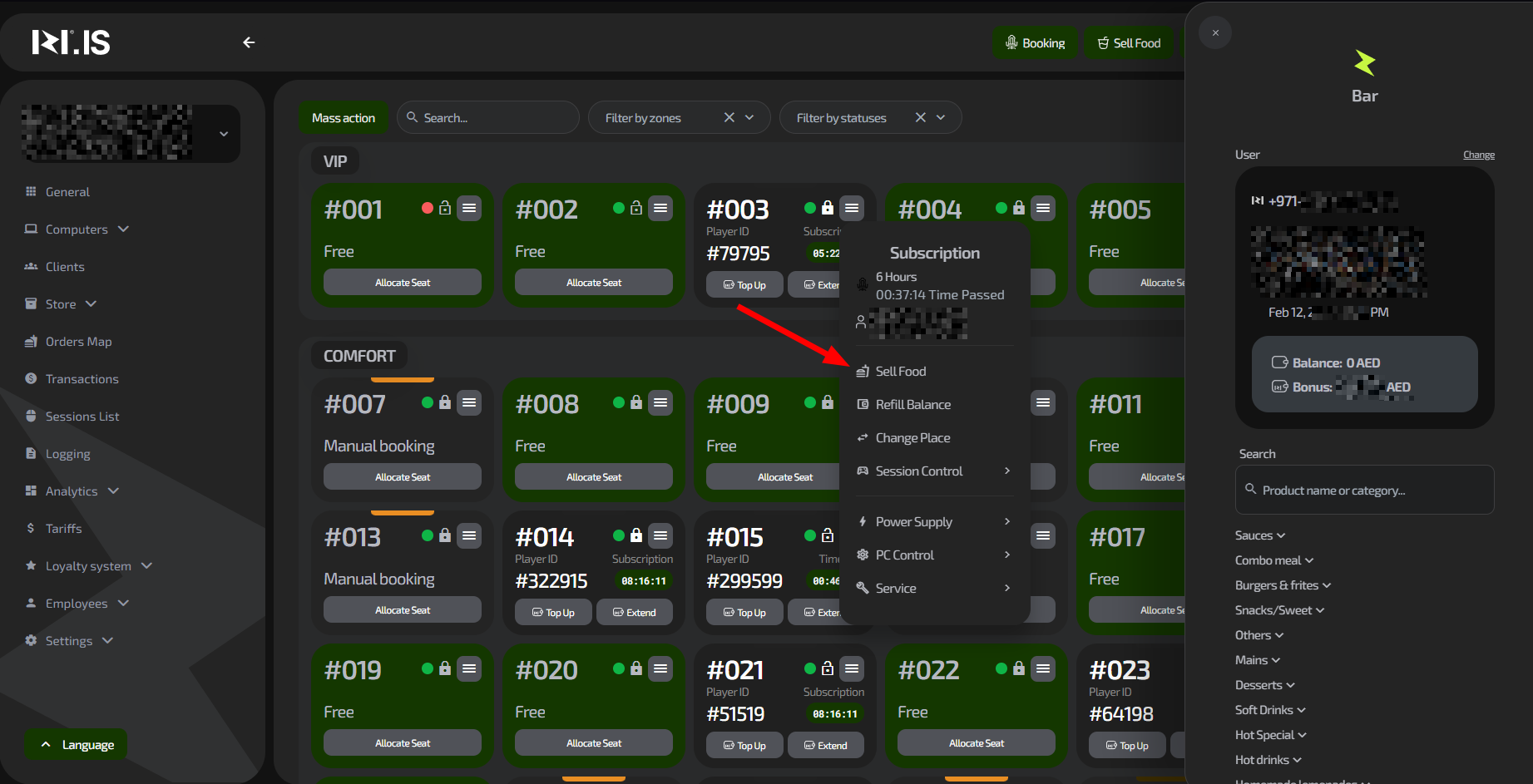
The card shows:
1. PC number
The unique workstation number (for example, PC #006).
2. Indicators
- Online / offline — green or red dot;
- Lock — closed/open lock icon.
3. Client information
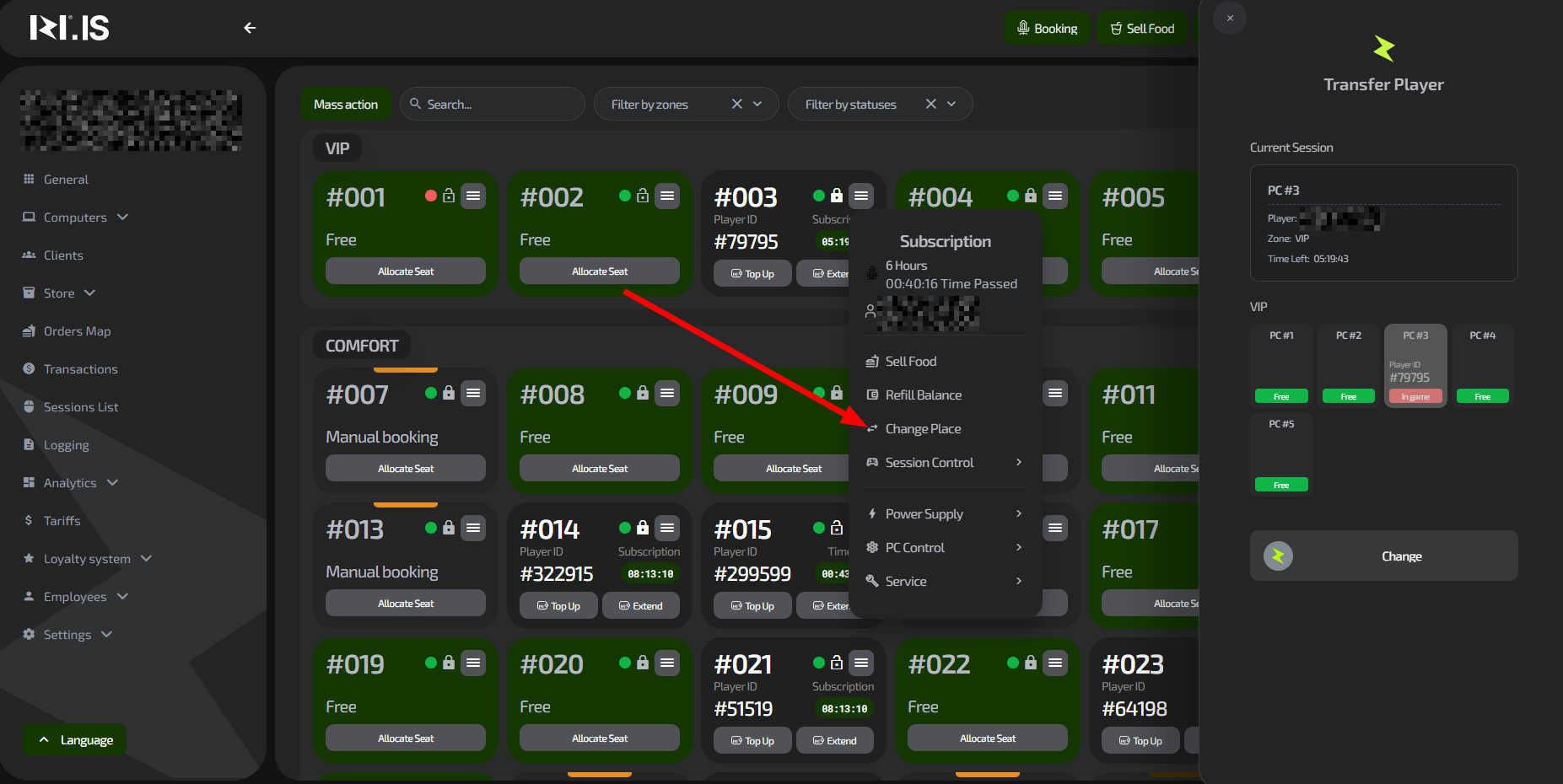
- Client’s phone number (if linked);
- Nickname or user name (if specified in the profile);
- Guest ID — internal client ID in the IZI system.
4. Active session
Displayed:
- Name of the active tariff (for example, 3 Hours);
- Remaining session time.
5. Upcoming booked session (if any)
If there is an existing booking after the current session, a separate block appears on the card:
- Start time of the next booking;
- Phone number and name of the client who booked the seat.
This helps the admin understand PC load in advance and avoid situations where a client occupies the PC beyond their time.
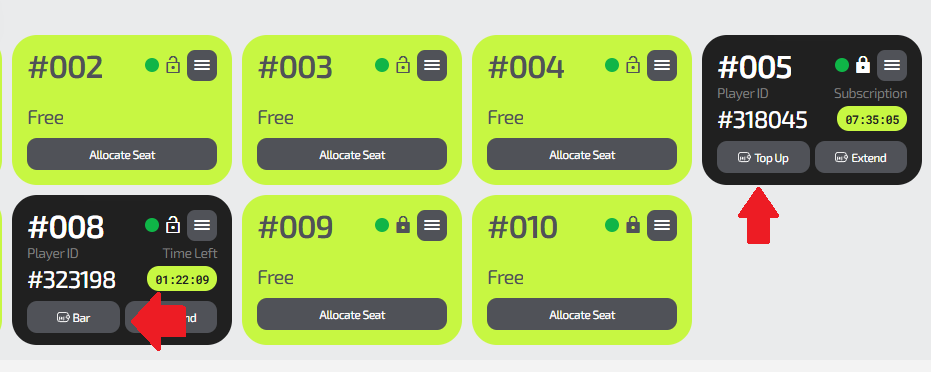
6. “Top up” button
If the session was started by an unregistered guest (one-time account), the button is renamed to “Bar”, and you can sell goods when you click it.
7. “Extend” button
Extends the session with a selected tariff and payment. If there is already a next booking, instead of the button you will see the time remaining until the start of the next session.
Computer card menu during an active session
The card menu (the “three lines” button) opens an extended set of options.
During an active session, the administrator has access to:
1. Sell food
Allows you to add items from the bar and charge them from the client’s balance or accept payment via the cash register.
(Described in detail in 2.5 Food sales)
2. Top up balance
Used when the client wants to top up their balance without leaving the game.
(Described in detail in 2.8 Balance top-up / Balance operations)
3. Change seat
Move the client to another PC within the same zone.
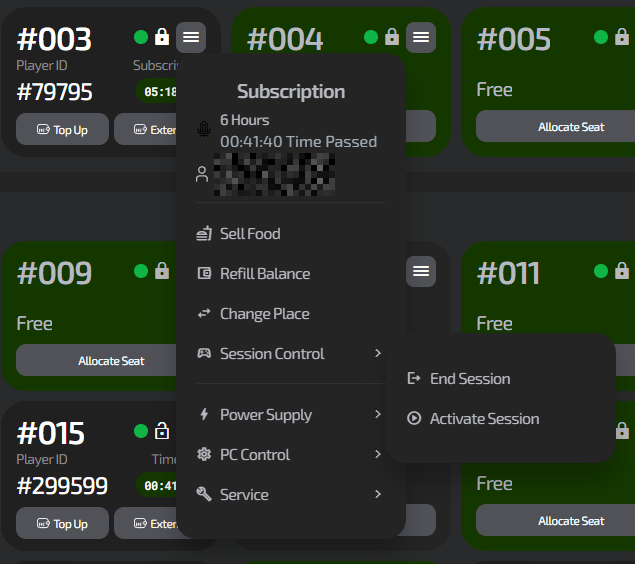
4. Session management
- End the session manually — if the client finishes earlier;
- Activate — if the client started playing but the session did not start automatically.
5. PC management
Available in all statuses:
- Reboot / shut down the PC;
- Lock / unlock the PC;
- Enable / disable protection;
- Restart the widget.
6. Maintenance
- Change the PC number;
- Change the PC status
(More details in 2.10.1 PC statuses and their effect and 2.10.2 Indicators on PC cards)
Typical situations
| Situation | What to do |
|---|---|
| The client needs to stay longer | Use the Extend button |
| The client wants to buy something at the bar | Click Sell food |
| The client wants to change seat | Use Change seat |
| The client finished the game earlier | In the menu, select End session |
| The widget is “frozen” | Restart it via Restart widget in the menu |
| The PC shows an incorrect status | Check online/offline → reboot the PC |