2.10.6 Updating IZI software on gaming PCs
Article goal
To explain step by step how to update the IZI software on gaming computers.
Who this article is for
- Club administrators
- Technical specialists
- Owners who have access to the admin panel
What you will learn
- How to prepare a PC for an update
- How to update the software on a single computer
- How to update several PCs at once
- What to do if errors occur
- How to check that the update was successful
Prerequisites
Before you start, make sure that:
- You have received an official notification from the IZI team that the update is ready
- You have administrator rights in the system
- You have reviewed the club’s work schedule to choose the optimal time for the update
Step-by-step guide
Step 1. Get confirmation that the update is ready
- Wait for an official notification from IZI support about the release of a new software version
- Check the change list and compatibility with your hardware
- Decide on the optimal time for the update (recommended during off-hours)
Step 2. Prepare the computer for the update
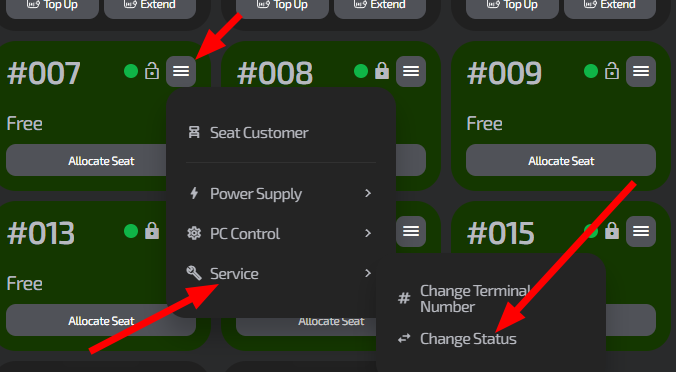
- Go to the “Computers” section in the IZI admin panel
- Find the required PC in the list
- Set its status to “Defrosted” via the computer card menu
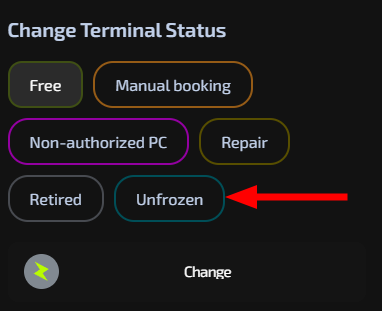
- Turn off protection on the PC
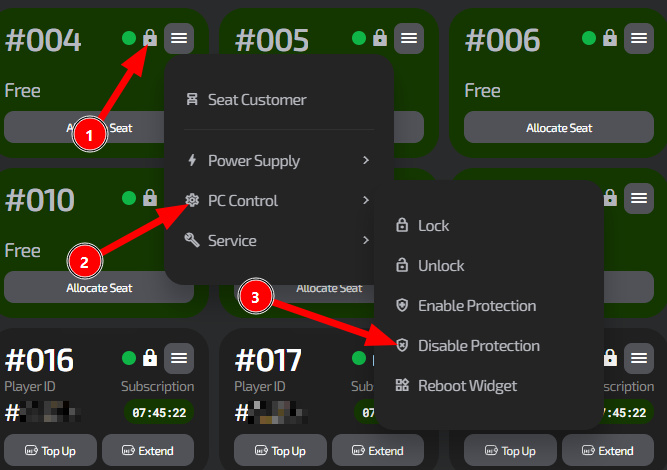
Important: Disabling protection temporarily removes system protection to allow installation of updates. After the update is complete, you should enable protection again.
Step 3. Start the update on a single PC
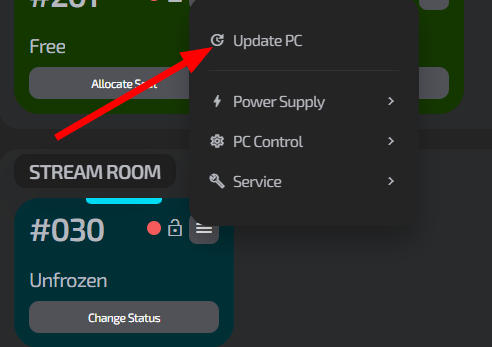
- In the card of the defrosted computer, click the “Update” button in the top menu
- Wait until the installation process is complete (the PC may reboot automatically)
- Check the software version in the system information
- Enable protection on the PC
Step 4. Mass update of a group of computers

- In the “Computers” section, switch to Table view, then tick the PCs that need updating
- In the bulk actions panel, select the “Update” operation
- Confirm the start of the group update
- Monitor the progress in real time
Typical situations
| Problem | Solution |
|---|---|
| The “Update” button is inactive | Make sure protection is disabled on the PC and that the update is available for your version |
| Error occurs during the update | Stop the mass update, reboot the PC and try again. If the error repeats, contact support |
| The PC does not start after the update | Check the network connection, perform a forced reboot. If the problem persists, contact technical support |
| Not all PCs are shown in the list for mass update | Refresh the page, check filters and PC statuses |
| The update takes too long | Check Internet speed. If it is low, update PCs in smaller groups |