2.15 Sessions list
Article goal
Show how a club administrator can view and analyze information about sessions for a selected period in the admin panel: from choosing the date to sorting and filtering the data.
Who this article is for
- Club administrator.
- Users who have access rights to the admin panel to control sessions.
What you will learn
- How to select a period and view session data.
- How to sort and filter the sessions list.
- What to do if a session is not displayed or you need to perform actions with it.
Prerequisites
Before you start, make sure that:
- You have access rights to the admin panel.
- The system is synchronized with current sessions (refresh the page if necessary).
Step-by-step guide
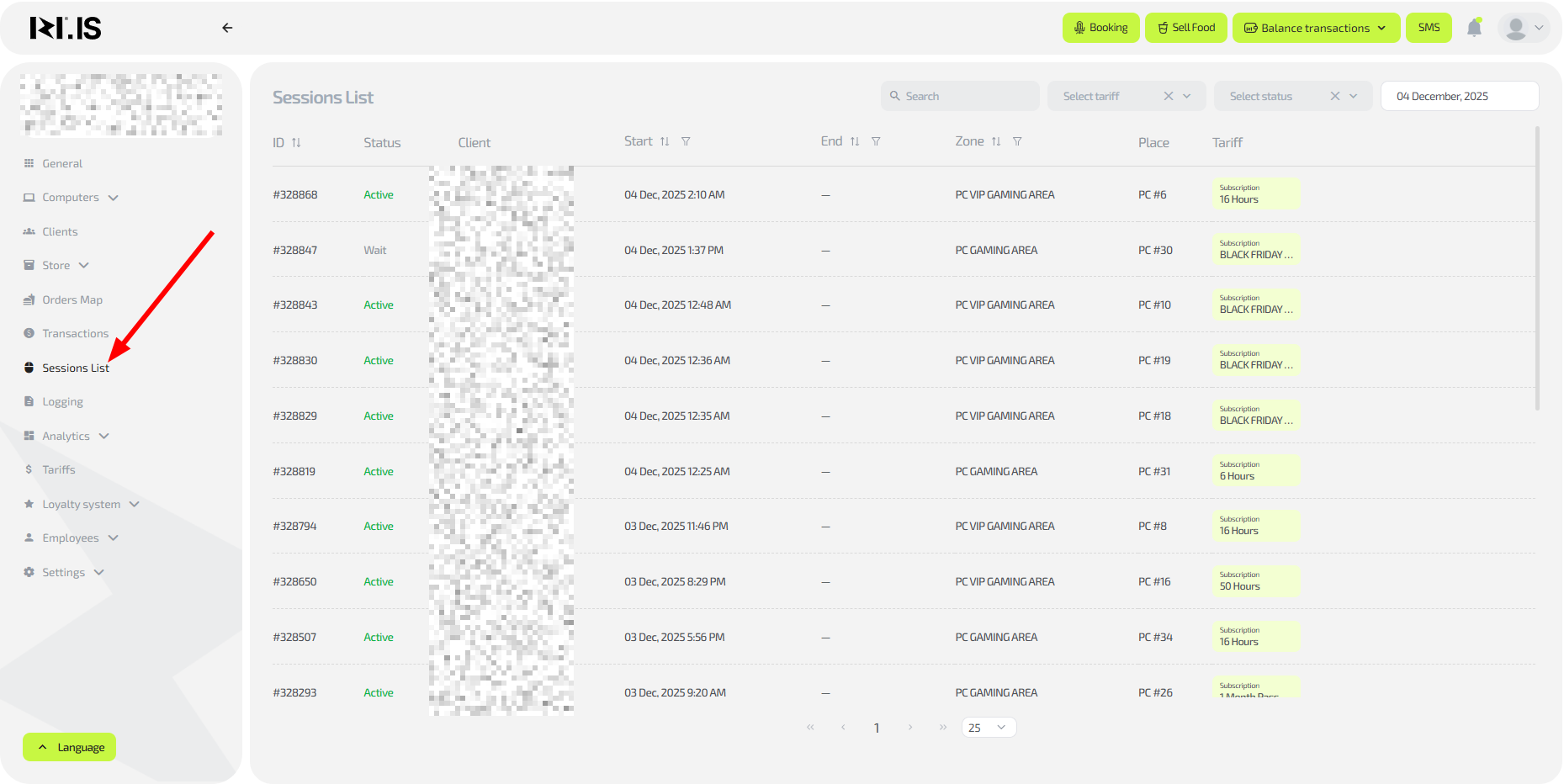
Step 1. Go to the “Sessions list” section
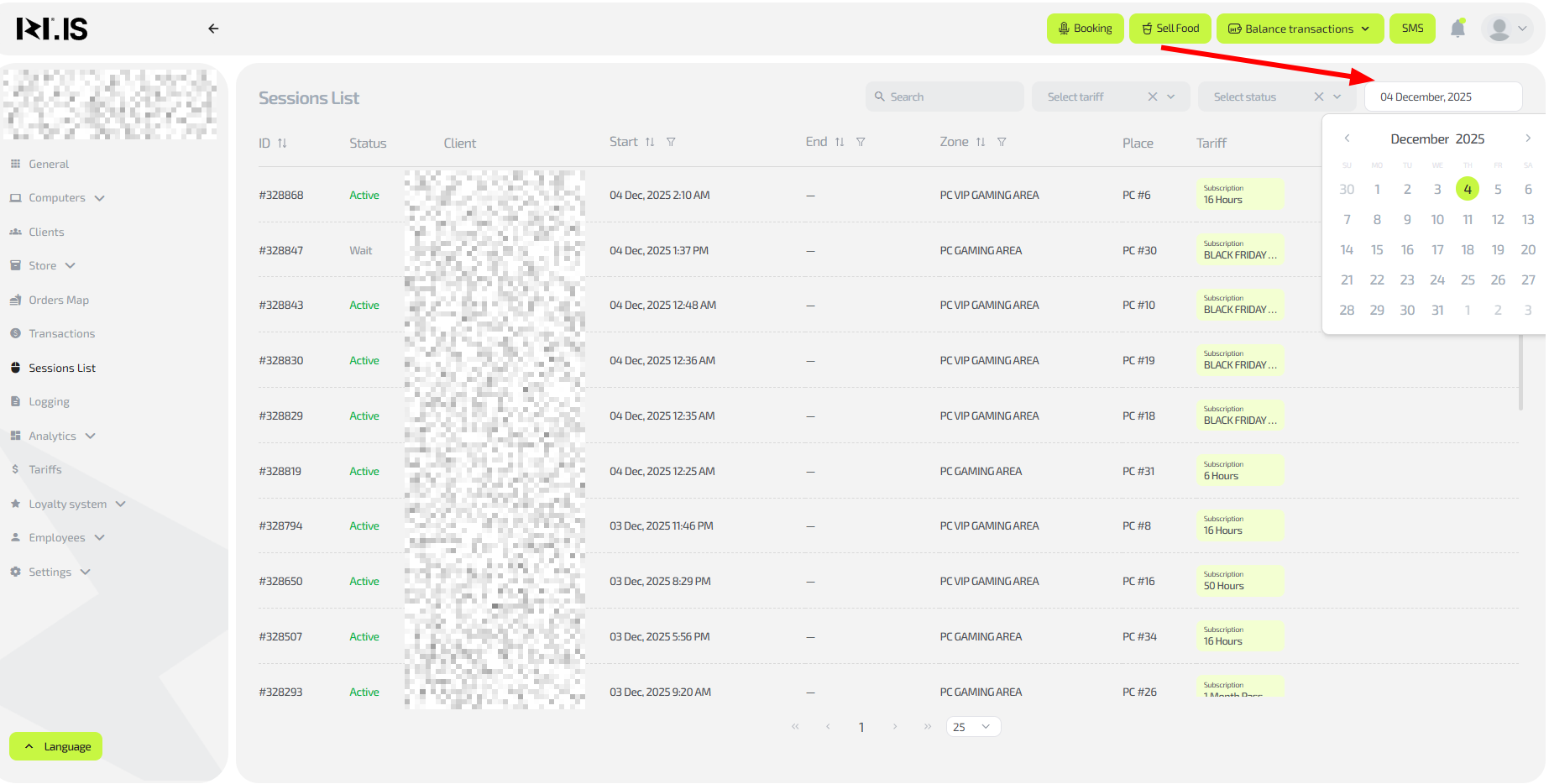
Step 2. Select the period
- In the upper-right part of the page, select the date (day) for which you want to view sessions.
- The list will refresh and show data only for the selected day.
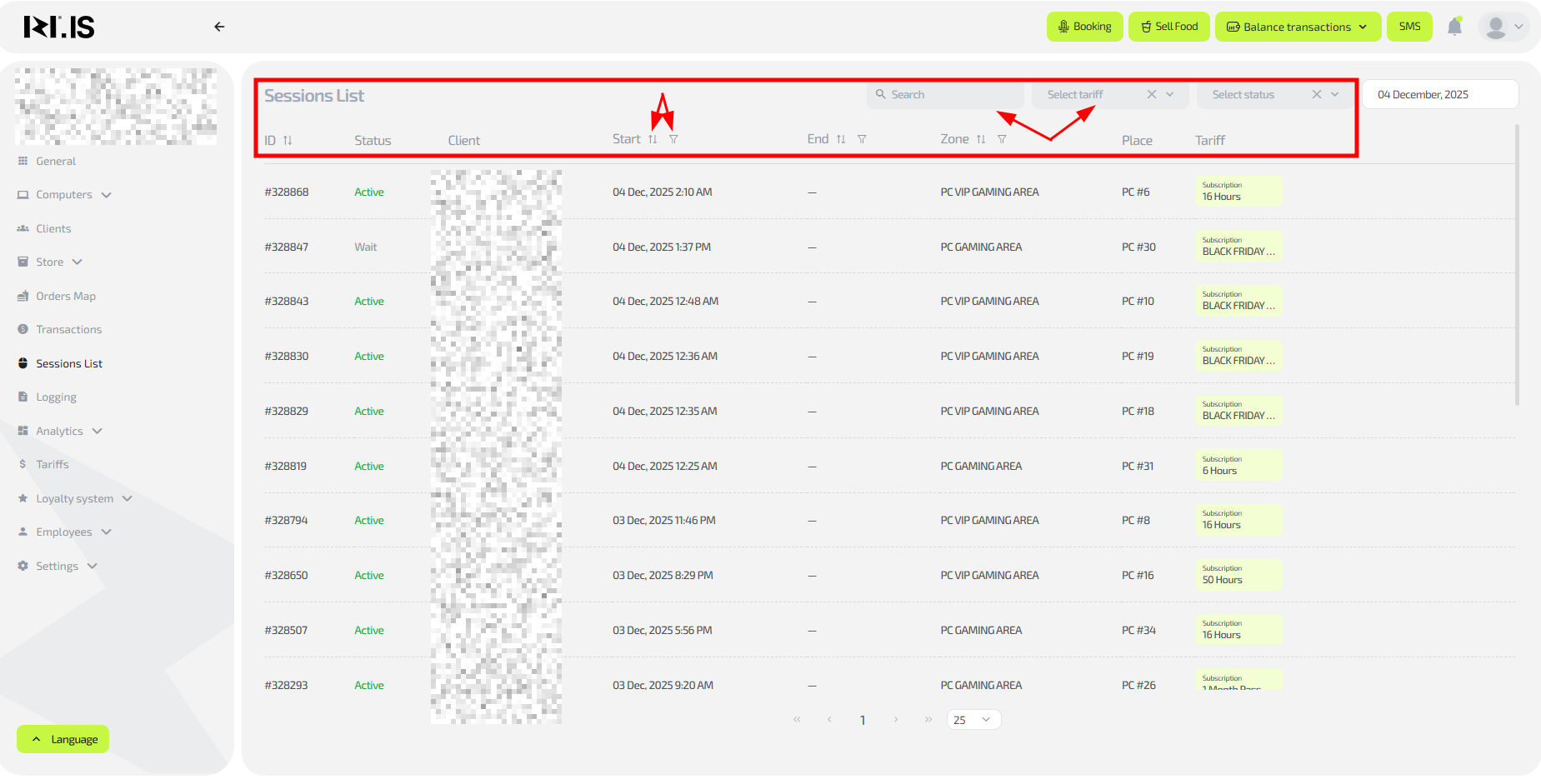
Step 3. View and adjust the list
- Review the session data: session ID, status, client phone (or “one-time”), start and end date/time, zone, PC number, tariff(s).
- Sort the columns using the arrows next to the column name (for example, by date or zone).
- Filter the data: specify a zone, client or other parameters to find specific sessions.
Important: This section is intended only for viewing and analysis — you cannot change sessions here (finish, extend, etc.). To perform actions, go to the “Home” or “Computers” sections.
Step 4. Use it for analysis
- Search for sessions when clients ask questions (payments, subscriptions).
- Check the state of sessions:
a) Active – the session is running right now.
b) Ended – the session has finished.
c) Wait – the PC is booked, but the session has not started yet.
Common situations
| Problem | What to do |
|---|---|
| The session is not displayed | Check the selected date; refresh the page; make sure the session is finished or active. |
| Filters do not work | Clear all filters and apply them again; check access rights. |
| Too much data | Sort by status or zone to simplify viewing. |
| You need to change a session | Go to “Home” or “Computers” to manage it. |