2.10 Computers
Purpose of this article
To show the administrator how the main interface of the “Computers” section in IZI CRM is arranged: which elements are displayed on the screen, how to navigate PC cards, and which tools are available for quick management of the club’s workstations.
Who this article is for
- Club administrators;
- Managers and senior administrators;
- Owners;
What you will learn
- Which interface elements are displayed in the “Computers” section;
- How PCs are grouped and how to find the one you need;
- Which quick actions are available in the general list;
- Which filters and tools help you work with PCs.
Prerequisites
Before you start, make sure that:
- You are logged in under your own account;
- The shift is open;
- Club PCs are online and connected to the CRM.
Where the “Computers” section is located
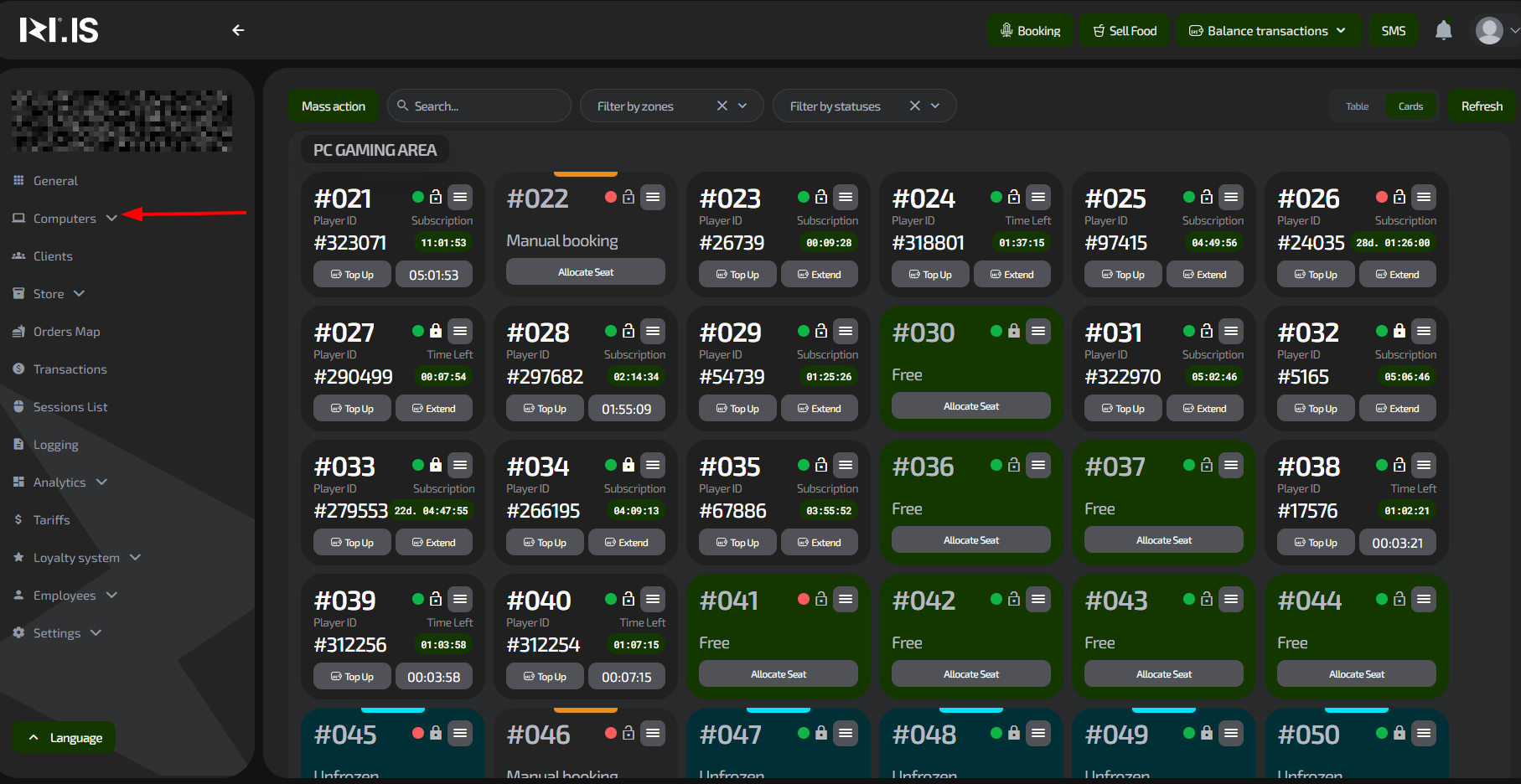
- In the left menu, select “Computers”;
- The main window with the list of all gaming seats in the club will open.
General view of the interface
The main part of the window is a list of PC cards, which are divided into zones (for example, Normal, VIP).
Each card represents a separate gaming computer and contains brief information about its state.
Tools at the top of the window
- Bulk actions — allows you to perform actions on several PCs at once;
- Search — quick search for a PC by number or name;
- Zone filter — show or hide stations of a specific zone;
- Status filter — filter PCs by states (Free, active session, Unfrozen, etc.);
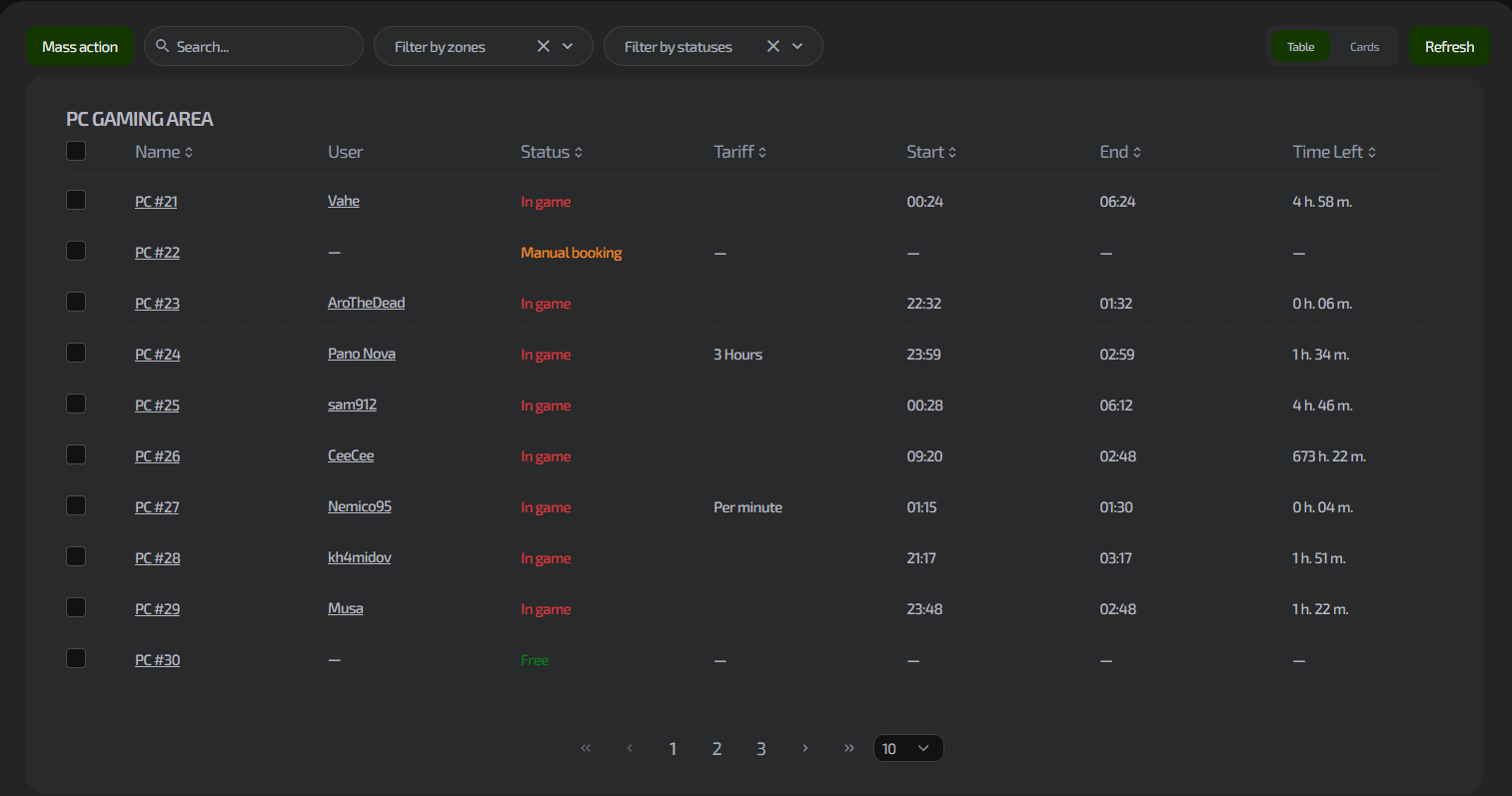
- View switch (Table / Cards) — changes how PCs are displayed;
- “Refresh” button — refreshes only the Computers section.
What is displayed on a computer card
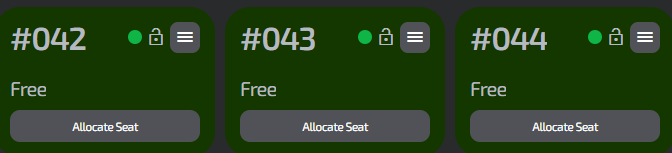
Each PC card contains:
- PC number — a unique workstation identifier, starting with the
#symbol; - Connection status icon (green/red dot);
- Lock icon (padlock image) — shows whether the PC is locked or unlocked;
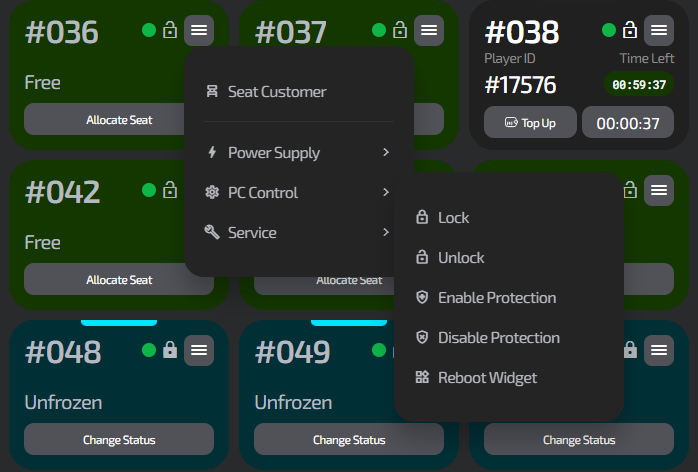
- Menu icon — opens the PC context menu (see subsection 2.10.3 for details);
- Disabled protection icon (red shield, to the left of the PC status) — if this icon is shown, protection on the PC is disabled;
- PC status (for example: Free, Unfrozen, etc.);
- “Assign seat” button — quick session start.
Main capabilities in this window
In the “Computers” section, an administrator can:
View the state of all PCs
Quickly see:
- which PC is free;
- where an active session is running;
- which PCs are offline;
- which PCs require attention.
Filter PCs by various parameters
You can filter by zones and by PC statuses. This is convenient when there are many stations.
Search for a PC
Search works by number, zone, and other internal parameters.
Start a session
Using the “Assign seat” button directly on the card.
Open the PC context menu
To access advanced functions for working with club stations (see 2.10.3 for details).
Use bulk actions
Perform a single action on several PCs at once — convenient for large clubs.
Common situations
| Situation | What to do |
|---|---|
| The PC is not displayed in the list | Check the filters; it may be hidden |
| The PC is shown as offline | Check the connection and the IZI client status on the PC. Check that the network on the PC is working. |
| The “Assign seat” button does not work | Make sure the shift is open |
| PC cards look empty | Click “Refresh” or check the station connection |