4.12.4 Changing seat
Changing seat
Article goal
Learn how to quickly move to another PC during an active gaming session in order to resolve technical issues or change zone without losing paid time.
Who this article is for
- Users with active gaming sessions
- Clients facing technical problems on a PC
- Visitors who want to change their zone or seat in the club
What you will learn
- How to move to another computer without losing time
- How to choose a suitable PC when changing seat
- Why to use the “Change seat” function
- What to do if problems occur
Why use the seat change function?
The seat change function solves several important tasks:
- Fixing technical problems — quickly move to a working PC if there are issues
- Changing environment — move to another zone of the club for more comfort
- Playing together — move to friends in another part of the room
- Preserving time — don’t lose paid minutes when changing computers
- Saving money — avoid double payment when you need to switch PCs
In short: changing seat lets you flexibly manage your position in the club without financial losses.
Step-by-step guide
Step 1. Tap “Change seat”

- During an active session find the “Change seat” button in the app
- Tap it to start the seat change process
Why this matters: This initiates the transfer of your current session to a new computer.
Step 2. Select a new PC
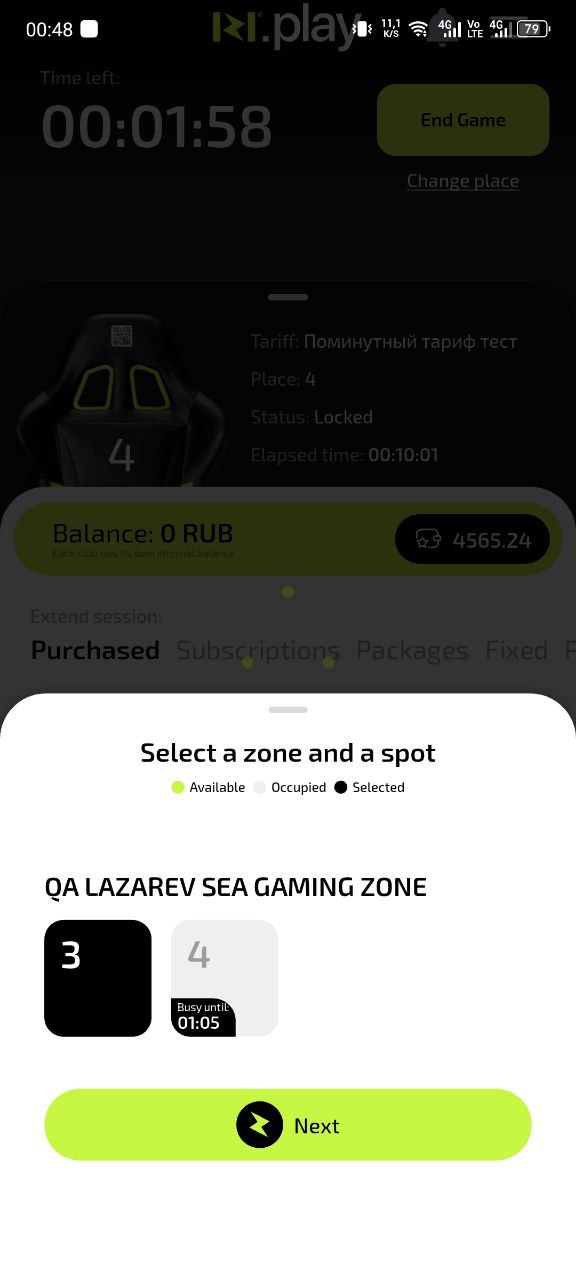
- The system will show a list of all free computers in the club
- Select a suitable PC from the available options
- Make sure the chosen computer is marked as free
Why this matters: You can choose any free computer, taking into account its location, technical characteristics or proximity to friends.
Step 3. Confirm the change
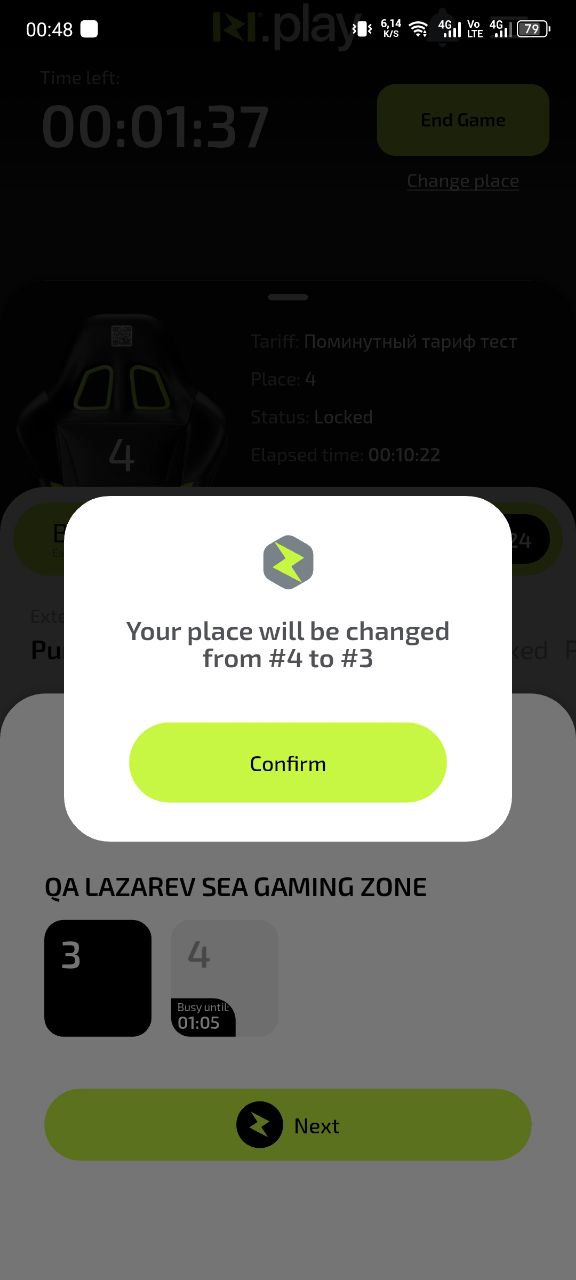
- Check that the selected computer is correct
- Tap the “Confirm” button to complete the process
- Wait for confirmation that the seat has been successfully changed
Why this matters: Confirmation guarantees that the session is correctly transferred to the new computer and the old one is released.
What happens after changing seat?
- The current session is stopped on the old computer
- The session automatically resumes on the new PC
- Time continues to be deducted without losses
- All current bar orders are preserved and move with you
Common situations
| Problem | What to do and why |
|---|---|
| No available computers to switch to | What to do: Wait a few minutes and refresh the list, or call the administrator for help. Why: Free computers may appear as other users finish their sessions. |
| Seat change does not work | What to do: Check your internet connection and restart the app. If it still doesn’t work, call the administrator. Why: Technical issues may temporarily block the function. |
| I chose an unsuitable computer | What to do: Use the seat change function again or ask the administrator to adjust it manually. Why: The system allows you to change seats several times during a session. |
| I don’t see the “Change seat” button | What to do: Make sure your session is active, refresh the app and check the session management section. Why: The button is only available during an active session and its position may change in the interface. |