4.3 Registration
Article goal
Quickly create an account in the IZI app to get access to PC booking, contactless payments and personal bonuses.
Audience
New clients of computer clubs.
What you will learn
- Why registration is needed and which confirmation method is more convenient
- How to register step by step using your phone number
- What to do if the call or SMS does not arrive
Why registration is needed
Creating an account is your pass to all benefits of the club. Without registration you cannot:
- Book a PC in advance and be sure to get a seat during peak hours
- Top up your balance online and avoid standing in line at the bar
- Receive personal discounts and bonuses that are not available to guests without an account
- Use auto extension so that your game is not interrupted when the time ends
In short: registration takes 1 minute but unlocks all club features.
Step-by-step registration guide
Step 1. Launch the app
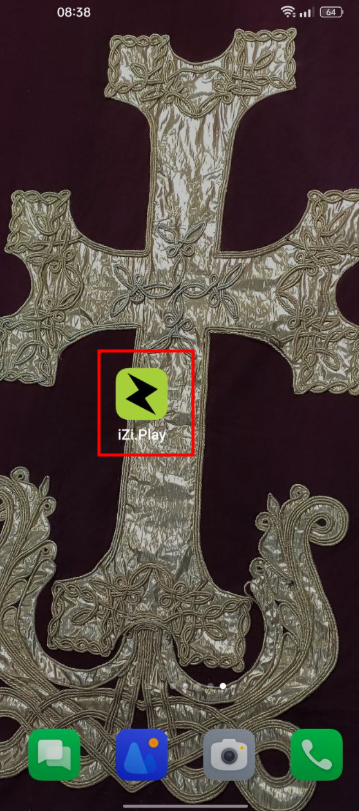
Find the IZI icon on your smartphone screen and tap it.
Why this matters: This starts the process of creating your personal account. Without this you only see the demo mode of the app.
Step 2. Enter your phone number
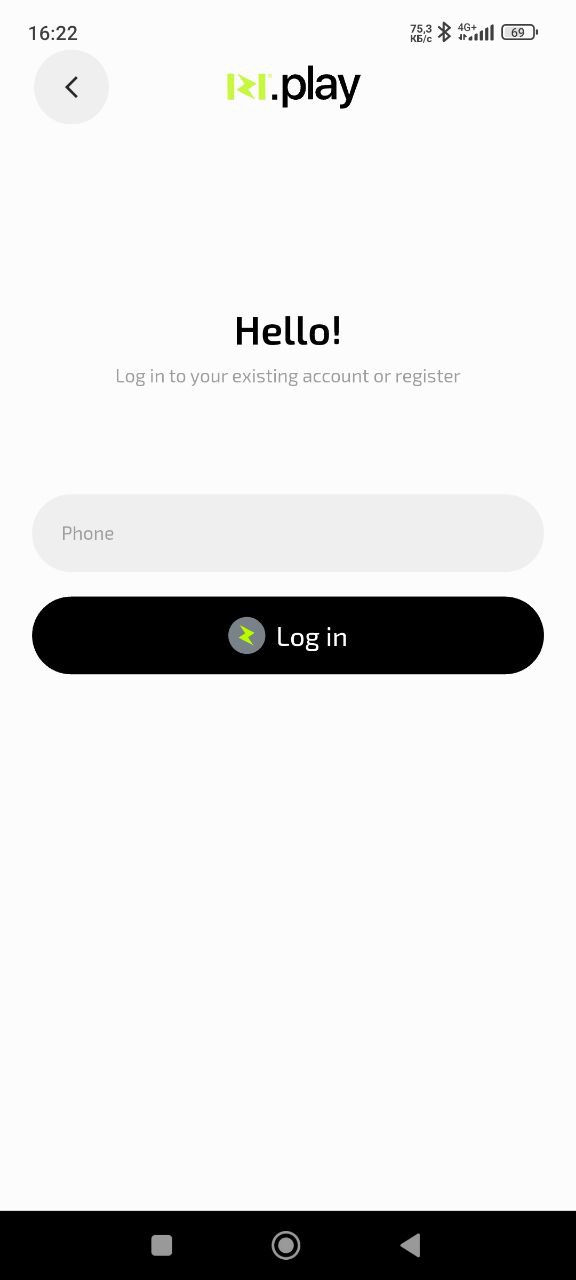
On the welcome screen tap “Register” and enter your phone number.
Why this matters: Your phone number is your login for the app. It is also used for secure identity confirmation and protects your account from unauthorised access.
Step 3. Confirm the number via a call
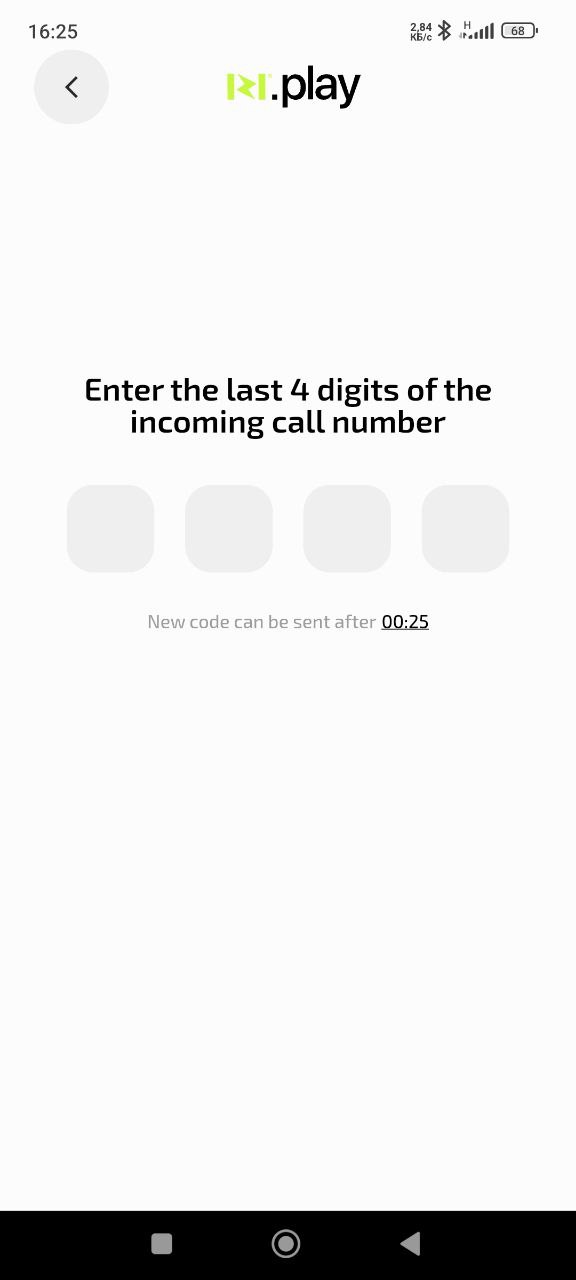
Allow the app to access calls if requested. You will receive an incoming call from the system. Enter in the app the last 4 digits of the number from which the call came.
Why this matters: An automatic call is the fastest way to confirm your number. It takes just a few seconds and does not require waiting for an SMS. You immediately get access to your account.
Step 4. If no call arrives, request an SMS
If the call does not arrive within a minute, tap “Didn’t receive a call? Send SMS”.
Why this matters: Sometimes mobile operators may block automatic calls. SMS is a reliable fallback method of confirming your number and guarantees that you will be able to complete registration in any case.
Common problems and solutions
| Problem | What to do and why |
|---|---|
| The call arrived, but the digits are not shown on screen | What to do: Do not decline the call. Answer it and copy the last 4 digits of the number manually from the call history. Why: Some phone models do not show the number during the call itself, but it is always saved in the history. |
| Neither call nor SMS is received | What to do: 1. Make sure the phone number is entered correctly with the country code (+7...). 2. Check whether your operator or phone is blocking short service numbers. Why: These are the main causes of failures. Checking the number and phone settings usually solves the problem. |
| The field for entering the code is inactive | What to do: Make sure you have allowed the app to access calls and notifications. Restart the app. Why: Without the required permissions the app cannot track the incoming call and activate the input field. |
| Message “A user with this number already exists” appears | What to do: Tap “Log in” instead of “Register”. If you forgot your password, use the password recovery option. Why: This means you have already registered before. Restoring access is faster than creating a new account. |