4.12.5 Calling the administrator
Calling the administrator
Article goal
Learn how to quickly call the administrator via the IZI app to promptly resolve technical issues, get advice and keep your gaming experience comfortable without walking around the club.
Who this article is for
- All users of the IZI app
- Clients facing technical problems
- Visitors who need help or consultation
What you will learn
- How to quickly call the administrator via the app
- In which situations you should ask for help
- How to describe a problem to speed up its resolution
- Why to use the app instead of looking for the administrator in the club
Why use the in-app administrator call?
Calling the administrator via the app solves several important tasks:
- Saving time — the administrator gets a notification and comes to you; you don’t need to search for them
- Accurate location — the system automatically shows from which PC the call was made
- Priority handling — such requests are often processed faster than verbal requests
- Comfort — you don’t interrupt your gaming process for long
- Documented requests — the call is stored in the system, which helps to resolve recurring issues
In short: calling via the app is the fastest and most efficient way to get help in the club.
Step-by-step guide
Step 1. Find the “Call administrator” button
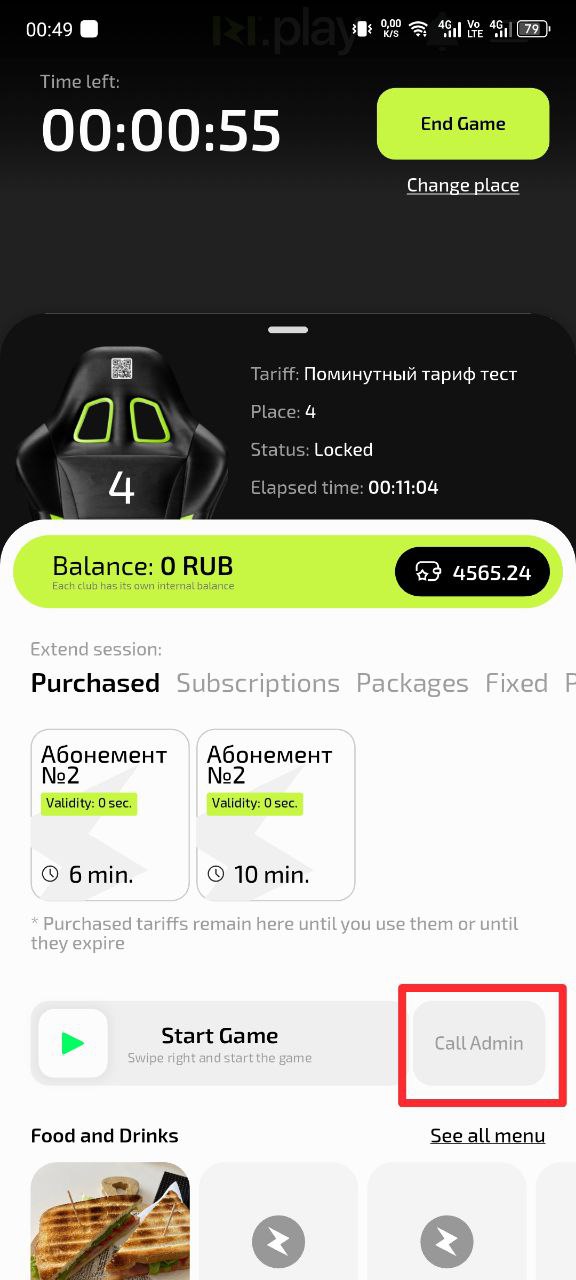
- During an active session open the IZI app
- Find the Session management section
- Find the “Call administrator” button
Why this matters: The button is located in a logical place related to managing the current session — exactly where you are most likely to look for help.
Step 2. Describe the problem
- After tapping the button, a window for describing the problem will open
- Briefly describe the essence of the issue or select one of the predefined options
- Indicate the urgency of your request
Why this matters: A clear problem description helps the administrator understand what happened and prepare to solve it before coming to you.
Step 3. Send the request and wait for the administrator
- Tap the “Send request” button
- Wait for confirmation that the request has been accepted by the system
- Wait for the administrator to arrive
Why this matters: After confirmation you can be sure that the administrator has received the notification and is already on the way.
When should you call the administrator?
- Technical issues — the computer, mouse or keyboard does not work, there is no sound
- Tariff questions — incorrect charging, a season pass not activated
- Order problems — bar order not delivered, mistake on the receipt
- Consultations — help with using the app, questions about club events
- Emergency situations — feeling unwell, conflicts and other incidents
Common situations
| Problem | What to do and why |
|---|---|
| The administrator does not come for a long time | What to do: Send the request again or contact another administrator in person. Why: The system may have failed or the administrator may be very busy. |
| I cannot find the call button | What to do: Check the “Session management” section or use the main app menu. Why: In different app versions the button position may vary slightly. |
| I need urgent help | What to do: Mark the request as “URGENT” in the problem description or go to the administrator desk in person. Why: This will attract faster attention from the administrator. |
| The problem keeps repeating | What to do: When sending a new request, mention that the issue has occurred before and specify the previous request number if possible. Why: This helps identify a systemic issue and find a permanent solution. |