4.4 Club list and navigation
Article goal
Learn how to quickly find the right club and navigate your personal account so you can immediately start booking and using all app features.
Audience
New and existing clients of computer clubs.
What you will learn
- How to select a city and club to see up-to-date PCs and tariffs
- Why the main buttons in the top panel are useful and how they save you time
- How to track your orders and gaming sessions in one place
Why navigation matters
The main screen of the app is your control centre. Once you understand it, you don’t waste time looking for the right feature and can:
- Quickly find your club and see which PCs are available right now
- Start playing instantly by scanning a QR code on the PC, without involving the administrator
- Control all your actions and expenses in one screen
- Solve any issue in one tap without leaving the app
In short: spend 2 minutes learning the navigation and you’ll use the app much more efficiently.
Step-by-step guide
Step 1. Choose a city and a club
After registration you will land in your profile. To see PCs available for booking, you first need to select a location.
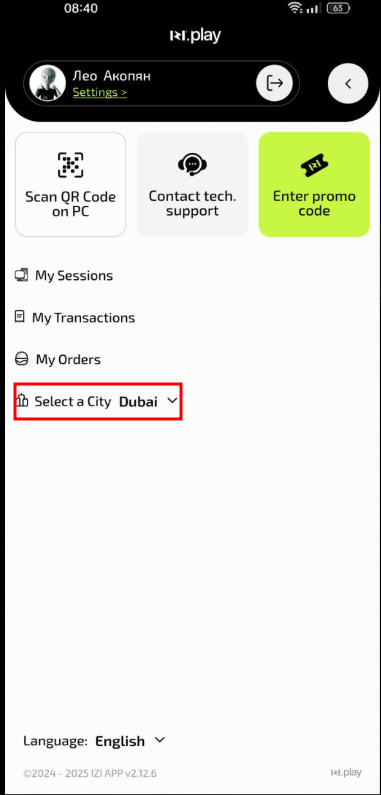
- Tap the “Choose city” field.
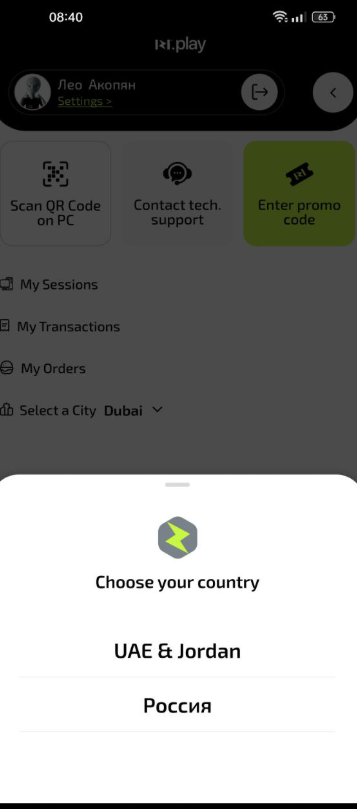
- Select your country and city (for example, Russia → Moscow).
- After choosing a city, tap the “Clubs” list and select the required branch.
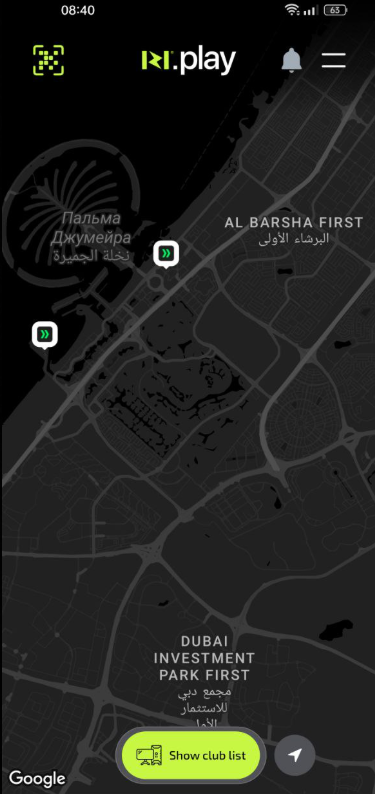
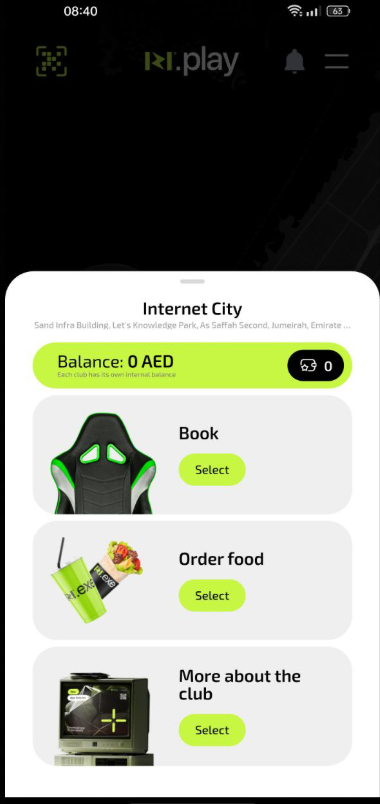
Why this matters: The app shows available PCs and current tariffs only for the selected club. If you don’t choose a club, you won’t see what you can book. This helps avoid confusion with branches in other cities.
Common problems and solutions
| Problem | What to do and why |
|---|---|
| My city or club is not in the list | What to do: Pull the screen down to refresh the list. If that doesn’t help, check your internet connection. Why: The app loads current data from the server, and with a poor connection the list may not update. |
| The city is there, but my club is missing | What to do: Make sure you scrolled the list to the end. If the club is not there, it may be temporarily unavailable for booking. Why: The club administration may temporarily disable booking for maintenance. |
| The detected city is wrong | What to do: Check your phone’s location settings or select the city manually. Why: Automatic location detection may be inaccurate, especially in large cities. |