4.9 Viewing orders
Viewing orders
Article goal
Learn how to view your bar order history in the IZI app in order to track your purchases, control your spending on food and drinks, and quickly repeat previous orders.
Who this article is for
- Registered users of the IZI app
- Clients who order food and drinks at the club bar
What you will learn
- How to find your bar order history
- Which information you can see for each order
- How to analyse your spending on food in the club
- How to quickly repeat previous orders
Why view your order history?
Regularly checking the “My orders” section allows you to:
- Control spending on food — see how much money you spend on food and drinks during gaming sessions
- Repeat favourite orders — quickly find and reorder the bar items you liked
- Analyse eating habits — understand which products and drinks you choose most often
- Check that debits are correct — make sure order amounts match the prices in the menu
- Save time — avoid searching again in the menu for frequently ordered items
In short: viewing orders is a convenient way to control food expenses and speed up new orders.
Step-by-step guide
Step 1. Go to your profile
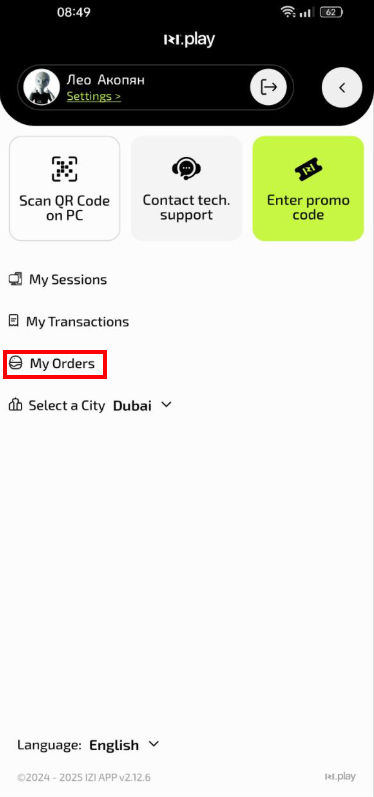
- Open the IZI app
- On the main screen tap your profile icon
Why this matters: The history of all your orders is stored in the personal profile section and linked to your account.
Step 2. Open the “My orders” section
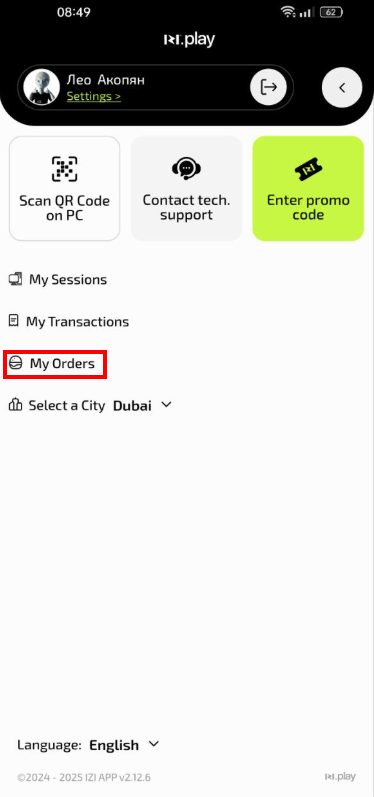
- In the profile menu find and tap “My orders”
- Wait for the list of orders to load
Why this matters: This section contains the full history of all your bar orders since registration.
Step 3. Analyse order information
In the “My orders” section you will see:
- Date and time of each order
- Order contents — all items you ordered
- Quantity of each item
- Total cost of the order
- Order status (completed, in preparation, cancelled)
- Payment method (card, cash)
Why this matters: Detailed information helps you analyse your preferences and quickly find frequently ordered items to repeat the order.
Common situations
| Problem | What to do and why |
|---|---|
| An order is not shown in history | What to do: Pull the screen down to refresh the list. Check your internet connection. Why: Data may load with a delay due to server connection speed. |
| The order amount does not match | What to do: Compare the amount with current bar menu prices. Take into account possible promotions and price changes. Why: Bar prices may change, and the amount in history reflects prices at the time of the order. |
| I want to repeat a previous order | What to do: Find the required order in history, remember its contents and place the same order via the bar section. Why: This saves time searching menu items and entering the order. |
| The order status does not change for a long time | What to do: Ask the administrator about the order status. It may still be in preparation. Why: Statuses are updated manually by the administrator and may change with a delay. |