3.15.3.2 Connecting a Telegram bot to monitoring
The “Connect Telegram bot” section allows you to configure automatic notifications about the state of gaming PCs and any monitoring anomalies directly in Telegram. The bot will send alerts in case of overheating, critical load, connection loss or other malfunctions.
Article goal
Show how to create a Telegram bot, obtain the required data (Token and Chat ID), add the bot to a channel or group, and connect it in IZI CRM to receive monitoring notifications.
Who this article is for
- Club owners
- Administrators who monitor PC operation
- Club IT specialists
- Managers who need to receive notifications remotely
What you will learn
- Where the bot connection section is located
- How to create a Telegram bot via @BotFather
- How to obtain the API token
- How to create a channel/group for alerts
- How to get the Chat ID
- How to enter the data correctly in IZI CRM
- How to check that the bot works
Prerequisites
Before you start, make sure:
- You have Telegram installed
- You are logged into Telegram Web (to obtain Chat ID)
- You have access in IZI CRM to Settings → Monitoring
How to open the Telegram bot connection section
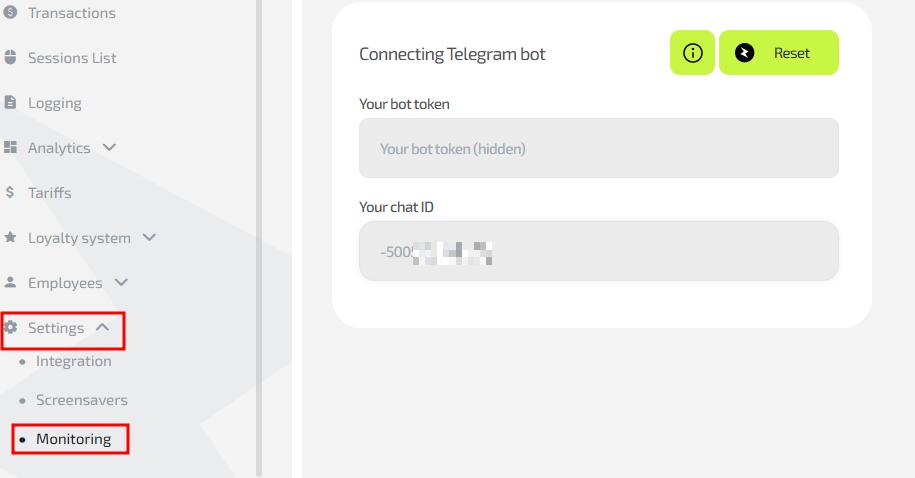
- Log in to IZI CRM.
- In the left menu select Settings.
- In the submenu click Monitoring.
- Scroll down to the “Connecting a Telegram bot” block.
This block contains the fields:
- Your bot token
- Your chat ID
And the buttons:
- i (instruction) — opens detailed help
- Reset — clears data and disconnects the bot
Detailed guide to connecting a Telegram bot
Step 1. Create your bot (get Bot Token)
- In Telegram find @BotFather.
- Enter the command:
/newbot - Specify the bot name and username (the username must end with bot).
- After creation, BotFather will give you an API Token.
- Copy this token and paste it into IZI CRM in the
“Your bot token” field.

- Open a private chat with your new bot and press Start to activate it.
Step 2. Create a channel/group for notifications and add the bot
- Create a channel or group in Telegram where monitoring notifications will be sent. You can also use an existing one.
- Add your bot to this channel/group.
- If it is a channel, be sure to give the bot administrator rights — otherwise it will not be able to send messages.
Step 3. Get the channel/group Chat ID
Method 1: via Telegram Web (main method)
-
Open https://web.telegram.org and log in to your account.
-
Go to the channel or group where you added the bot.
-
In the browser address bar you will see a link like:
https://web.telegram.org/k/#-987654321 -
Everything after /#, for example:
-987654321is your Chat ID.
-
Copy the Chat ID and paste it into IZI CRM in the
“Your chat ID” field.

If the Chat ID is not shown in the address
-
Send any message to the channel/group.
-
Open the following link in your browser:
https://api.telegram.org/botYOUR_API_TOKEN/getUpdates -
In the response, find a line like:
"chat":{"id":-987654321} -
This is your Chat ID.
Copy it and paste it into IZI CRM.
Step 4. Connect the bot in IZI CRM

- In the “Connecting a Telegram bot” block fill in:
- Your bot token
- Your chat ID
- Click Save.
- The bot will automatically start receiving monitoring notifications.
Step 5. Check that it works
To make sure everything is working:
- Turn off any gaming PC for 1–2 minutes (it will go offline).
- A test error/notification should arrive in Telegram.
- If there are no messages — check the bot’s rights and the Chat ID.
Common situations
| Problem | Reason | Solution |
|---|---|---|
| The bot does not write to the channel | It has no administrator rights | Grant administrator rights |
| Chat ID is not accepted | The ID of a user instead of a channel/group was entered | Check the ID via getUpdates |
| CRM says “invalid token” | An error occurred while copying the token from BotFather | Copy the token again |
| Notifications are delayed | Telegram limits message rate | This is normal Telegram behaviour |
| The bot is completely silent | The bot was not activated with the Start button | Send a message to the bot in private chat |