Positions
Article goal
Show how the club owner or an authorized staff member can create, edit and delete positions in IZI CRM, and explain how this section works.
Who this article is for
- Club owners
- Managers
- Senior administrators with access to role and user management
What you will learn
- Where the “Positions” section is located
- Which actions are available
- How to create a new position
- How to edit an existing position
- How to correctly delete a position
Prerequisites
Before you start, make sure that:
- Your account has rights to edit roles, users and positions
- You understand which roles have already been created in 3.14.1 Creating roles and configuring access rights
How to open the “Positions” section
- Log in to IZI CRM with your account
- In the left menu select “Employees”
- In the dropdown menu click “Positions”
The section is available only to staff members who have rights to manage roles and users.
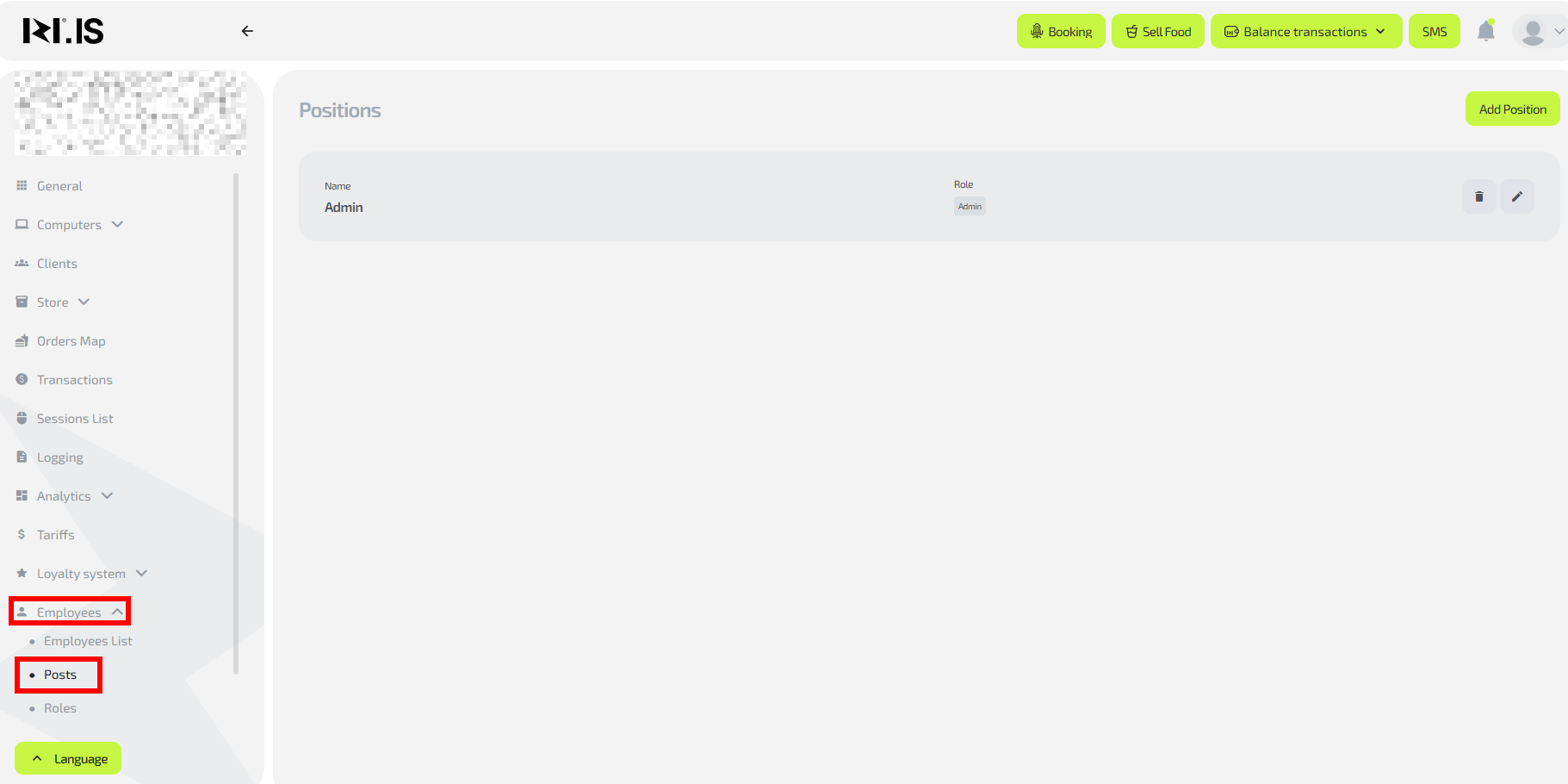
Available actions with positions
The following operations are available in this section:
- Create a new position
- Delete a position
- Edit a position
Creating a new position
To create a new position:
- Click the “Add position” button in the upper-right corner — the position creation window will open

-
Enter the position name
(for example: Administrator, Shift supervisor, Tech specialist). -
Select a Role
- Roles define the access level
- Role configuration is done in 3.14.1 Creating roles and configuring access rights
-
Specify a comment (optional)
- You can add a description of duties or area of responsibility
-
Click “Create position”
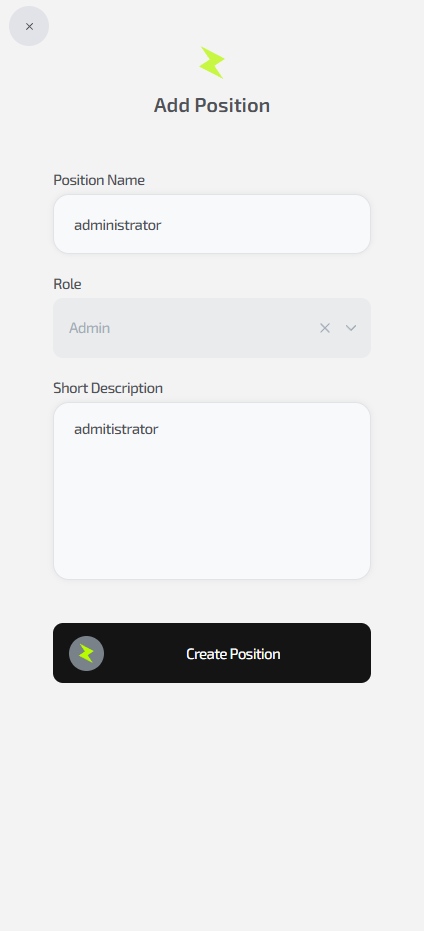
After that the position will appear in the general list and will be available for assigning to staff members.
Deleting a position
To delete a position:
- In the main “Positions” window click the trash bin icon next to the required position

- Confirm deletion
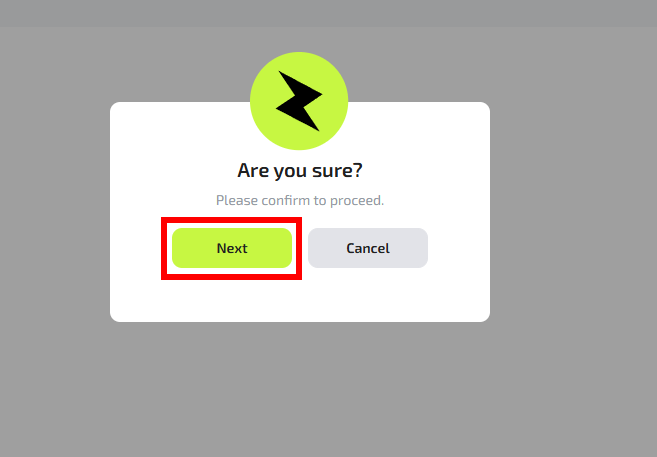
Important: if the position is assigned to an active staff member, it is recommended to change their position first to avoid accounting issues.
Editing a position
To edit an existing position:
- In the main window click the pencil icon next to the required position

-
In the opened window you can:
- Change the position name
- Change the assigned role
- Change, add or remove the comment
-
Save the changes by clicking “Save”
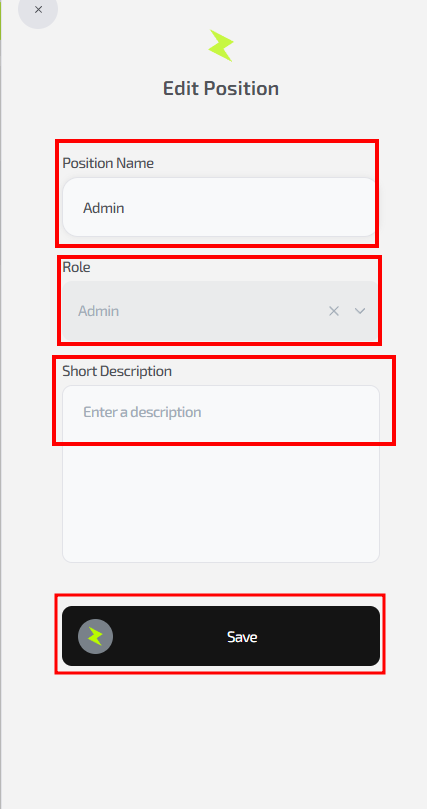
The changes take effect immediately and apply to all staff members who have this position assigned.
Common situations
| Situation | What to do |
|---|---|
| Access to the section is denied | Check your account role — extended rights are required |
| A position cannot be deleted | Make sure it is not assigned to active staff members |
| Roles are not shown | Check the settings in section 3.14.1 |