3.13.1 Creating roles and configuring access rights
Article goal
Show the club manager how to add staff members to the system, assign them positions, and configure access rights using the role system.
Who this article is for
- Club manager
- Business owner
- Users with access rights to staff management
What you will learn
- How to add a new staff member to the system
- How to create and edit positions
- How to configure roles and access rights
- How to assign a position and role to a staff member
Prerequisites
Before you start, make sure that:
- You have access rights to the “Employees” section
- The staff member is registered in the IZI system with a correct phone number
- You have defined the required access level for each position
Step-by-step guide
Step 1. Adding an employee
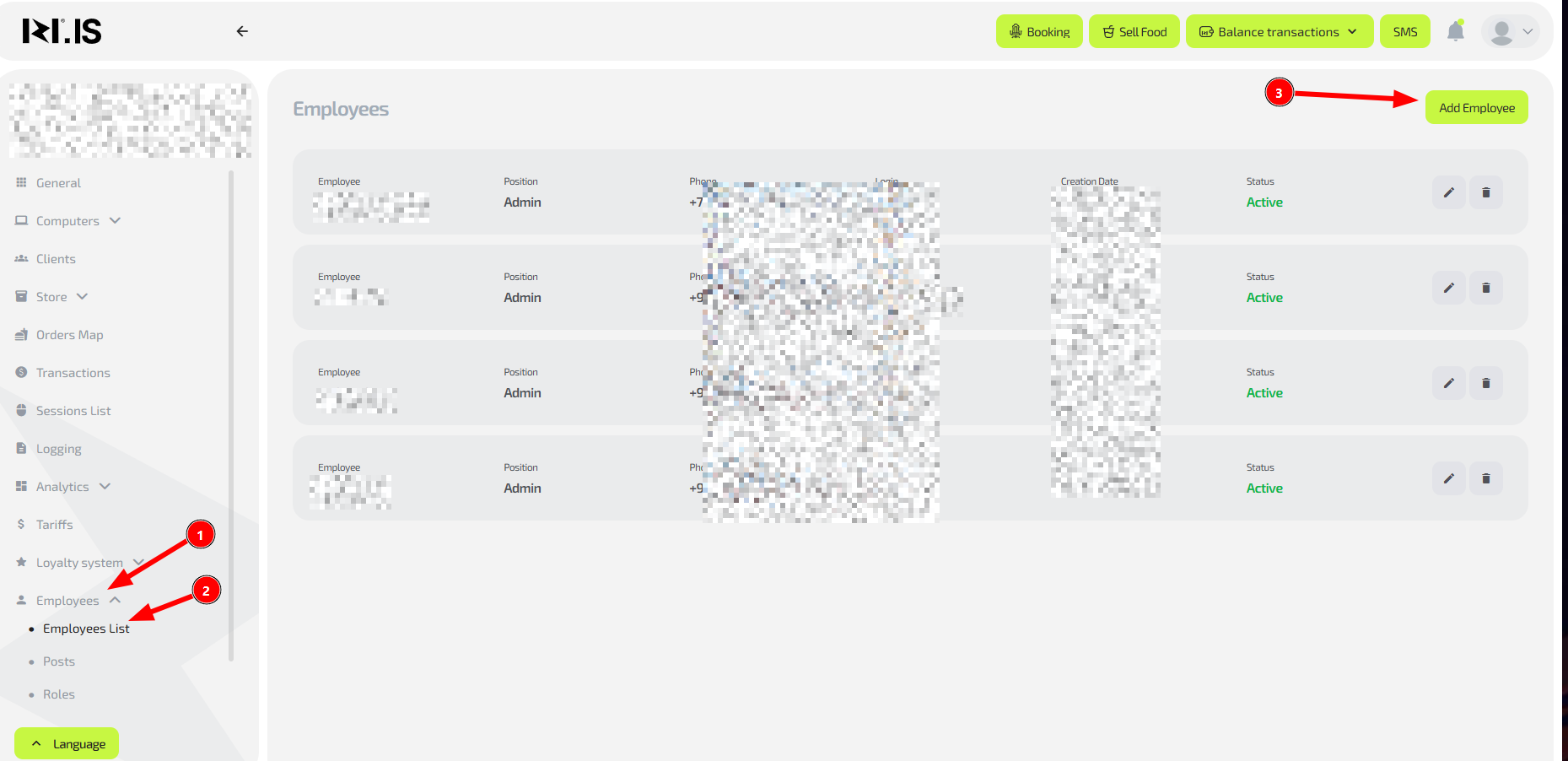
- Go to “Employees” → “Employees list”
- Click “Add employee”
- Enter the staff member’s phone number in the format: +7 XXX XXX-XX-XX
- Confirm the addition
Important: The staff member must be pre-registered in the IZI system with a correct phone number. Avoid numbers starting with +8 or 8 (without country code) — this may cause errors and create duplicate accounts.
Step 2. Configuring access roles
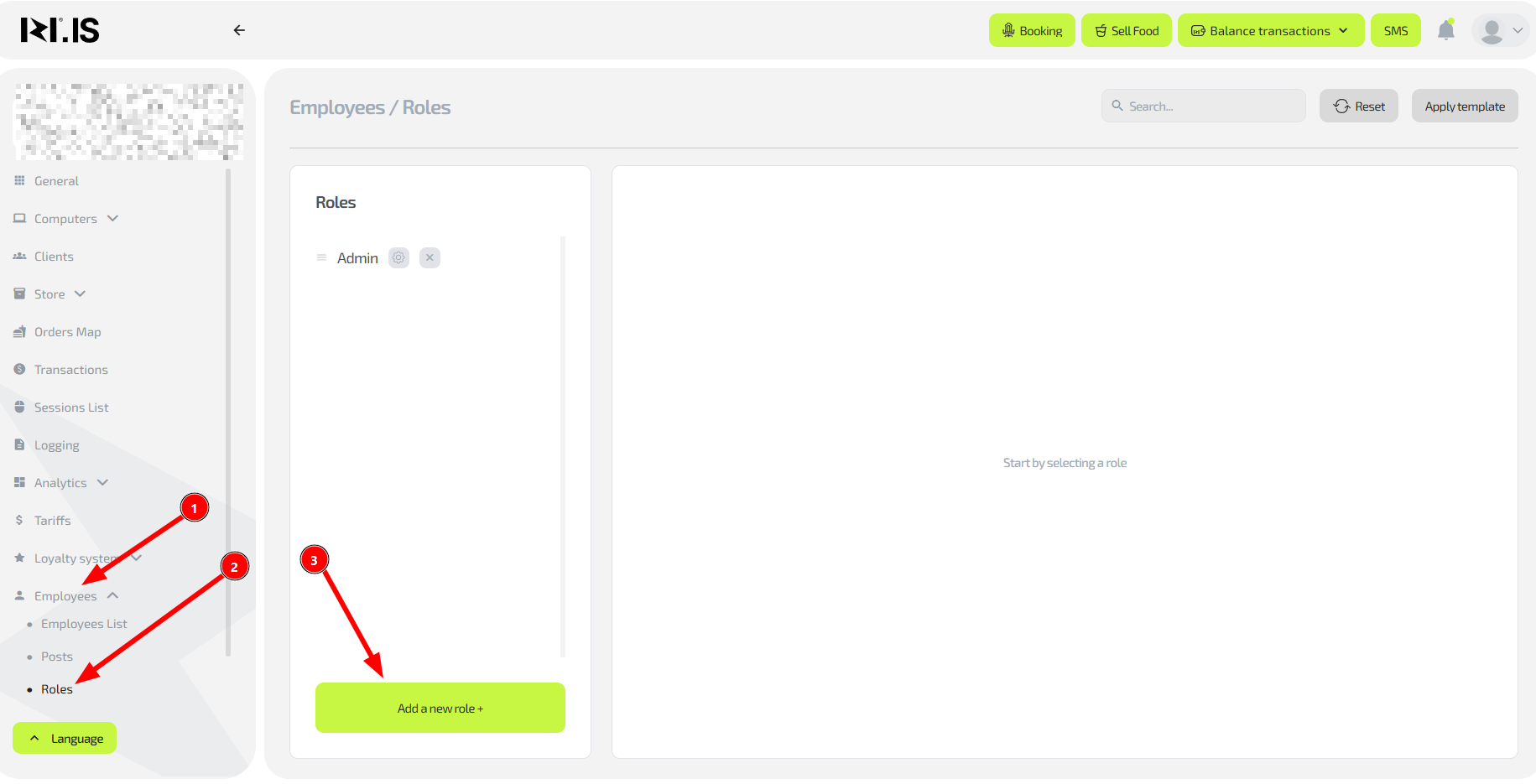
- Go to the “Roles” subsection
- Click “Add new role”
- Give the role a clear name (for example, “Administrator access”)
- Save the settings
Step 3. Creating positions
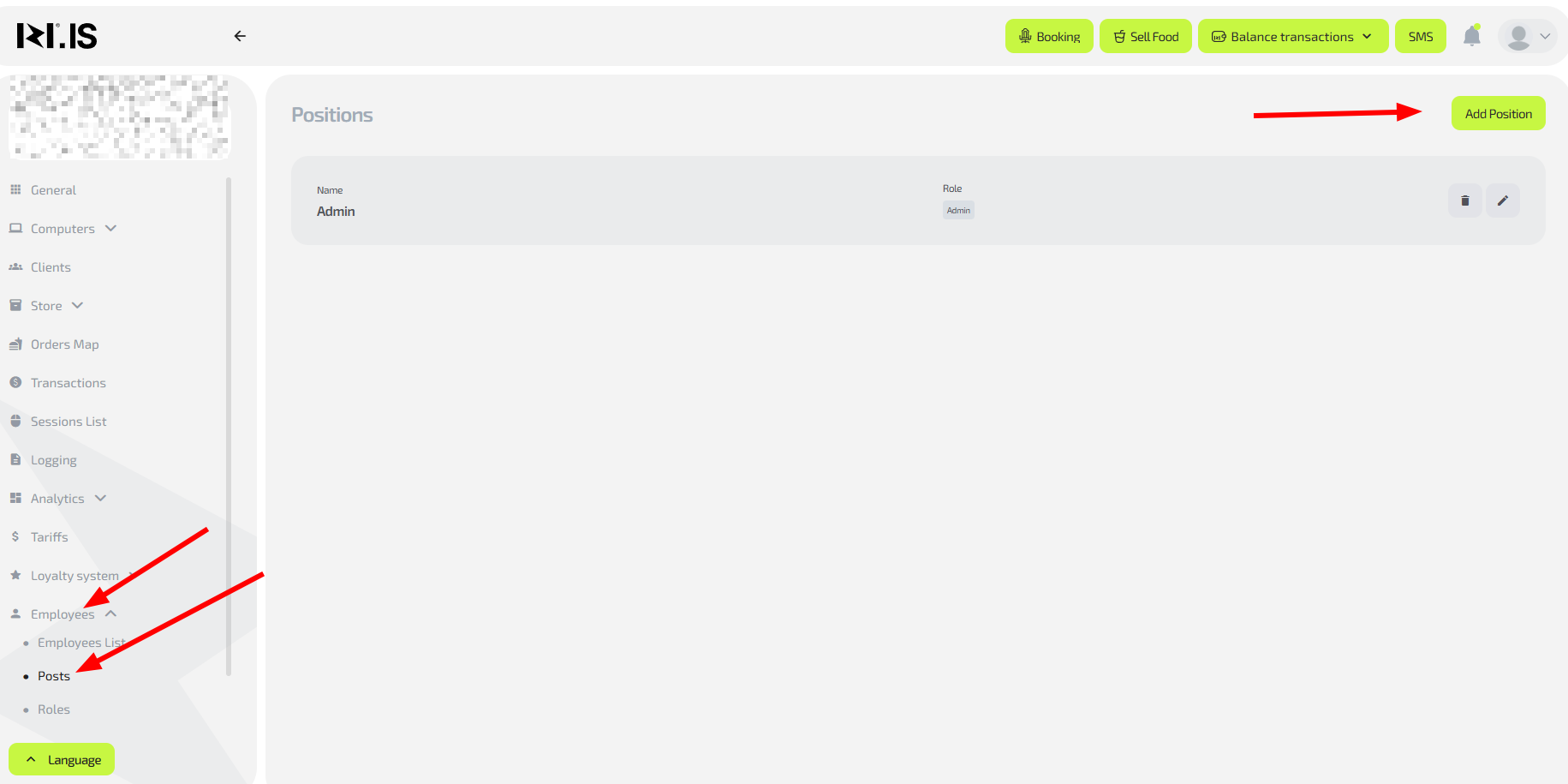
- Go to the “Positions” subsection
- Click “Create position”
- Enter the position name (for example, “Administrator”, “Senior administrator”)
- Select the appropriate role from the previously created ones
- Save the position
Step 4. Assigning a position to a staff member

- In the “Employees list” section find the required staff member
- Click their card to edit
- In the “Position” field select the appropriate position from the list
- Save the changes
Tip: Use ready-made role templates (coming soon in the system) to simplify configuration.
Common situations
| Problem | What to do |
|---|---|
| The staff member is not shown in the list when adding | Check that the staff member is registered in the IZI system with a correct phone number in the format +7 XXX XXX-XX-XX |
| You need to change the staff member’s access rights | Edit the role linked to their position, or assign another position |
| The staff member cannot log into the system | Check whether the phone number is correct and whether a position with appropriate access rights is assigned |
| You need to temporarily restrict the staff member’s access | Remove the position from the staff member in the “Employees list” section |
| The staff member has changed their phone number | Technical support is required to change the number in the system |
Recommendations
- Check the staff member’s phone number during registration (format: +7 XXX XXX-XX-XX)
- Use clear names for positions and roles to avoid confusion
- Regularly review and update staff access rights
- Follow system updates — role configuration interface will be simplified in the future