3.12.1 Working with promo codes
Article goal
Show how to create promo codes for marketing campaigns and manually credit bonus points to clients. This helps encourage repeat visits and increase guest loyalty.
Who this article is for
- Club owner
- Manager
- Administrator with extended rights
What you will learn
- How to create a promo code for mass campaigns
- How to manually credit bonuses to a specific client
- Which reasons to specify when crediting bonuses
- How to limit the number of promo code uses
- Where to check that bonuses were successfully credited
Prerequisites
- You have administrator or owner rights
- You have access to the “Loyalty system” section
Step-by-step guide
Step 1. Create a promo code for a campaign
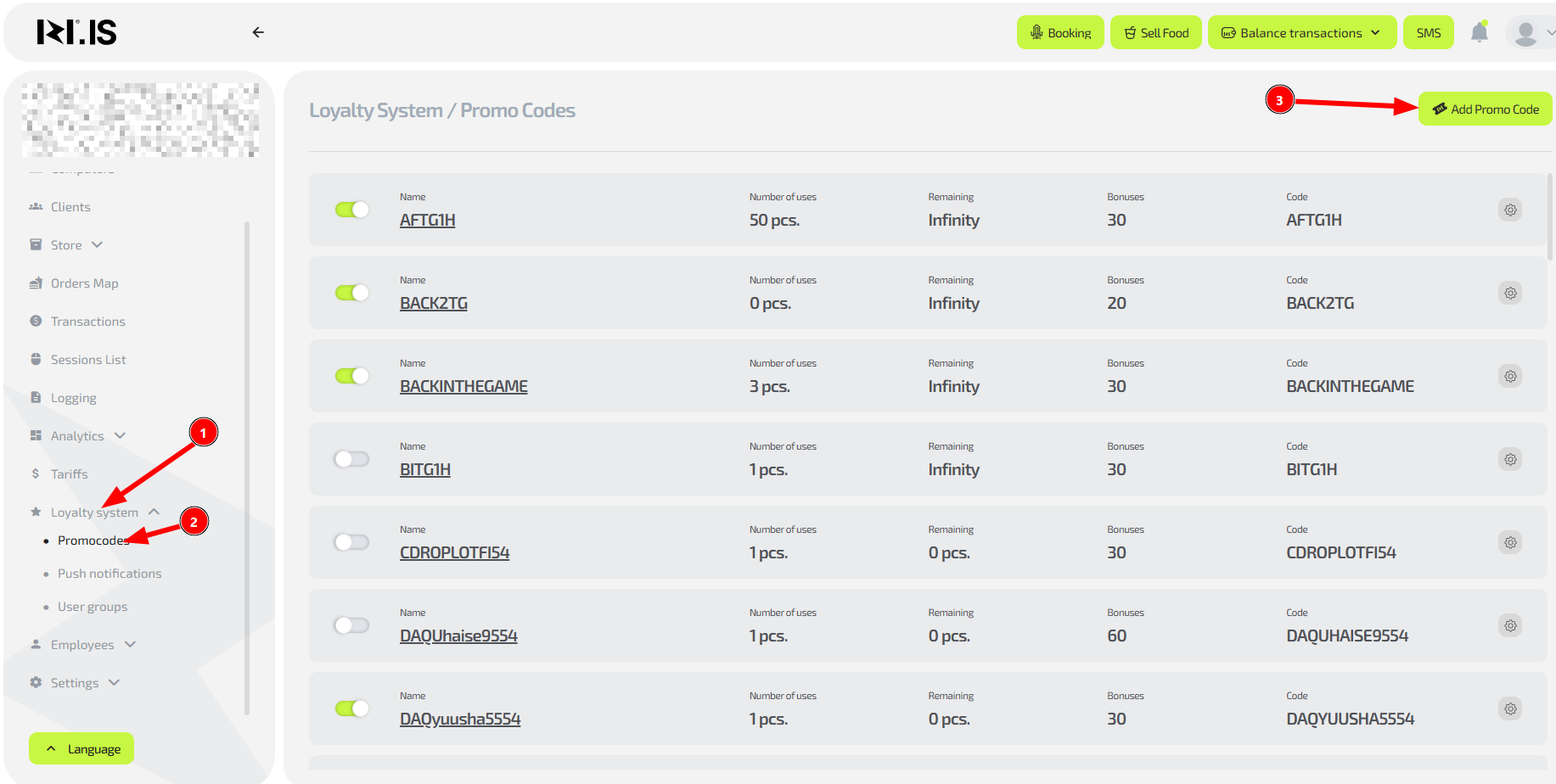
Why this is needed: To launch a marketing campaign that will attract new clients or reward regular ones. For example, you can create the promo code “WELCOME100” to credit 100 bonus points to all new clients.
- Go to “Loyalty system” → “Promo codes”
- Click “Add promo code”
- Fill in the parameters:
- Promo code type — select “Bonuses for purchase” or another suitable type
- Promo code name — give it a unique name (for example, “Summer promotion”)
- Bonuses — enter the amount in rubles
- Quantity — set an activation limit or select “Unlimited quantity”
- Code — enter the promo code itself (for example, “SUMMER50”)
- Click “Credit”
Tip: For testing campaigns, create promo codes with a small activation limit. If the promotion works well, you can create a new promo code with a larger reach.
Step 2. Manually credit bonuses to a specific client
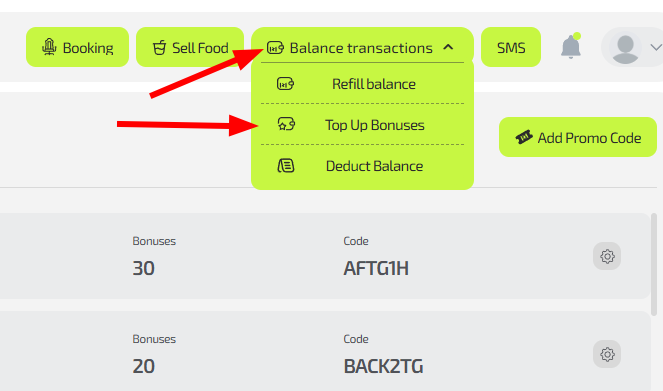
Why this is needed: To reward a valuable client personally or fix a technical error. For example, if the client took part in a tournament but did not receive their prize bonuses automatically.
- In the client card click “Balance operations”
- Select “Credit bonuses”
- Enter the last 4–6 digits of the client’s phone number, click on the required client and the system will automatically fill in the “User” field with this client’s name. Make sure bonuses are being credited to the correct client
- Fill in the fields:
- Number of bonus points — enter the amount to be credited
- Top-up reason — specify the reason (“For winning a tournament”, “Compensation for inconvenience”)
- Click “Credit”
Common situations
| Problem / Question | Solution |
|---|---|
| The client entered the promo code, but bonuses were not credited | Check whether the activation limit has been reached. Make sure the promo code is active and not expired |
| You need to cancel bonuses credited by mistake | Use the “Write off bonuses” operation in the client card and specify the reason |
| The promo code does not work for some clients | Check the activation limit. If it is exhausted, create a new promo code |
| The client asks to transfer bonuses to another person | Explain that bonuses are tied to an account and cannot be transferred |
| You need a promo code only for a specific group of clients | This feature is not available in the current version. Use unique promo codes for different groups |