User groups: how to segment clients for targeted promotions and promo codes
Article goal
Show how to create client groups for targeted marketing so you can offer relevant promotions to different categories of visitors and increase the effectiveness of promo campaigns.
Who this article is for
- Club owner
- Manager
- Marketer
- Administrator with access rights to groups
What you will learn
- How to create a client group for personalized offers
- Which group names work better in practice
- How to use groups to target promo codes and bonuses
- Which types of groups are most useful for the business
- How to organize clients for future marketing activities
Prerequisites
- You have access rights to the “User groups” section
- There are registered clients in the system
Step-by-step guide
Step 1. Create a new group

Why this is needed: To combine clients with common characteristics and make targeted offers to them.
For example, you can create a group “VIP_clients” for those who visit the club more than 3 times a week and send them exclusive promo codes.
- Go to the “User groups” section
- Click “New group”
Tip: Think through the group structure in advance so you don’t create duplicate categories.
Step 2. Come up with a clear group name
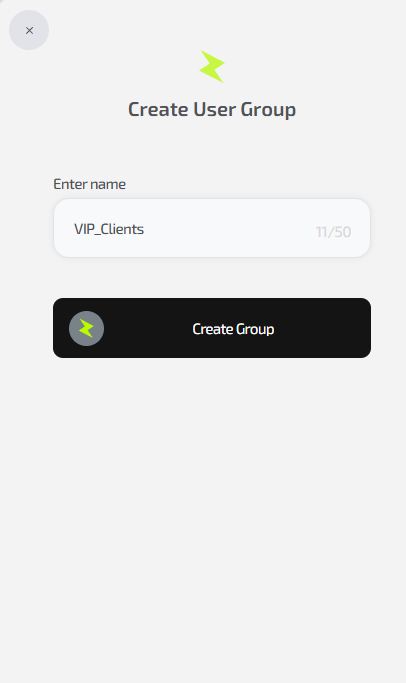
Why this is needed: So that you can easily navigate the list of groups and understand what each one is used for. A clear name saves time when selecting a group for a mailing.
- In the “Name” field enter a clear and unique title
- Use explicit criteria in the name:
- By activity:
"Active_daily","Once_a_month" - By status:
"VIP_regulars","New_clients" - By events:
"Tournament_participants_October","Event_visitors"
- By activity:
Important: Use a consistent naming style for all groups — this will simplify navigation.
Step 3. Save the group and start adding clients
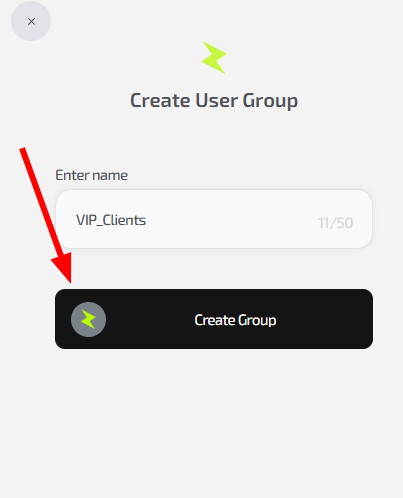
Why this is needed: So you can start using the group for marketing activities right after creation.
An empty group is useless — its value appears only after it is filled with clients.
- Click “Create group”
- The group will appear in the general list
- Start adding clients manually via their cards
Example: After creating a group "Inactive_2months", you can send them a promo code like "Come_back_and_get_100bonus" and bring back 15–20% of clients.
Common situations
| Problem / Question | Solution |
|---|---|
| I don’t understand which groups to create | Start with basic ones: “New”, “Regulars”, “VIP”. As more data accumulates, add activity-based groups |
| There are many clients, adding them manually takes too long | In the current version, adding is manual only. Automatic sorting by criteria will appear in the future |
| I created too many groups and it’s hard to navigate | Merge similar groups. Keep 5–7 main categories |
| I want to make a promo code only for a specific group | In the current version, linking promo codes to groups is not available, but this feature is in development |
| A client asks to be added to a group | Explain that groups are used for marketing and that adding is decided by the administration |