4.6 User profile
Article goal
Learn how to navigate your personal account in the app so you can quickly find the necessary functions and manage your sessions, orders and payments.
Audience
New and existing clients of computer clubs.
What you will learn
- How to use the top panel for quick actions
- How to track your sessions, transactions and orders
- How to configure the interface language
Why understand the navigation?
Your personal account is your control centre. It allows you to:
- Start a game in 30 seconds by scanning a QR code
- Control expenses and remaining game time
- Repeat favourite bar orders without searching the menu again
- Solve issues without contacting the administrator
In short: understanding the navigation saves your time and makes using the club more comfortable.
Step-by-step guide
Step 1. Use the top panel for quick actions

At the top of the screen you will find the most important buttons:
- Scan QR code on PC
Why this matters: This is the fastest way to start playing. Just go to any free PC, scan the QR code — and the session starts automatically. - Contact support
Why this matters: Solve app-related problems directly with specialists without distracting the club administrator. - Enter promo code
Why this matters: Activate bonuses, gifts and special offers that cannot be applied in other ways.
Step 2. Control your activity
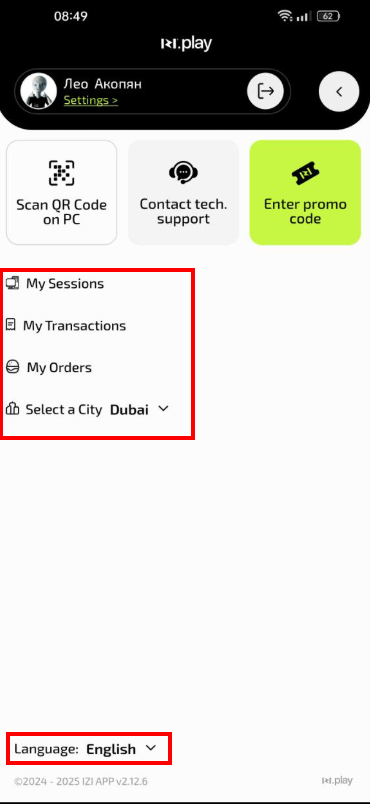
At the bottom of the screen there are sections for managing your stay in the club:
- My sessions
Why this matters: Track remaining time, extend sessions or end them early. - My transactions
Why this matters: Check the history of all payments — from balance top-ups to game time charges and bar orders. - My orders (bar food)
Why this matters: Quickly repeat previous orders, saving time on finding items in the menu.
Step 3. Configure the interface language

- Language selection (at the bottom of the screen)
Why this matters: Switch the interface between Russian and English if it is more convenient for you to use the app in another language.
Common problems and solutions
| Problem | What to do and why |
|---|---|
| The QR code is not scanned | What to do: Check camera permissions in the app settings and make sure the QR code is well lit. Why: Without camera access scanning is impossible. |
| The current session is not shown | What to do: Refresh the “My sessions” section by pulling the screen down. If that doesn’t help, re-login to the app. Why: Data may load with a delay due to internet speed. |
| Transaction history is not visible | What to do: Scroll the transaction list to the end. If the list is empty, check whether the correct club is selected. Why: Transactions are tied to a specific club and may not be displayed if the wrong club is selected. |